
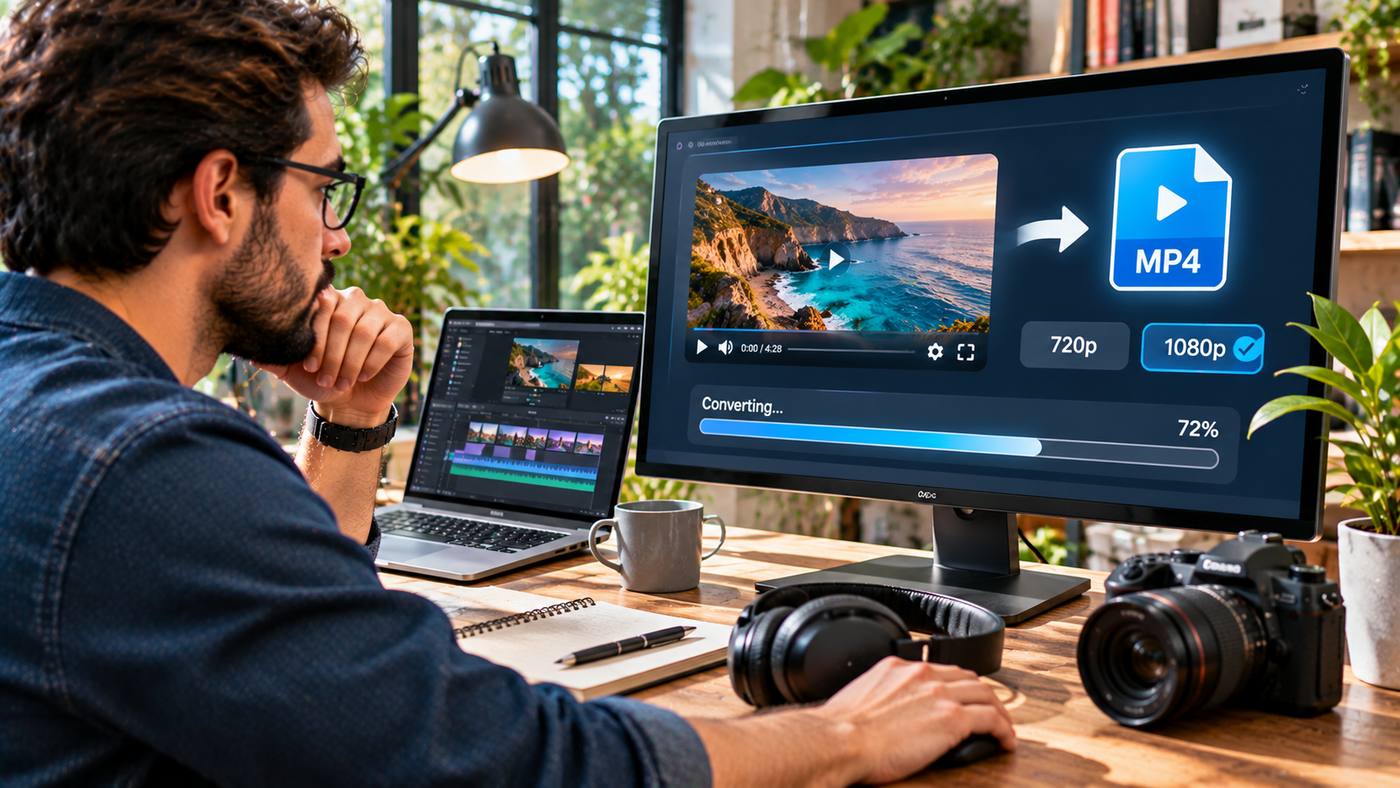
Online video has become an essential part of education, entertainment, marketing, and everyday communication. People regularly watch tutorials, product demonstrations, interviews, documentaries, and creative content across different devices. However, there are situations where having an authorised offline copy of a video is more convenient than relying entirely on an internet connection.
This has increased interest in tools and services associated with youtube videos to mp4 conversion. MP4 is a widely supported video format that works across smartphones, computers, tablets, and many editing applications. Its broad compatibility makes it useful for storing, organising, and sharing video files when the user has the necessary rights and permissions.
Online video converters can simplify certain file-management tasks, but downloading content from YouTube requires additional consideration. YouTube’s terms restrict downloading unless the service expressly authorises it or the user has the necessary permission. Copyright rules may also apply.
Understanding the difference between authorised offline viewing, downloading your own videos, and converting properly obtained files can help users choose the most appropriate method.
This guide explains how MP4 works, why it is popular, how browser-based conversion tools operate, and seven practical ways to manage video quality and security.
What Is YouTube to MP4 Conversion?
YouTube to MP4 conversion generally refers to obtaining video content in the MP4 container format.
MP4, also known as MPEG-4 Part 14, is a multimedia container capable of storing video, audio, subtitles, and supporting information.
It is widely used because it works with many devices and software applications.
However, converting a video and downloading it are technically different operations.
Understanding Video Downloading
Downloading involves transferring a copy of digital content from a remote service to a local device.
A video may already be available in MP4 format, meaning no additional conversion is necessary.
Other files may use different containers or encoding formats.
Importantly, the technical ability to obtain a video does not automatically establish permission to download or reuse it.
Understanding Video Conversion
Conversion involves changing a video’s container, encoding, or both.
For example, someone who owns a video in another format may convert it into an MP4 file for compatibility with a mobile device.
A converter may also change the video codec, resolution, bitrate, or audio settings.
These operations can affect file size and visual quality.
Why MP4 Is Popular
MP4 offers a practical balance of compatibility, compression, and playback support.
It is commonly used for educational videos, marketing materials, website content, and personal media libraries.
MP4 files encoded using H.264 video and AAC audio are particularly widely supported.
However, the .mp4 extension alone does not guarantee compatibility with every player, because the underlying codecs also matter.
Seven Smart Tips for Working With MP4 Video Files
Managing video files effectively requires attention to resolution, format, security, and legitimate access.
1. Confirm You Have Permission to Download
Before attempting to save online video content, establish whether downloading is permitted.
YouTube allows creators to download videos they have uploaded through supported account tools.
It also provides authorised offline viewing for eligible videos through YouTube Premium and certain regional features.
Other videos may be available for downloading when the creator has provided an authorised download option.
Do not assume that publicly accessible content is automatically available for unrestricted copying.
The same principle applies to material intended for editing, redistribution, or commercial use.
2. Choose an Appropriate Resolution
Resolution describes the dimensions of a video image.
Common options include 360p, 480p, 720p, and 1080p.
Higher resolutions generally provide more visual detail, but they can also require greater storage space and bandwidth.
For ordinary smartphone viewing, 720p may be adequate in many situations.
A 1080p file may be more appropriate when the source supports that quality and the video will be displayed on a larger screen.
However, selecting 1080p does not improve a source originally recorded at a much lower resolution.
3. Understand File Size Before Saving
Video file size depends on several factors.
These include duration, resolution, bitrate, codec, frame rate, and audio quality.
A five-minute clip may occupy substantially less storage than an hour-long recording.
Higher-quality encoding settings can produce larger files.
Before saving a substantial video library, consider the available storage on your device.
External drives or approved cloud storage may be useful for organising large collections of owned media.
4. Use Trusted Software and Websites
Online video tools vary in their security practices.
Some websites may display misleading advertisements, suspicious redirects, or buttons that resemble legitimate download controls.
Avoid installing unfamiliar browser extensions or executable files unless they are genuinely needed and come from a trustworthy source.
A straightforward file conversion should not require users to disclose unrelated personal information.
Keep the browser and operating system updated to reduce common security risks.
5. Check Video and Audio Compatibility
An MP4 file may contain different video and audio codecs.
H.264 and AAC are commonly supported combinations.
Other codecs may offer improved compression but require more recent hardware or software.
If an MP4 file fails to play, the problem may involve its codec rather than its container.
Checking the file’s technical properties can help identify the issue.
6. Avoid Unnecessary Re-encoding
Converting an already compressed video can reduce its quality.
When a source file is compatible with the intended device, additional encoding may be unnecessary.
For authorised video files, changing only the container without re-encoding may sometimes preserve the original streams.
This technique is known as remuxing.
However, it is only suitable when the destination container supports the existing codecs.
7. Organise Files After Downloading
Clear file organisation makes video libraries easier to manage.
Use descriptive filenames and meaningful folders.
For example, a business might organise its own video assets by project, campaign, or publication date.
Avoid unclear filenames consisting only of random characters.
Keeping source files separate from edited versions can also prevent accidental overwriting.
Exploring Browser-Based Video Download Tools
Some online services advertise the ability to inspect public video links and display available media formats.
For users researching youtube videos to mp4, VidsSave is one example of a browser-based video downloading service.
Its published descriptions explain that users can submit public video links and review available MP4 or audio formats returned for supported sources.
VidsSave also describes quality and file-size information that may help users evaluate different available options.
However, a third-party tool’s ability to process a URL does not establish that downloading a particular video is authorised under YouTube’s terms or copyright law.
How Link-Based Tools Operate
A typical link-based downloader requests a public video URL.
The service attempts to identify available media resources associated with that address.
If processing succeeds, it may present downloadable file formats and quality options.
The available results depend on the source, tool compatibility, and technical restrictions.
Not every video can or should be downloaded.
Understanding Available Quality Options
Some services display several resolution choices for the same video.
A user may see lower-resolution versions alongside higher-definition options.
However, availability is not guaranteed.
The video source, encoding, and the provider’s technical capabilities influence which formats can be offered.
Users should not assume that every public video can be obtained in 1080p or 4K.
Browser Compatibility
Browser-based services may operate without a dedicated desktop application.
This can be convenient for people using shared or frequently changing devices.
Nevertheless, browser compatibility depends on the service and the user’s operating system.
Security settings, extensions, and browser restrictions may also affect functionality.
Official Ways to Save YouTube Content
YouTube provides several authorised methods for saving or accessing eligible content offline.
These options should be considered before using an unrelated third-party service.
Downloading Videos You Uploaded
Creators can download copies of eligible videos they previously uploaded to their own YouTube accounts.
YouTube Studio provides download functionality for supported uploads.
Creators can also use Google Takeout to export certain account data, including uploaded videos.
This can be useful for maintaining backups or migrating a creator’s own content.
YouTube Premium Offline Viewing
YouTube Premium offers offline viewing for eligible videos in supported locations and applications.
Depending on the device and region, subscribers can save videos for playback without a continuous internet connection.
However, these downloads are generally managed within YouTube’s supported viewing environment.
They should not be confused with ordinary transferable MP4 files.
Creator-Authorised Downloads
Some creators distribute their videos through websites or file-sharing services that provide explicit download permission.
In those circumstances, users should follow the creator’s stated conditions.
Permission to watch a video does not automatically include permission to redistribute or commercially reuse it.
Properly Licensed Video Libraries
Businesses frequently need footage for advertising, presentations, or educational materials.
Licensed stock video libraries and original production files can provide more appropriate sources than downloading third-party videos without permission.
Always review the licence before publishing or modifying the material.
MP4 Resolution and Video Quality Explained
Understanding resolution helps users manage video storage and playback expectations.
Standard Definition
Lower-resolution video may remain useful when internet bandwidth or storage space is limited.
For some small-screen applications, the difference may be less noticeable.
However, fine details and text can become difficult to read.
HD 720p
A 720p video commonly uses a frame size of 1280 × 720 pixels.
This format can provide a reasonable balance between detail and file size.
Its suitability depends on the content and intended screen.
Full HD 1080p
A 1080p video commonly uses 1920 × 1080 pixels.
It can be useful for larger displays, detailed educational demonstrations, and professional content.
However, visual quality also depends on compression and source material.
4K Video
A common 4K UHD resolution is 3840 × 2160 pixels.
This provides considerably more pixels than 1080p.
However, 4K files may require substantial storage and compatible playback equipment.
A source that was never produced in 4K cannot gain genuine original detail simply through ordinary conversion.
Understanding MP4 Codecs and Compression
Video compression reduces the amount of data required to store moving images.
Different codecs balance file size, quality, and processing requirements.
H.264
H.264 is widely supported across computers, smartphones, browsers, and editing applications.
It remains a practical choice when compatibility is important.
H.265
H.265, also called HEVC, can offer more efficient compression than H.264 under many conditions.
However, software and hardware support varies.
Some devices may require additional decoding capabilities.
AV1
AV1 is a modern video codec designed for efficient compression.
It is increasingly supported by browsers and devices.
Older hardware may have more limited compatibility or require additional processing resources.
Why Bitrate Matters
Bitrate describes the amount of data used over time.
A very low bitrate can introduce visible compression artifacts.
A higher bitrate can preserve more detail, although it increases file size.
The ideal setting depends on the source and intended use.
Working With MP4 on Different Devices
MP4 is widely supported, but device capabilities still matter.
Windows Computers
Windows users can play compatible MP4 files through supported media applications.
Video editors may also accept MP4 footage for further production.
If a file does not play correctly, checking codec compatibility can help.
Mac Computers
Mac users can open many MP4 files using standard media applications.
Compatibility depends on the video and audio codecs.
Professional workflows may require converting files into editing-friendly formats.
Android Devices
Android smartphones commonly support MP4 video.
However, very high-resolution or unusual codec combinations may not work equally well on every device.
Storage capacity is another consideration.
iPhone and iPad
Apple mobile devices support common MP4 configurations.
Files can be managed through compatible applications and file-management tools.
Users should distinguish ordinary MP4 media files from offline videos stored within subscription applications.
Video Conversion for Content Creators
Creators often need video files in several formats for different publishing channels.
Repurposing Original Footage
A creator who owns the source video may convert it into an MP4 suitable for different editing applications.
This is useful when footage comes from cameras or recording software using another format.
Preparing Website Videos
Websites sometimes embed short MP4 clips to demonstrate products or explain services.
Videos should be compressed appropriately to avoid unnecessary loading delays.
A poster image, accessible controls, and suitable playback behaviour can improve the user experience.
Editing Educational Content
Teachers and training organisations may work with original recordings to prepare lessons.
Converting authorised footage into a compatible format can simplify editing and distribution.
The source material should be used according to applicable permissions.
Archiving Business Media
Businesses may maintain collections of product demonstrations, webinars, and marketing recordings.
Consistent formats and filenames can make these libraries easier to search and manage.
Maintaining original masters alongside compressed copies can support future editing.
Common Video Downloading and Conversion Problems
Different issues can affect playback or conversion.
The Video Cannot Be Processed
A service may fail because a video is unavailable, restricted, private, or technically unsupported.
This does not necessarily indicate a problem with the user’s device.
Avoid attempting to bypass access controls.
The Downloaded File Has No Audio
Audio may be stored separately or encoded using a format that the selected player does not support.
For authorised source files, inspect the available audio streams before converting.
The Video Looks Blurry
Low-quality source footage cannot be fully restored simply by selecting a higher export resolution.
Excessive compression may also reduce visual clarity.
Whenever possible, work from the highest-quality authorised original.
The File Is Too Large
Long videos and high bitrates can result in substantial file sizes.
Users working with owned or licensed files may reduce bitrate or resolution when appropriate.
However, aggressive compression can noticeably reduce quality.
The File Will Not Open
An incorrect extension, incomplete download, unsupported codec, or damaged file can prevent playback.
Testing the video in a reputable media player may help identify the issue.
Copyright and YouTube’s Downloading Rules
Copyright and platform permissions are important whenever online video content is copied.
YouTube’s terms restrict downloading content unless expressly authorised by the service, permitted by the relevant rights holder, or otherwise allowed under applicable law.
Watching Versus Copying
Watching a public video is different from creating a local copy.
The fact that a video is freely viewable does not automatically grant permission to redistribute it.
Personal Use Is Not Always Sufficient
Some users assume that downloading content is automatically permitted when the file will be used privately.
However, copyright rules and platform agreements may still impose restrictions.
Applicable exceptions depend on jurisdiction and circumstances.
Reusing Videos in Marketing
Businesses should obtain appropriate rights before using someone else’s footage in advertisements or promotional projects.
Giving credit alone does not necessarily provide permission.
Original recordings and properly licensed video assets are generally clearer options for commercial production.
How to Evaluate an Online Video Tool
Before using a third-party service, consider its functionality, transparency, and security.
A trustworthy platform should clearly describe its supported formats and limitations.
It should not make unrealistic promises about accessing every video or circumventing restricted content.
Review whether it requires unnecessary permissions, unfamiliar extensions, or account credentials.
Avoid submitting private information or sensitive media to services that do not provide adequate privacy details.
For professional projects, local conversion software may be preferable when the files are confidential or contain client information.
Frequently Asked Questions
Can I save YouTube videos as MP4?
You can download your own eligible uploads through YouTube’s supported tools. Other content requires an authorised download option, permission, or another applicable legal basis. YouTube Premium downloads are generally intended for viewing within its supported environment.
Is MP4 better than other video formats?
MP4 is widely compatible and convenient, but it is not automatically superior for every task. The appropriate format depends on the codec, editing workflow, storage needs, and playback requirements.
Does converting a video to MP4 improve its quality?
Not necessarily. Converting a file cannot recover original detail that is missing from the source. Re-encoding may also introduce additional quality loss.
Can MP4 videos play on mobile devices?
Yes. Most modern smartphones support common MP4 formats, especially H.264 video with AAC audio. Compatibility can vary with other codecs and higher resolutions.
Conclusion
MP4 remains a practical video format for everyday playback, content production, and digital media management.
Interest in youtube videos to mp4 reflects the demand for accessible video files, flexible playback, and reliable offline viewing.
However, obtaining a video file and having permission to download it are separate considerations.
Users should prioritise authorised downloads, properly licensed media, secure software, and appropriate video settings.
Understanding resolution, codecs, file size, and compatibility can also help prevent common quality and playback problems.
By combining responsible downloading practices with effective file management, creators and everyday viewers can work with video content more confidently while respecting platform rules and intellectual property rights.
