
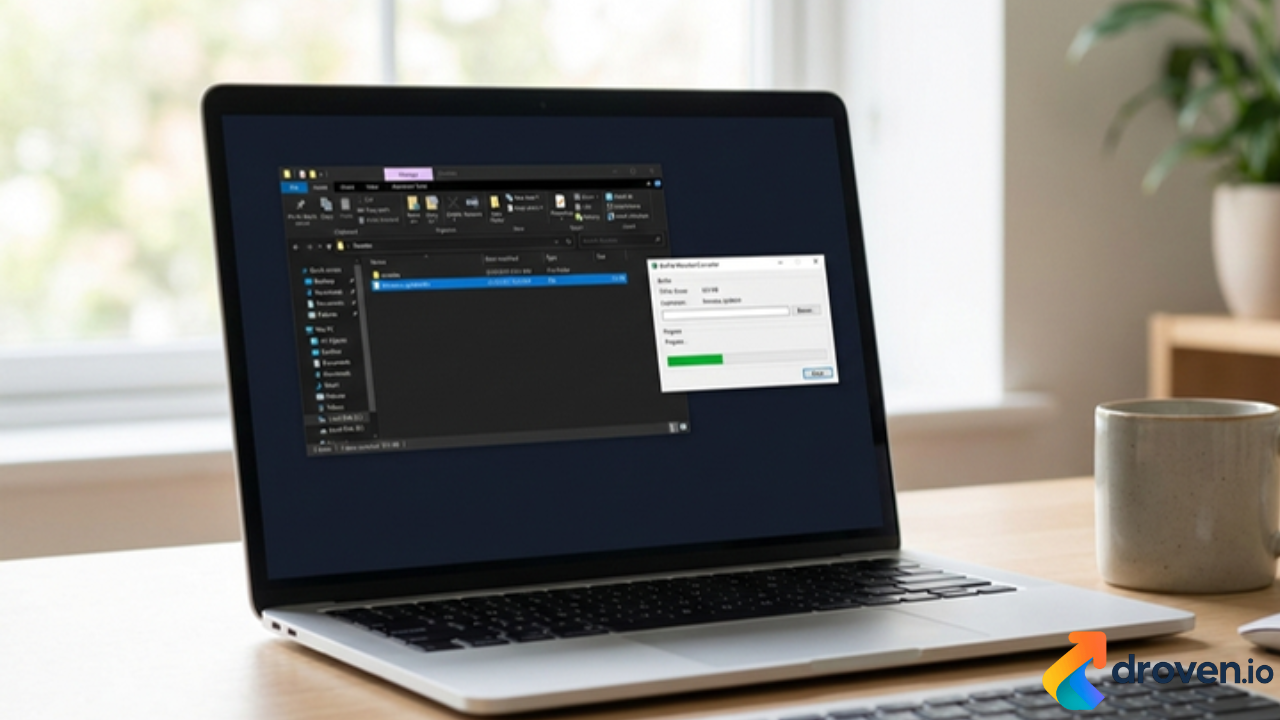
Many users often encounter a file with a .bin extension and feel confused about how to access it. Understanding how to open BIN file correctly is important because BIN files can store different types of data, such as software images, firmware, videos, or disc images. The way you open a BIN file depends entirely on what kind of data it contains.
This guide explains what BIN files are, how to identify their purpose, and the correct methods to open them on Windows, Mac, and mobile devices.
What Is a BIN File?
A BIN file (short for “binary file”) is a format that stores data in binary form rather than readable text. Because of this, BIN files cannot be opened directly like documents or images.
BIN files are commonly used for:
- CD or DVD disc images
- Game ROM files
- Firmware updates
- Program installation data
- Video or audio containers
Before opening a BIN file, it is essential to understand what created the file and what it is used for.
How to Identify the Type of BIN File
To determine how to open a BIN file:
- Check where the file came from
- Look at accompanying files such as CUE, ISO, or TXT
- Read instructions from the source website
- Check file size and context
For example, a BIN file downloaded with a game emulator is different from a BIN file included with software installation files.
How to Open BIN File on Windows
Method 1: Open BIN File as a Disc Image
If the BIN file is a disc image:
- Install a disc image tool such as PowerISO or WinCDEmu
- Open the software
- Select the BIN file
- Mount it as a virtual drive
Once mounted, the contents will appear like a physical disc.
Method 2: Convert BIN to ISO
Many BIN files work better as ISO files:
- Use a conversion tool
- Convert BIN to ISO
- Double-click the ISO file to mount it
This method is ideal for older disc images.
Method 3: Open BIN File with the Correct Program
Some BIN files are part of specific software:
- Game BIN files need emulators
- Firmware BIN files need manufacturer tools
Never open unknown BIN files without knowing their source.
How to Open BIN File on Mac
Mac users can open BIN files using built-in or third-party tools.
Option 1: Disk Utility
- Open Disk Utility
- Choose “Open Disk Image”
- Select the BIN file
If supported, macOS will mount the file.
Option 2: Convert BIN to ISO
Use a terminal command or third-party converter to convert BIN to ISO before opening.
How to Open BIN File on Android
On Android devices:
- Use file manager apps that support BIN files
- Media BIN files may open in video players
- Game BIN files require emulators
BIN files used for firmware updates should only be opened using official tools.
How to Open BIN File as Video or Audio
Sometimes BIN files store media:
- Try opening with VLC Media Player
- Rename the file extension to .mp4 or .avi (only if you are sure)
- Test playback
This works only if the BIN file contains multimedia data.
Common Problems When Opening BIN Files
- File extension mismatch
- Missing companion files
- Unsupported format
- Corrupt or incomplete downloads
Always verify the source before attempting to open or convert a BIN file.
Safety Tips When Opening BIN Files
- Avoid BIN files from unknown sources
- Scan files for malware
- Do not run BIN files without instructions
- Use trusted software tools
BIN files are powerful but should be handled carefully.
Read Also: droven.io
FAQs About Opening BIN Files
Q1: Can I open a BIN file without software?
No. BIN files require compatible software or conversion tools.
Q2: Is BIN the same as ISO?
No. BIN and ISO are different formats, but BIN files can often be converted to ISO.
Q3: Why won’t my BIN file open?
The file may be unsupported, corrupted, or not meant to be opened directly.
Q4: Is it safe to convert BIN files?
Yes, if the file is from a trusted source and you use reliable tools.
Conclusion
Knowing how to open BIN file depends on understanding its purpose and choosing the right tool. BIN files are not meant to be opened like normal documents, but with the correct method, you can easily access their contents. Whether you are working on Windows, Mac, or Android, identifying the file type first will save time and prevent errors.
