
A PDF is built to look the same everywhere, which is exactly why it resists being edited. The moment you need to change a clause in a contract or update a paragraph in a report, the file format that made the document portable becomes the thing standing in your way. Converting it to Word solves that problem, but not every converter solves it the same way — some flatten tables, some choke on scanned pages, and some quietly ask for a subscription halfway through. Here are ten tools that actually get it right, and what each one is best suited for.
1. StandardsPDF
StandardsPDF is an all-in-one online PDF editor and converter, and its PDF-to-Word tool is built around not losing anything in the process. The service StandardsPDF supports more than 40 file formats, converts in under 10 seconds, and — because it runs OCR trained on 95+ languages at a claimed 99.8% accuracy — it handles scanned documents and image-based PDFs as reliably as native ones. Everything happens in the browser, so there’s nothing to install, and the platform meets GDPR and PCI DSS requirements, which matters if the document you’re converting is a contract or an HR form rather than a class handout.
- Key features: OCR across 95+ languages, 40+ supported formats, browser-based (no install), GDPR/PCI DSS compliant, keeps original formatting
- Price: Free to start, with paid plans for extended use
- Best for: Anyone converting scanned or formatted documents who wants formatting preserved without installing software
Acrobat turns a PDF into a DOCX file in seconds and, notably, tends to reconstruct multi-column layouts, tables, headers, and footnotes rather than approximating them. OCR is built in for scanned files, and converted documents can be edited directly in Word for the web after signing in.
- Key features: OCR, multi-column and table reconstruction, image preservation, cross-platform
- Price: Free with daily limits; Acrobat Pro subscription needed for unlimited and batch conversions
- Best for: Complex, professionally formatted documents where layout fidelity is non-negotiable
3. Smallpdf
Smallpdf’s converter asks for nothing — no account, no signup — for a single conversion, and outputs a standard DOCX that opens cleanly in Word or Google Docs. OCR exists but is reserved for the Pro tier.
- Key features: No login required, cross-platform, OCR (Pro only), files auto-deleted after an hour
- Price: Free for one conversion; Pro plan (with 7-day trial) unlocks unlimited use and 40+ additional tools
- Best for: A quick one-off conversion without creating an account
4. iLovePDF
iLovePDF’s conversion runs on Solid Documents technology and offers two paths: standard conversion for text-based PDFs, and an OCR Premium option for scanned files, with recognition available in 14 languages.
- Key features: Multi-language OCR (14 languages), cloud upload from Google Drive or Dropbox, high-accuracy engine
- Price: Free basic conversion; premium tiers available
- Best for: Documents in a non-English language that still need accurate OCR
5. PDFgear
PDFgear keeps things simple — no account, no paywall — and still includes an OCR mode for scanned documents alongside a faster standard mode for native PDFs, preserving fonts and styling either way.
- Key features: OCR mode, format preservation (fonts, bold, italics), no login, works offline via desktop app
- Price: Free, including OCR
- Best for: Getting a fully free conversion without hitting a feature wall
6. CloudConvert
CloudConvert leans on format-conversion infrastructure rather than a simple upload box, which shows in how it handles tables and layout — it’s built to hand back “an actual usable, clean Word document” instead of something that needs re-formatting afterward.
- Key features: Layout and table preservation, broad format support beyond just PDF/Word
- Price: Freemium, credit-based
- Best for: Batch or repeated conversions as part of a larger workflow
7. Xodo
Xodo applies OCR automatically rather than as an optional toggle, so scanned PDFs and native ones go through the same fast process — conversions are described as taking seconds either way.
- Key features: Automatic OCR, batch processing (subscription), cross-platform including mobile
- Price: Free (one conversion daily); paid tier for more
- Best for: Mobile-first users who convert PDFs on the go
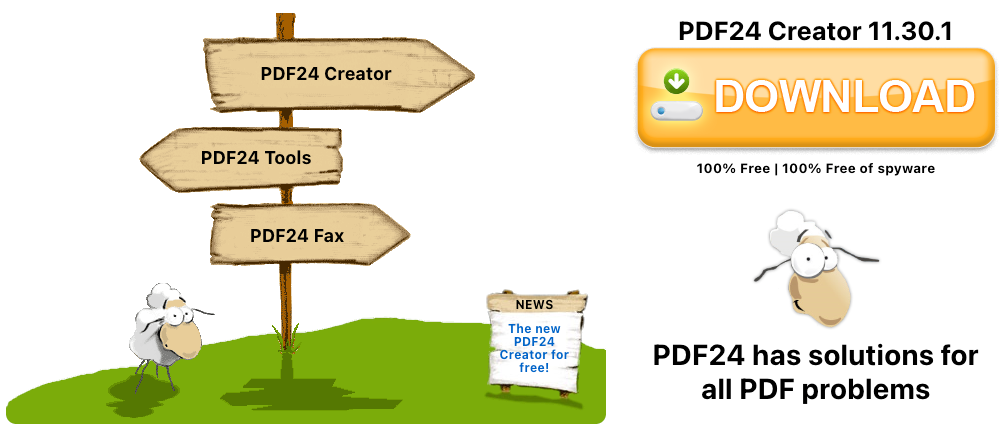
8. PDF24
PDF24 is entirely ad-supported, with no registration, no subscription upsell, and no time restrictions on use — a rarity in this category. It also exposes more manual control than most competitors, including DPI and image-quality settings for the output.
- Key features: Adjustable conversion settings (DPI, image quality), no installation, SSL-secured transfer
- Price: Completely free
- Best for: Anyone who wants a genuinely free tool with no premium tier waiting behind it
9. PDF Candy
PDF Candy applies OCR automatically to scanned files and supports batch processing, and — unlike most tools on this list — actually publishes its prices: $6/month for unlimited web use, $4/month billed yearly for desktop plus web, or a one-time $99 lifetime plan.
- Key features: Automatic OCR, batch conversion, cloud storage integration, desktop app
- Price: $6/month, $4/month (yearly), or $99 lifetime
- Best for: Frequent users who’d rather pay a flat, transparent rate than guess at usage limits
10. FreeConvert
FreeConvert supports batch conversion out of the box and accepts files up to 1GB for free users — well above what most competitors allow — along with optional password protection for encrypted source PDFs.
- Key features: Batch conversion, 1GB file size limit, multiple upload sources (Dropbox, Drive, OneDrive, URL)
- Price: Free, with upgrade options for higher capacity
- Best for: Large files or batches that other free tools reject for being too big
None of these tools change what a PDF actually contains — a badly scanned page will still confuse OCR no matter which converter runs it, and a heavily designed layout will always need a manual check after conversion. What separates them is how much of that work they do for you before you open the result in Word. For most day-to-day conversions — contracts, forms, scanned notes — StandardsPDF covers the widest range of formats and document types without asking you to install anything or pay before you’ve seen the result.
