
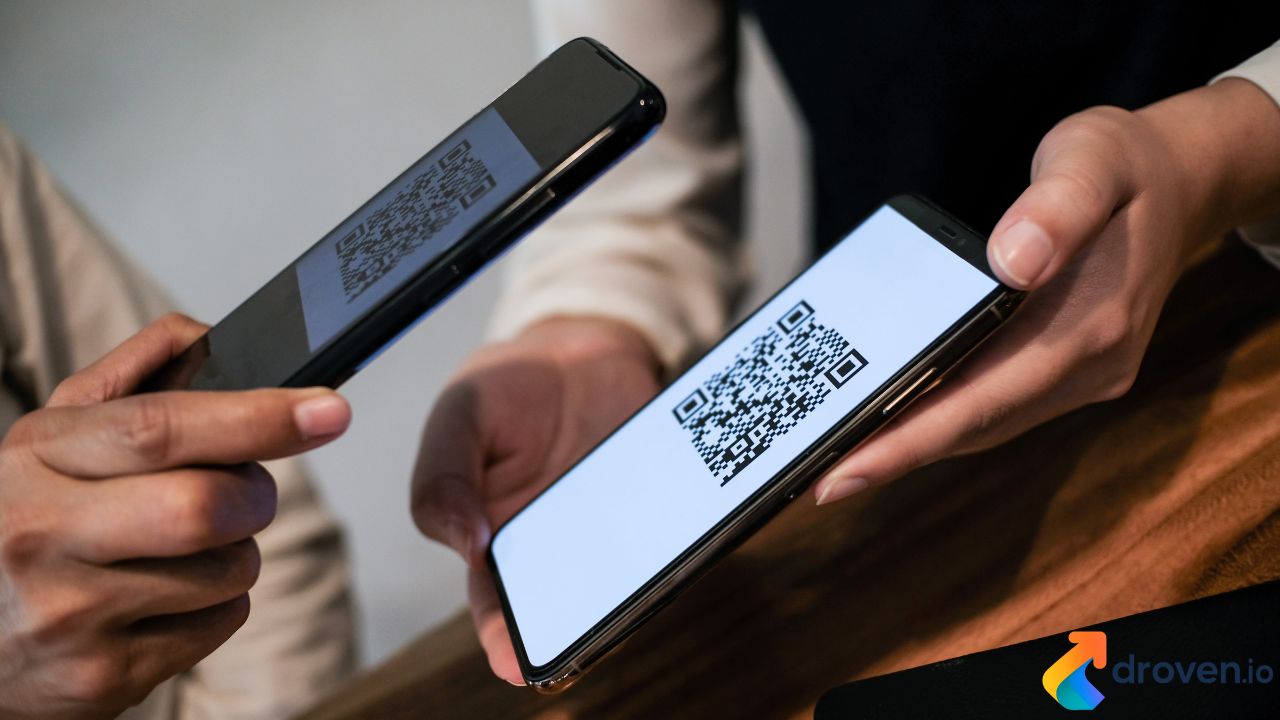
QR codes have become widely used for sharing links, accessing menus, downloading apps, and verifying digital information. While many people scan them with smartphones, it is also possible to scan QR codes on your browser using various online tools and browser features.
Scanning QR codes directly in a browser can be especially useful when working on a computer or when you need to decode a QR code from an image or screenshot.
What Is a QR Code?
A QR code (Quick Response code) is a type of two-dimensional barcode that stores information such as URLs, contact details, Wi-Fi credentials, or text. When scanned, the code directs the user to the stored data.
QR codes are commonly used in:
- Websites and marketing materials
- Product packaging
- Event tickets
- Restaurant menus
- Payment systems
Because they are easy to generate and scan, QR codes have become a popular digital tool.
Why Scan QR Codes on Your Browser?
There are several situations where scanning a QR code through a browser can be helpful.
Access QR Codes from Images
Sometimes QR codes appear in screenshots, PDFs, or image files on your computer. Browser tools allow you to decode these images quickly.
No Smartphone Required
If you are working on a desktop computer, scanning the QR code directly in your browser eliminates the need to use your phone.
Faster Workflow
For developers, marketers, or designers, browser-based scanning helps quickly test QR codes during development or design.
Methods to Scan QR Codes on Your Browser
There are multiple ways to scan QR codes on your browser, depending on your device and browser capabilities.
Using Online QR Code Scanner Websites
Several websites allow you to upload an image containing a QR code.
Typical steps include:
- Open an online QR code scanner website.
- Upload the QR code image from your computer.
- The website decodes the QR code and displays the stored information.
These tools work with most modern browsers.
Using Browser Extensions
Many browsers support extensions that can detect and scan QR codes directly from webpages or images.
Extensions can provide features such as:
- Right-click scanning of images
- Automatic QR code detection
- Instant decoding of links
Popular browsers like Chrome, Firefox, and Edge offer QR code scanning extensions.
Using Built-In Browser Tools
Some browsers include built-in QR code features.
For example:
- Google Chrome allows QR code scanning through camera access on certain devices.
- Microsoft Edge supports camera-based QR scanning in some versions.
These features allow users to scan QR codes directly without installing additional tools.
Using Your Computer’s Webcam
Many online scanners allow the use of a webcam to scan a QR code.
The process usually involves:
- Granting camera permission in the browser.
- Holding the QR code in front of the camera.
- The browser automatically reads the code and displays the result.
This method works similarly to smartphone scanning.
Types of Information Stored in QR Codes
When you scan QR codes on your browser, the decoded information may include:
- Website URLs
- Contact information (vCards)
- Wi-Fi login credentials
- App download links
- Text messages or notes
The browser will usually display the data and allow you to open links or copy the information.
Security Tips When Scanning QR Codes
Although QR codes are convenient, they can also be used for malicious purposes.
Safety tips include:
- Avoid scanning QR codes from unknown sources
- Verify links before clicking
- Use trusted QR scanning tools
- Keep your browser and security software updated
These precautions help protect against phishing or malware threats.
Advantages of Browser-Based QR Scanning
Scanning QR codes on your browser offers several benefits.
Convenience
You can scan codes directly from images or webpages without switching devices.
Accessibility
Browser-based tools work across many operating systems and devices.
Integration with Digital Workflows
Developers and marketers often use browser scanners when testing or creating QR codes.
Conclusion
Learning how to scan QR codes on your browser provides a convenient way to decode information directly from your computer. Whether using online scanning tools, browser extensions, or built-in camera features, modern browsers offer several easy options for reading QR codes.
As QR codes continue to be used in marketing, payments, and digital communication, browser-based scanning tools will remain valuable for quick and efficient access to information.
FAQs
Can I scan QR codes on a desktop browser?
Yes, many online tools and browser extensions allow you to scan QR codes using your computer.
Do I need a webcam to scan QR codes in a browser?
Not always. You can also upload QR code images to online scanners.
Are QR code scanners safe to use?
Most are safe, but it is important to verify links and use trusted tools.
Which browsers support QR code scanning?
Browsers like Chrome, Edge, and Firefox support QR scanning through extensions or built-in features.
Can I scan QR codes from screenshots?
Yes, many online scanners allow you to upload screenshots containing QR codes for decoding.
