
“Take my demo.mp4 video. Write a short caption and hashtags for TikTok, then a title and description for YouTube. Show me both versions. Once I approve them, publish the video to our company accounts.”
With an AI agent connected to DroidDesk, that request becomes a task it can work through on an Android device. DroidDesk gives you a cloud phone running on a real smartphone that you control from your computer. The agent can transfer a file, open an app, select a video, and fill in the publishing fields. You can watch the phone’s screen as it works.
The same connection can help with registration forms and other mobile tasks. Once a sequence works, you can save its repeatable steps as a template.
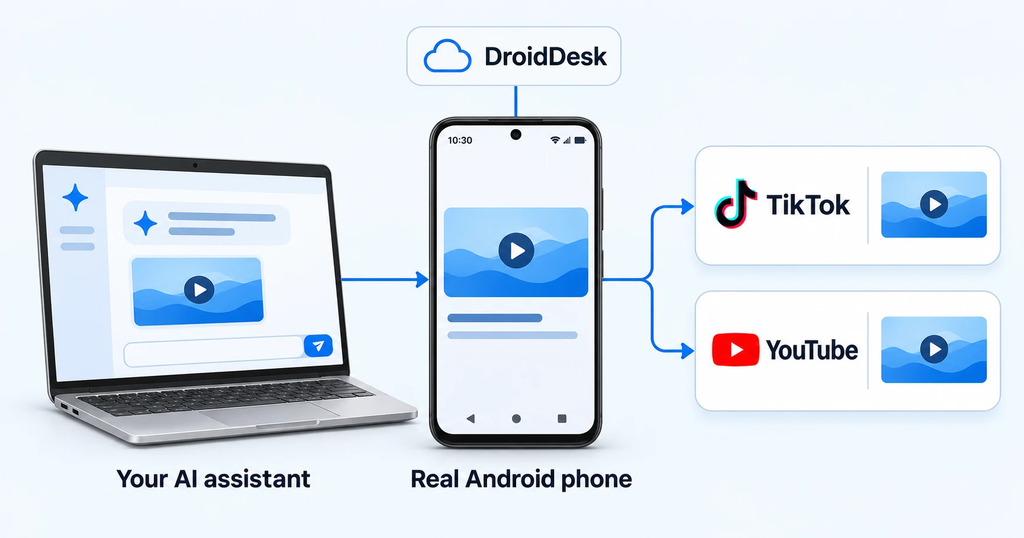
An AI assistant can work through publishing tasks on a real Android phone.
One video, two social platforms
Imagine you have recorded a short demonstration of someone controlling an Android phone from a laptop. You want to share it on TikTok and YouTube, with text suited to each platform.
Normally, you would transfer the video, open each app, select the file, and enter the publishing details yourself. With DroidDesk, you can ask your agent to handle those steps on a rented phone with access to the required apps and accounts.
For TikTok, a suggested caption might be:
“A real Android phone, controlled from my laptop. Here’s what it looks like. #Android #DroidDesk”
For YouTube, the agent could suggest the title “How to Control an Android Phone from Your Computer with DroidDesk” and write a description explaining what viewers see in the demonstration.
You review the text before publication. Specify the account and audience settings as part of the request so the agent knows where the video belongs.
File transfer depends on the AI client. If it cannot send your attachment directly, DroidDesk provides a private upload page where you can select the file. The agent can then check whether the video appears on the phone before using it.
Ask for a verifiable result from each platform: the published TikTok link and the YouTube upload status, for example. If one post is live while the other is still processing, the report should make that clear.
How your AI agent connects to the phone
You choose an available DroidDesk device by model, location, and connection type. The physical phone stays at its hosted location, while you access its screen through a browser or the DroidDesk desktop app.
To give an agent access, open AI / MCP in your dashboard and follow the connection wizard. Create a key for the selected phone and grant control permission if you want the agent to tap, type, and navigate apps.
MCP, short for Model Context Protocol, connects your AI client to DroidDesk’s phone controls. The agent reads the current screen, takes an action, and checks the result. If an app asks for gallery access instead of opening the video editor, the agent can see that request and respond to the actual screen.
DroidDesk provides connection instructions for Codex, Claude Code, and Cursor. Other clients can work if they support remote HTTP MCP with Bearer authentication.
MCP access is included in the phone rental. Your chosen AI provider charges separately under its own terms, and the rental plan determines which apps and device features are available.
Filling forms: a Yahoo registration example
Suppose you need a Yahoo email address for a new project. You can ask the agent to open the registration form and fill it with the details you provide.
If your preferred username is unavailable, the agent can read the response and help you choose an alternative. If a field fails validation, it can identify the problem before continuing.
Phone verification is a separate step. Where DroidDesk’s SMS integration is available and you have connected a provider, the agent can check offers and prices before requesting your approval to order a number. Yahoo determines whether it accepts that number, and additional verification may require your participation.
The result to check is whether you can open the new mailbox. Receiving a verification code alone does not establish that registration is complete.
The same approach applies to other forms: provide the information, specify when to stop for review, and ask the agent to check the result.
Save repeatable steps as templates and use fewer tokens
Next week, your video and caption will change, but much of the upload process may stay the same. After a successful run, you can ask:
“Save the verified steps as my private TikTok draft template. Make the filename, caption, and hashtags parameters. End by checking that the preview screen is open.”
For the next video, supply the new values and run the saved template.
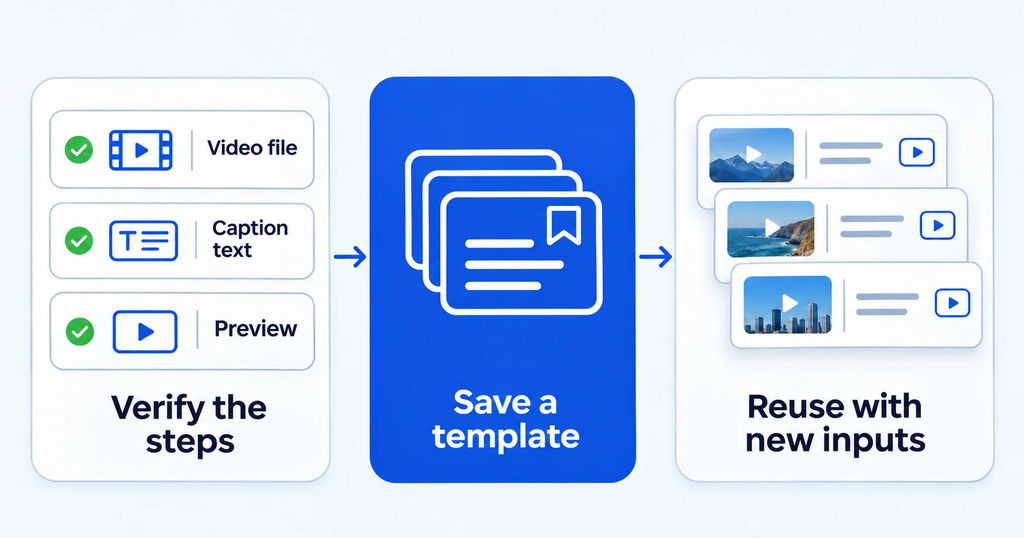
Verify the workflow, save its repeatable steps, and supply new inputs for the next run.
DroidDesk executes supported template steps without calling the AI model for every tap. This can reduce token usage when the same sequence runs repeatedly. The agent may still use tokens to create the template, write new captions, start a run, or interpret its results.
A template follows the steps you saved. If an app changes its interface or introduces an unexpected verification screen, the sequence may need adjustment.
You can also save a separate YouTube workflow and combine templates into a scenario. Each stage has its own result, making it easier to see what finished and where attention is needed.
The same real phone can also activate an eSIM
DroidDesk is useful beyond AI automation. You can open the remote screen and operate the Android phone yourself, including installing your own eSIM on a compatible device with an eligible rental plan.
This matters when a carrier requires the phone to connect to a local cellular network during initial activation. A compatible DroidDesk handset in the required country can provide that local connection while you manage setup remotely.
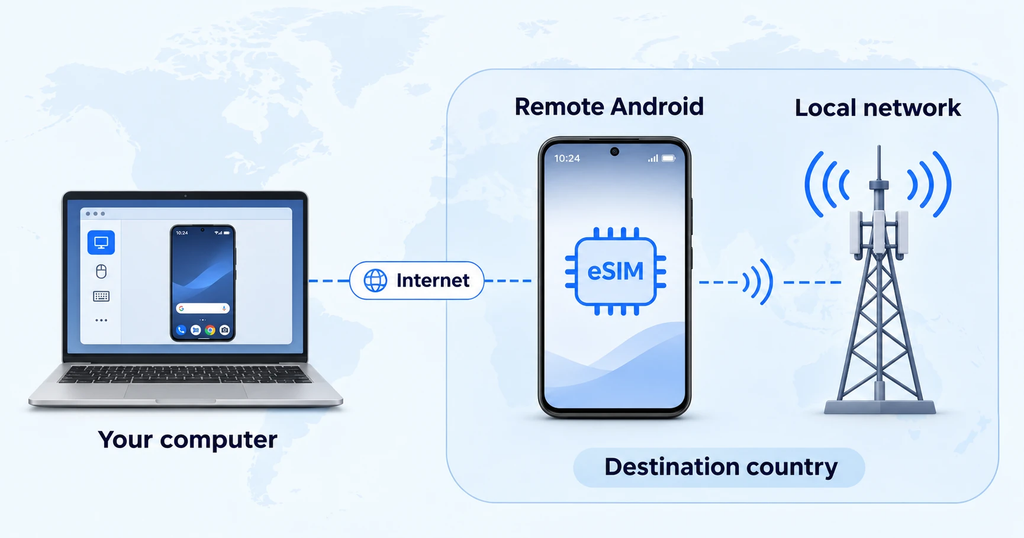
The eSIM runs on the remote handset, which connects to the local mobile network in its country.
Choose an available device marked Bring Your Own eSIM, check its model and IMEI with your provider, and confirm the carrier’s activation and account requirements. This can apply to the United States and other available countries.
The eSIM is installed on the rented phone. Moving it to your personal handset is a separate carrier process. During the rental, you can use supported SMS and mobile data; voice calls are currently unavailable.
See how to choose a device and complete setup in the DroidDesk remote eSIM activation use case.
