
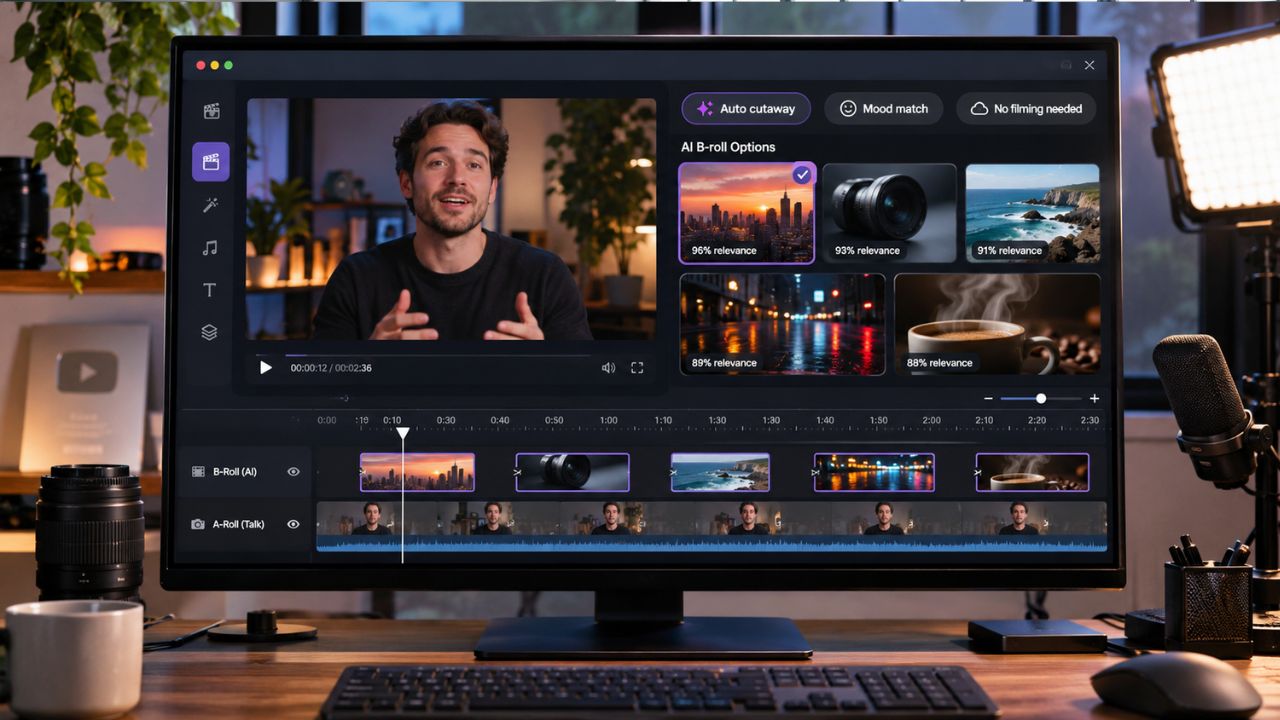
B-roll is what keeps a talking-head video, tutorial or podcast from feeling like a single static shot. It is also one of the slowest parts of an edit. Someone has to work out which lines need visual support, find or create the right shots, place them at the right moment and trim them against the dialogue. Automated scene matching hands much of that work to software. This guide compares six tools that do it, so you can pick the one that fits how you edit.
Before comparing tools, it helps to be clear about what you are comparing:
- What scene matching means. The tool reads your script, transcript or footage, decides where visuals are needed and chooses clips that fit what is being said.
- Where the footage comes from. Some tools pull from your own library, some from licensed stock, and some generate new shots with AI. Each route has different cost and control.
- Who decides placement. A tool can suggest moments for you to approve, or place and time clips on its own.
- What happens after the match. The first pass is rarely perfect, so swapping a clip, retiming it or regenerating it matters as much as the initial match.
- What it costs to use. Credits, plan tiers and monthly caps decide how many matches you can make.
These six tools are compared on the same four jobs: finding the moments that need B-roll, sourcing footage, placing and timing it, and refining the result. The descriptions below come from each product’s published pages and help documentation, not from a matched hands-on test of the same project in every tool.
At a Glance: Best AI B-Roll Tools for Automated Scene Matching
| Tool | Finding the Moments | Sourcing Footage | Placing and Timing | Refining the Result |
| Invideo Editor | The built-in agent reads your script or dialogue and identifies lines that need visual support. | Stock library or generated B-roll from 200+ AI models, plus your own media. | The agent aligns shots with dialogue and action on a multitrack timeline. | Ask for replacements or adjust timing and placement manually. Generated clips use credits. |
| Descript | Underlord reads the script and uses media understanding to find clips based on on-screen activity. | Your own media, stock library, or AI-generated video. | Underlord places clips against the script in a scene-based editor. | Edit scenes manually or ask Underlord to refine them. AI actions use monthly credits. |
| OpusClip | AI identifies suitable B-roll moments and suggests placements for review. | AI-generated images, AI video, or stock footage. | Add clips to suggested moments in one click, then drag, crop, or trim them. | Regenerate clips using new prompts. AI video B-roll requires a higher-tier plan and credits. |
| Submagic | Magic B-rolls analyzes content and automatically adds relevant footage. | Stock footage library, with AI-generated options on select plans. | Automatically inserts B-roll alongside captions in a short-form video editor. | Replace or remove clips manually. Library access and video limits depend on the plan. |
| Vizard | AI analyzes speech and visual context to recommend relevant B-roll placements. | Integrated stock libraries, uploaded media, or AI-generated visuals. | Automatically places suggested clips, with adjustable timing. | Review, replace, and adjust clips. AI-generated visuals depend on plan availability. |
| Pictory | Converts each sentence of a script or article into an individual scene. | Stock video and image library. | Automatically matches footage to scenes and assembles videos with captions and voiceovers. | Replace footage scene by scene. Matching accuracy varies, and no free plan is available. |
1. Invideo Editor: For agent-led B-roll on an editable timeline
Invideo Editor is an AI-powered video editor that pairs a browser-based, multitrack timeline with a built-in editing agent. You work in the same project either way: the agent can assemble cuts, source or create supporting footage and build effects, and you can step in with manual controls at any point. A connected assistant such as Claude or ChatGPT can also edit the same project through MCP.
Invideo’s AI B-roll generator starts from your script or dialogue. Upload your footage, tell the agent to analyse what is said, and it identifies the moments that would benefit from visual support. It then either searches the stock library for a fitting shot or generates a new one using 200+ AI models, depending on what the line needs. You can also point to specific moments yourself, or brief the agent without a finished script by describing the shots you are looking for.
Placement happens on the timeline. The agent aligns each clip with the relevant dialogue and action, and the result stays editable: you can keep it, ask for a replacement with feedback on the subject, action, style or framing, or adjust the timing and placement by hand. The agent can also find or generate music and sound effects to sit around the visuals.
On access, manual editing and exports in invideo Editor are free under current guidance, so confirm export resolution and account conditions before you rely on them. Work done by the built-in agent uses invideo credits, and so does generating images, video or audio. When Claude or ChatGPT edits through MCP, ordinary editing does not consume invideo editing credits, though the assistant’s own plan limits apply and generated media still uses invideo credits.
Invideo Editor suits creators who want the agent to find, source and place B-roll against a script or dialogue and then keep full manual control of the timeline.
2. Descript: For transcript-led editing with an AI co-editor
Descript is a video and podcast editor built around editing through the transcript. Its AI co-editor, Underlord, can act on your project, and Descript describes a media understanding capability that lets Underlord watch footage. Instead of working from the transcript alone, it can find clips by what happens on screen, such as a moment where someone holds something up.
For B-roll, Descript’s own engineering team describes the workflow as telling the agent to look in your media and add appropriate B-roll where the script calls for it. Underlord can also generate bespoke B-roll with generative video, and the editor offers a stock library of video, images and GIFs. Scenes are the unit of editing, so reordering or swapping a cutaway does not mean untangling a stack of layers.
The main cost to understand is credits. Descript’s pricing page lists 100 AI credits per month and limited Underlord use on the free plan, 400 credits on the Hobbyist plan and 800 on the Creator plan. Generating video with the latest AI models and unlimited stock media are listed under the Creator plan, and the free plan exports at 720p. Because editing is centred on the transcript, a project with little speech gives the script-based matching less to work with.
Descript suits podcasters, educators and marketers who already edit through the transcript and want B-roll matched to the script inside the same tool.
3. OpusClip: For B-roll on short clips from long videos
OpusClip is best known for turning long recordings into short clips, and AI B-roll is one of the tools built around that. Its help documentation says it finds the best moments for B-roll and fills them with AI images, AI video or stock footage, and that you review every spot before anything is added. B-roll can be added when you create a project for videos up to 120 minutes, or from the editor on an individual clip.
There are two styles of matching. AI Style for video B-roll looks at your original footage and matches its colour, lighting and camera feel so the clip blends in. After generation, you can drag, crop and trim each clip on the timeline, restore a deleted one, or click a clip and revise the prompt to regenerate it. B-roll you added manually is kept when you regenerate the automatic spots.
Access is split by plan. AI image and stock B-roll are available from the Starter plan, while AI video B-roll is available on the Pro, Max and Business plans and is not included on the free plan. Each AI video generation costs 10 credits after a small lifetime allowance of free generations, stock B-roll is free, and credits for failed generations are returned. Manually selecting a sentence for AI video B-roll is listed as planned rather than available.
OpusClip suits creators who are already cutting clips from long videos and want B-roll added to those clips without leaving the same workflow.
4. Submagic: For B-roll alongside captions in short-form video
Submagic is a short-form editor best known for animated captions, and its Magic B-rolls feature adds relevant footage to a video in one click. Reviewers describe it as combining captions, B-roll and trending transitions in a single pass, which suits vertical videos meant for social feeds. You work from a transcript-style view, and the footage comes from a B-roll library with options that vary by plan.
Because B-roll arrives automatically, the useful skill is review. One third-party review notes that the automatic matching can occasionally insert off-topic footage that has to be checked and removed before publishing, which is a fair thing to budget time for with any automated tool. Captions, trimming and silence removal sit in the same editor, so refining the cut does not require another app.
The details that change cost are the plan limits. Submagic’s published tiers set the B-roll library, the number of videos per month and the maximum length per video, and long-form clipping is sold as a separate Magic Clips add-on rather than being included in the base plan. Published prices have changed over time and differ between third-party sources, so check the current numbers on the Submagic site before you decide.
Submagic suits creators who produce short, captioned videos and want B-roll added in the same step as the subtitles.
5. Vizard: For repurposing long recordings with matched B-roll
Vizard is a clipping and editing platform for turning podcasts, webinars and other long videos into shorter pieces. Its B-roll tool says the AI analyses both your speech and visual context to suggest and add relevant footage, and it presents a choice of sources: integrated stock libraries such as Pexels and Storyblocks, your own uploaded videos and images, and AI-generated visuals when stock does not fit.
The generated option uses video models, and Vizard lists Sora and Kling among them. That gives you a fallback when the stock library has nothing specific to your topic. Once clips are placed, the page describes a review step where you adjust placements and timing, so the first automatic pass is a draft you can shape.
Two things are worth checking before you commit. Vizard’s centre of gravity is clipping long recordings, so if your main job is a layered, frame-accurate edit of a single video, test how far its timeline goes. And since generated visuals draw on AI models, confirm which plan and allowance covers them on the current Vizard B-roll page and pricing.
Vizard suits podcasters and webinar hosts who want matched stock or generated B-roll applied while repurposing long recordings into clips.
6. Pictory: For script- and article-to-video with stock matching
Pictory approaches B-roll from the opposite direction. Instead of adding cutaways to footage you shot, you paste a script, article or blog URL and the AI breaks it into scenes and matches each one with stock footage, then adds captions and an AI voiceover. One review describes it as analysing each sentence and drawing on a stock library of roughly 5 million clips on the Starter plan and up to 18 million on the Professional and Teams plans.
Editing is scene by scene rather than on a conventional timeline. You swap the footage for a scene, edit captions inline and adjust the voiceover, which keeps the learning curve low. Reviewers also note the trade-offs of that model: matching is keyword-based, so abstract or niche topics can return generic or off-target clips that you replace manually, and the library is focused on stock rather than generation.
Pictory has no free plan, only a limited trial, and pricing and credit limits change, so check Pictory’s pricing before you subscribe.
Pictory suits marketers and publishers who start from text and want a stock-based first cut of a video without shooting anything.
Conclusion
Automated scene matching won’t replace your editing judgment, but it can take over the slowest part of the job: spotting where visuals are needed, sourcing shots and placing them against dialogue. The right tool depends on how you work. Invideo Editor suits agent-led B-roll with full timeline control, Descript fits transcript-first editing, and OpusClip, Submagic and Vizard suit short-form and repurposing workflows. Pictory is the pick when you start from text rather than footage.
Whichever you choose, treat the first pass as a draft. Budget time to review, swap or regenerate clips that miss, and check current plan limits and credit costs on each product’s own site before committing. Test one or two tools on a real project, and keep the one that gets you to a polished cut with the least rework.
FAQs
What is automated scene matching for B-roll? It is when software reads your script, transcript or footage, works out which lines need visual support and chooses clips that fit what is said. Some tools stop at suggestions, while others place the clips on the timeline for you.
Should I use stock footage or AI-generated B-roll? Stock suits common subjects like cities, offices and nature, and is usually cheaper to use. Generated B-roll helps when you need a specific subject, action or style that stock does not have. Tools differ in which they offer and how each is billed, so match the source to the shot.
Can I edit the B-roll after the AI places it? Yes in all six tools, though the depth differs. Invideo Editor places clips on a multitrack timeline, Descript and Pictory work scene by scene, and OpusClip lets you drag, crop and trim clips. Check how much control you need before choosing.
Do these tools work without a script? Some do. Invideo Editor’s agent can work from a brief describing the shots you want, and tools such as Descript and OpusClip can analyse the speech in your footage. Pictory depends on a script or article as its starting point.
Will every AI match be the right one? No. Matching is a strong first draft, and reviewers of several tools mention occasional generic or off-topic clips. Plan a review pass, and use the replace or regenerate controls where a shot misses.
How do credits and plans affect B-roll? Most of these tools meter AI actions or generation through credits or plan tiers, and free plans often limit or exclude B-roll. Compare what each plan allows for the specific kind of B-roll you want, and recheck pricing on the product’s own site.
