
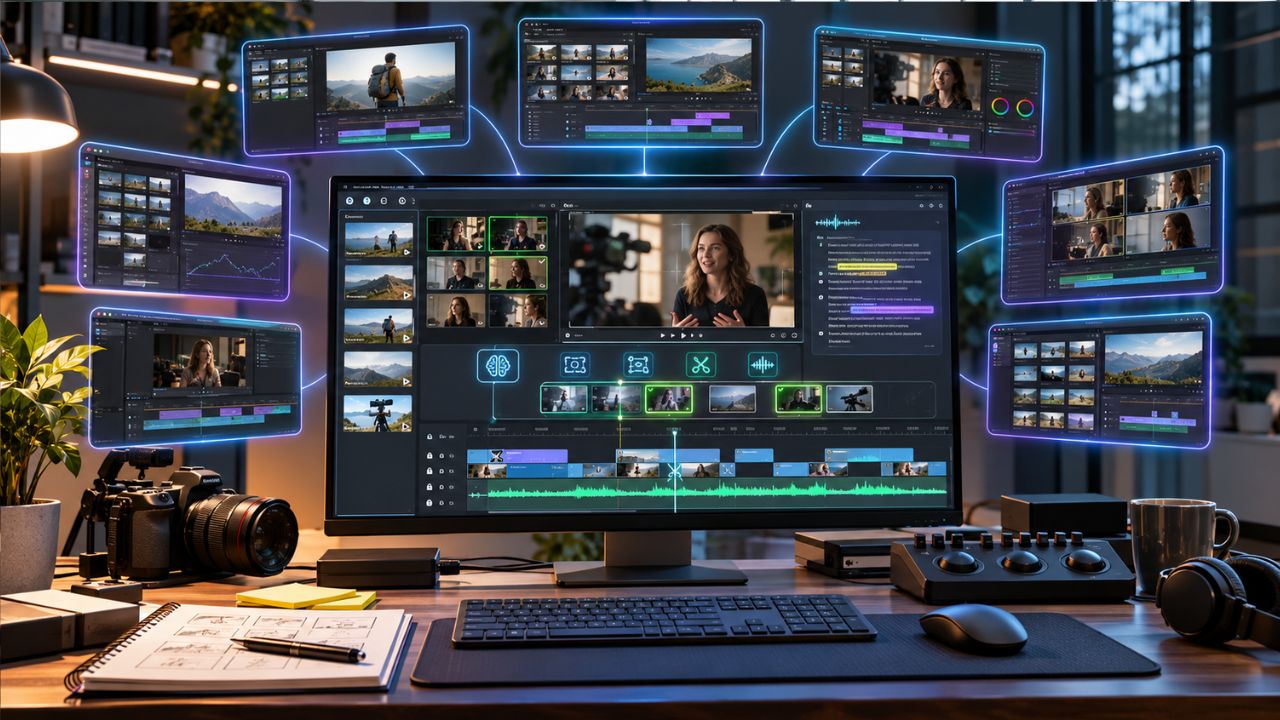
Raw footage arrives as a pile of clips, false starts, repeated takes and dead air. Before colour, sound or graphics matter, someone has to decide what stays and in what order. That first pass is the rough cut, and it is where AI editors now save the most time.
This guide compares seven editors: invideo Editor, Eddie AI, ChatCut, Descript, Gling, Adobe Premiere and DaVinci Resolve. Each is looked at through the same stages: finding usable material, assembling a first sequence, refining it, and handing it on or exporting. The comparison draws on current product pages, documentation and published pricing rather than one identical project run through every tool, so check live pricing before you commit.
What Is a Rough Cut, and Why Does It Matter?
A rough cut is the first complete assembly of your story. Clips are in the right order, the best takes are chosen, and the obvious mistakes are gone. It is not polished. Pacing is loose, transitions are plain, and sound and colour are untouched.
The rough cut matters because every later decision depends on it. A weak structure cannot be rescued by grading or music, and fixing structure late means rebuilding work you have already finished. Editors who get a solid rough cut quickly spend more of their time on the creative passes that viewers actually notice.
Why Raw Footage Is Hard to Cut by Hand
The slow part is rarely the cutting itself. It is the search and the decisions around it: scrubbing through hours of recordings to find the one clear explanation, choosing between four takes of the same line, trimming pauses, and syncing cameras and microphones before any real assembly begins. AI editors target exactly this work. They transcribe and analyse footage, surface the useful moments, and build a first sequence you then correct.
What to Look for in an AI Editor for Rough Cuts
Five questions separate the tools below.
- How does it find material? Transcript search, visual search and take detection all help, but they suit different footage.
- How does it assemble? Some tools follow a plain-language brief, some follow a script, and some mainly remove silences and retakes.
- Is the result editable? A cut you cannot adjust on a timeline only moves the problem somewhere else.
- Where does the work go next? Check whether you finish in the same tool, export a video, or hand a timeline to another editor.
- How is it priced? Subscriptions, credits, media minutes and one-time licences behave very differently as your footage grows.
The Seven Editors at a Glance
| Tool | Best suited to | How it builds the rough cut | Starting cost |
| Invideo Editor | Rough cuts finished in a browser timeline | Built-in agent or a connected assistant assembles from a brief | Manual editing is free; agent work uses credits |
| Eddie AI | Editors who finish in another NLE | Logs footage, syncs multicam, generates a rough cut for handoff | 500 free credits, then credit packs from $10 |
| ChatCut | Prompt-driven edits with a transcript view | Agent edits on a multi-track timeline | Free plan; paid plans from $25 per month |
| Descript | Speech-led footage edited as text | Edit the transcript to edit the video | Free plan; Hobbyist plan from $16 per month billed annually |
| Gling | Talking-head and YouTube footage | Removes silences, filler words and bad takes | Free plan; Plus plan from $10 per month billed annually |
| Adobe Premiere | Editors who want full manual control | AI search and transcript editing inside a pro timeline | From $22.99 per month on an annual plan |
| DaVinci Resolve | Script-led or multicam work on a free or one-time budget | Fast Cut page, plus AI assembly tools in Resolve Studio | Free version; Studio $295 one-time |
1. Invideo Editor: For Rough Cuts You Can Finish in One Timeline
Invideo Editor is a browser-based video editor that pairs a professional multitrack timeline with a built-in AI editing agent. The agent works inside the same project you can edit by hand, and Claude or ChatGPT can also act on that project through invideo’s MCP connection. That means the AI’s work always lands on a timeline you can open, inspect and change.
The place this matters most is rough cut editing. Instead of scrubbing through recordings, you describe the structure you want, name the takes you prefer, and ask the agent to find the relevant moments. It can analyse your footage, search for a specific explanation or product shot, remove pauses and false starts, and assemble a first cut on the timeline. If the shoot used several cameras, you can ask it to sync them as part of the same job.
How it builds a rough cut. The brief does the steering. Because the result is a normal timeline, you can reorder clips, change shot choices and tighten pacing by hand, or send a further instruction and let the agent revise. The same project then carries on into layered text, animation, colour controls and multitrack audio, so you do not need a second application to finish. If you do prefer another editor, the timeline and media can move into Premiere Pro, Final Cut Pro or DaVinci Resolve. Large projects are supported, with a footage limit of roughly 100 GB.
Pricing and access. Manual editing in invideo Editor is free. Work done by the built-in agent uses invideo credits, and so does generating new images, video or audio. When Claude or ChatGPT edits through the MCP connection, ordinary editing does not use invideo credits, although the assistant’s own plan limits apply. Export and watermark conditions depend on the plan: paid plans list unlimited exports without a watermark, and the Plus plan starts at $17 per month billed annually. Check the current pricing page before delivery.
Worth knowing. The agent assembles from your direction rather than replacing your editorial judgement, so check that complete explanations are preserved and the order matches your story. Keep supplied footage, stock and generated media distinct as you review.
Best for: creators and teams who want to go from raw footage to a refined edit in one place, with the choice of an agent, an external assistant or manual control.
2. Eddie AI: For Editors Who Finish in Premiere, Resolve or Final Cut
Eddie AI is built as an assistant editor for professionals. It runs as a desktop app on Mac and Windows, transcribes your clips, logs interviews, syncs multicam and generates a first-pass rough cut. Larger jobs can run overnight, so a cut is waiting when you start the next day.
How it builds a rough cut. Once footage is imported and transcribed, you can search and refine by reading the text, then have Eddie generate an assembly. The output is designed for handoff: it delivers a timeline into Premiere Pro, DaVinci Resolve or Final Cut Pro with the original media relinked, and Avid support has been added. Eddie can also be driven from Claude or ChatGPT over MCP, and it can render a finished MP4.
Pricing and access. Eddie AI uses pay-as-you-go credit packs: $10 for 1,000 credits, $45 for 5,000, $120 for 15,000 and $350 for 50,000. New accounts start with 500 free credits and no card is required, and credits do not expire. Larger imports and edits show a credit estimate before they run, which helps with budgeting but means repeated rebuilds add to the cost.
Worth knowing. Eddie’s job ends at the rough cut. B-roll, sound, colour and finishing happen in the editor you hand off to, and some effects created inside Eddie, such as fades, are not carried into the NLE export.
Best for: documentary teams and freelancers with interview-heavy or multicam footage who already finish in a professional NLE.
3. ChatCut: For Prompt-Driven Edits with a Transcript and Timeline
ChatCut is an agent-driven editor available on the web and as a desktop app. You describe the edit in plain language and an agent cuts, captions and assembles on a multi-track timeline that you can still edit by hand. It also offers transcript editing, and it can work alongside your own ChatGPT or Claude subscription.
How it builds a rough cut. The agent works from your instruction and the transcript, trimming and arranging clips while you keep manual control of the timeline. When you want to continue elsewhere, ChatCut exports an XML timeline that opens in Premiere Pro or DaVinci Resolve with your cuts in place.
Pricing and access. The free plan includes the full editor, uploads, transcription, captions and standard MP4 and WebM exports, plus a one-time gift of starter credits (20 credits, per the plan documentation). The built-in agent and AI generation use credits, and premium AI video generation and ProRes 4444 export need a paid plan. Paid credit plans start at $25 per month for 100 credits. The free plan also carries a cumulative 60-minute quota for web and cloud exports.
Worth knowing. XML export covers Premiere Pro and Resolve but not Final Cut Pro, and captions, motion graphics and some effects may need to be rebuilt or rendered before the handoff.
Best for: creators who want a free starting point and a conversational editor, and who may hand the timeline to Premiere or Resolve later.
4. Descript: For Speech-Led Footage Edited as Text
Descript turns recordings into a transcript and lets you edit the video by editing the words. Deleting a sentence removes that section from the timeline, which makes it easy to find the moment you need and cut repeated or off-topic passages. It also includes filler-word removal, audio clean-up through Studio Sound, and an AI co-editor.
How it builds a rough cut. The transcript is the working surface. You read the material, remove what you do not want, reorder sections and let the AI help with clean-up, then refine on a conventional timeline. This approach is strongest when the footage is dominated by speech, such as interviews, talks, tutorials and commentary.
Pricing and access. Descript meters usage in two pools: media minutes for imported or recorded media, and AI credits for AI features. The free plan includes 60 media minutes a month and 100 one-time AI credits. The Hobbyist plan is 16permonthbilledannually(24 billed monthly) with 10 media hours and 400 AI credits. The Creator plan is 24billedannually(35 monthly) with 30 media hours and 800 AI credits. The Business plan is 50billedannually(65 monthly) with 40 media hours and 1,500 AI credits. Top-ups for both pools are available on the Creator and Business plans, and monthly allowances do not roll over.
Worth knowing. Every file you import counts against media minutes, so large shoots can consume an allowance quickly, and AI features draw down a separate balance. Footage with little dialogue gives a transcript-led workflow less to work with.
Best for: podcasters, interviewers and educators whose rough cut is mostly a matter of choosing and tightening what people say.
5. Gling: For Talking-Head and YouTube Footage
Gling is a desktop app for Mac and Windows aimed at YouTubers. It automatically removes silences, filler words and bad takes from raw recordings, and lets you step through the result with a text-based editor. It also offers AI captions, automatic framing and speech enhancement.
How it builds a rough cut. Gling is strongest at the clean-up stage of a rough cut. You upload a recording, it detects the takes worth keeping and cuts out the dead air, and you review the proposed edits, restoring anything it removed that you wanted. From there you can export a finished MP4 or MP3, captions as an SRT file, or an XML timeline for Premiere Pro, Final Cut Pro or DaVinci Resolve.
Pricing and access. Gling bills by hours of AI-edited media. The free plan covers one AI-edited hour a month with watermarked exports, and timeline export needs a paid desktop plan. The Plus plan is $20 per month, or $10 per month billed annually, for 10 hours. The Pro plan is $40 per month, or $20 billed annually, for 30 hours. The Elite plan is $100 per month, or $50 billed annually, for 100 hours.
Worth knowing. Multicam and separate-microphone workflows work when you export to DaVinci Resolve or Final Cut Pro. If you plan to export to Premiere or as an MP4, you need to sync cameras before uploading. Gling is a focused tool for tidying spoken footage, so layered finishing happens elsewhere.
Best for: solo creators with single-camera talking-head footage who want fast silence and retake removal.
6. Adobe Premiere: For Full Manual Control with AI Search
Adobe Premiere, formerly Premiere Pro, is the established professional timeline. Its AI features focus on speeding up the search and prep work around a manual edit. Media Intelligence lets you search footage by visual and spoken content rather than filenames, and transcript-based editing lets you cut by selecting text. Generative Extend can lengthen a clip when a shot ends too early.
How it builds a rough cut. You remain the editor. AI helps you find the right shots and trim by transcript, and you assemble the sequence on a deep timeline with extensive control over audio, graphics and colour, then finish in the same application or other Adobe tools.
Pricing and access. The Premiere single-app plan is $22.99 per month on an annual plan billed monthly, or about $34 to $35 per month with no annual commitment, with a seven-day free trial. The single-app plan includes 25 generative credits a month, and generative features such as Generative Extend draw on that allowance. The Creative Cloud Pro plan lists a much larger credit pool at $69.99 per month. Adobe states that prices vary by region.
Worth knowing. Premiere has no browser editor and it does not assemble a cut from a brief on its own, so the first pass stays manual. The depth also brings a longer learning curve.
Best for: professional editors who want the industry-standard timeline and are happy to build the sequence themselves with AI to speed up search.
7. DaVinci Resolve: For Script-Led and Multicam Work on a Free or One-Time Budget
DaVinci Resolve combines editing, colour, visual effects and audio in one desktop application for Mac, Windows and Linux. Its Cut page is designed for quick assembly, and its AI tools target the rough-cut stage directly. IntelliScript builds a timeline from a text script, with alternate takes laid out on separate tracks, and AI Multicam SmartSwitch cuts between angles based on who is speaking.
How it builds a rough cut. With a script, you can have Resolve organise your footage into a first timeline and then refine it with the full editing and finishing toolset. For interviews and panel recordings, SmartSwitch builds the camera sequence from speaker activity. Text-based editing from a transcript is also available in the Studio version.
Pricing and access. DaVinci Resolve has a free version with full editing, colour and audio tools and no watermark. DaVinci Resolve Studio is a one-time purchase, listed at $295 in US dollars, and it includes the Neural Engine AI tools such as IntelliScript and Multicam SmartSwitch. Which AI features sit in the free version has shifted between releases, so confirm against the version you download.
Worth knowing. IntelliScript needs a script to work from, so it suits scripted or planned footage better than loose, unplanned recordings. AI features need capable graphics hardware, and the depth of the application takes time to learn.
Best for: editors who want a powerful free editor, or a one-time purchase, and who work from scripts or multicam recordings.
Conclusion
The right editor depends on what happens after the rough cut. If you want the first assembly and the finishing to live in one editable timeline, with an agent or an external assistant doing the heavy lifting, invideo Editor fits. If your craft happens in a professional NLE and you simply want a head start, Eddie AI and Gling hand off a ready-made sequence, with Eddie leaning toward interviews and multicam and Gling toward single-camera spoken footage. ChatCut suits creators who like to direct edits conversationally and start for free. Descript is the natural choice when your footage is mostly speech, Premiere rewards editors who want total control, and DaVinci Resolve offers script-driven assembly and multicam switching at a free or one-time price.
Whichever you choose, treat the AI’s output as a draft. Check that complete explanations are intact, that takes match your story, and that the order reads the way you intended before you move into the finishing passes.
FAQs
What is the difference between a rough cut and a final cut?
A rough cut is the first full assembly: the right clips in the right order with mistakes removed. A final cut adds refined pacing, transitions, graphics, sound mixing and colour, and is ready to publish.
Can AI build a rough cut without a script?
Yes. Several tools work from the footage itself. Invideo Editor, Eddie AI and ChatCut build a first sequence from a brief and the transcript, Descript lets you cut by editing text, and Gling removes silences and retakes automatically. DaVinci Resolve’s IntelliScript is the one that depends on a script.
Do I need a paid plan to build a rough cut?
Not always. Manual editing in invideo Editor is free, DaVinci Resolve has a free version, and Eddie AI, ChatCut, Descript and Gling all offer free ways to start. AI features usually draw on credits, media minutes or hours, so heavier use needs a paid plan or purchased credits.
Can I move a rough cut into Premiere Pro, Final Cut Pro or DaVinci Resolve?
Yes, with several of these tools. Eddie AI, Gling and invideo Editor can hand a timeline to Premiere Pro, Final Cut Pro or DaVinci Resolve, and ChatCut exports XML for Premiere Pro and Resolve. Effects, captions and fonts do not always transfer identically, so inspect the result in the target editor.
How should I prepare raw footage before using an AI editor?
Keep clips named clearly, remove obviously unusable files, and give the tool a short brief covering the structure, the takes you prefer and anything that must stay intact. For multicam shoots, confirm how the tool handles sync before you upload.
Should I trust the first cut the AI produces?
Use it as a starting point. Play it through, confirm that full explanations were preserved, and adjust the order and pacing. The value of an AI rough cut is the time saved on search and assembly, not the removal of your editorial judgement.
