
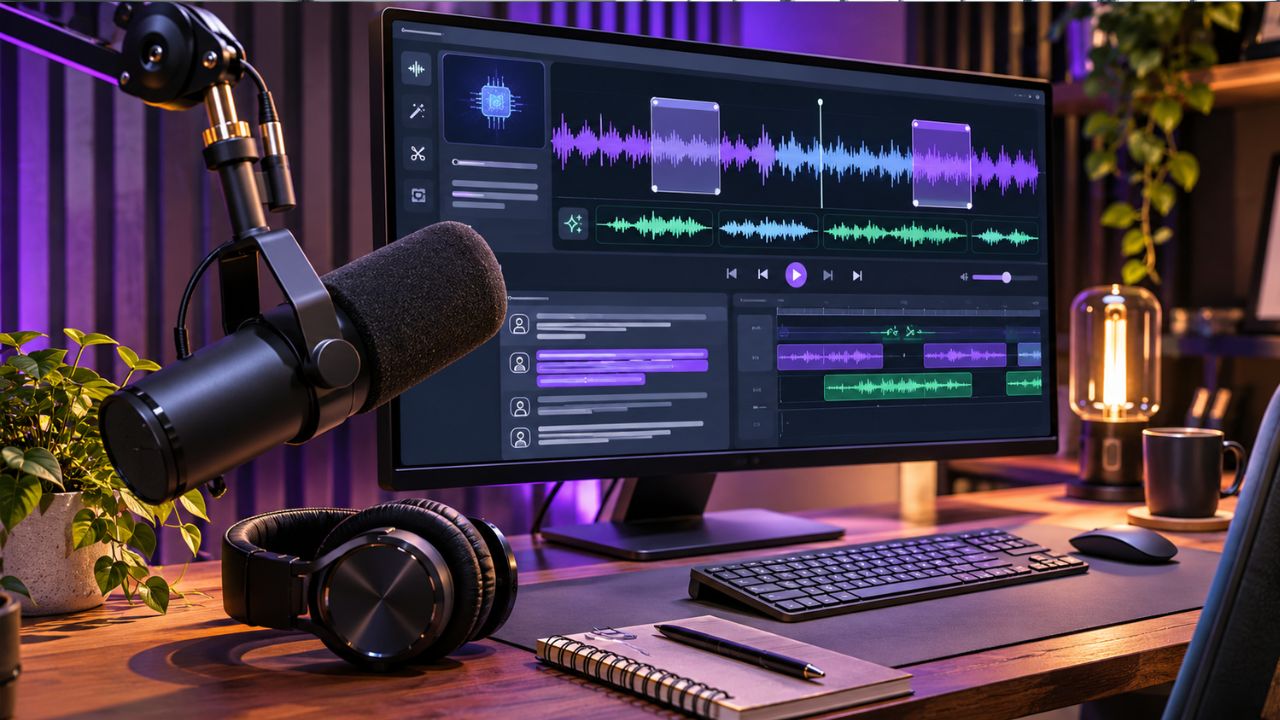
Editing a podcast episode takes far longer than recording it. One hour of conversation can hide dozens of filler words, long pauses, background hum, uneven levels and tangents that all need attention before anyone presses play. AI podcast editors take on that first pass. They transcribe the recording, clean the sound, cut dead air and hand you a draft to refine, so you spend your time on creative choices instead of repetitive cleanup.
This guide compares 10 AI podcast editor tools across audio-only shows, video podcasts, remote interviews and solo productions. Every tool gets the same treatment: what it does, where it fits best, and what to know about its limits and cost. Before the list, a short primer covers what these tools do and what to check before you choose one.
What an AI podcast editor actually does
An AI podcast editor automates the repetitive parts of post-production while leaving the final decisions to you. The common building blocks are:
- Transcript-based editing. The recording becomes text, and deleting a sentence removes the matching audio or video.
- Filler word and silence removal. The tool finds “um,” “uh,” false starts and long pauses and cuts them in bulk.
- Audio cleanup. Noise, echo and uneven volume are reduced so voices sound consistent from the first minute to the last.
- Multitrack and multicam handling. Separate microphone tracks stay editable, and video tools can switch between camera angles as people speak.
- Clips, captions and chapters. Highlights become short social clips, and the episode gains captions, chapter markers or show notes.
Some tools cover all of these in one place. Others do one job very well, such as leveling audio or removing filler words, and expect you to finish the episode elsewhere. Knowing which kind you need is the quickest way to narrow the list.
What to look for before you choose
Five questions sort most of these tools quickly.
Is your show audio-only or video?
Audio-first tools focus on leveling, noise reduction and clean cuts. Video podcasts also need camera switching, captions and vertical clips, which points toward editors with a full timeline.
How much control do you want over the cut?
One-click processors give fast results but few chances to adjust them. Timeline and transcript editors let you review every cut, which matters when a conversation depends on natural pauses.
Where does the recording start?
Some tools record remote guests and edit in the same workspace. Others accept files from any recorder. Pick the route that matches how you already record.
How is usage measured?
Minutes processed, media hours, AI credits and export limits all work differently. Check which of them applies to the work you do most, and what happens when you run out.
Where does the finished episode go next?
Look for export options that fit your workflow, whether that is a final file, a project handoff to another editor, or direct publishing to a podcast host.
The 10 Tools at a Glance
| Tool | Best suited to | How it edits | Starting cost |
| Invideo Editor | Video and audio podcasts finished on one timeline | A built-in agent or a connected assistant builds a base cut on an editable timeline | Manual editing is free; agent work uses credits; the Plus plan starts at $17 per month billed annually |
| Descript | Speech-led shows edited as text | Edit the transcript to edit the audio or video | Free plan; the Hobbyist plan starts at $16 per month billed annually |
| Riverside | Remote interviews recorded and edited in one place | Magic Editor and text-based editing | Free plan; the Pro plan starts at $24 per month billed annually |
| Adobe Podcast | Rescuing rough recordings | Enhance Speech and Studio | Free plan; Premium listed at $9.99 per month |
| Alitu | Beginners who want a guided workflow | Automatic clean-up with simple editing and hosting | $38 per month or $380 per year |
| Auphonic | Consistent loudness and clean sound | Automatic audio post-production | Free for 2 hours a month; recurring credits from about $11 per month |
| Cleanvoice | Bulk removal of filler words and mouth sounds | Automated clean-up pass | 30-minute free trial; $11 per month for 10 hours |
| Gling | Single-camera talking-head and YouTube footage | Removes silences, filler words and bad takes | Free plan; the Plus plan starts at $10 per month billed annually |
| Hindenburg PRO | Narrative and spoken-word audio | Auto-levelling and transcript-based editing | Subscriptions from about $12 per month |
| DaVinci Resolve | Multicam and script-led shows on a free or one-time budget | Multicam SmartSwitch and IntelliScript | Free version; Studio is $295 one-time |
1. Invideo Editor: For Agent-Assisted Edits on One Timeline
Invideo Editor is a browser-based video editor that pairs a professional multitrack timeline with a built-in AI editing agent. The agent works inside the same project you can edit by hand, so everything it does lands on a timeline you can open, inspect and change. Claude or ChatGPT can also edit that project through invideo’s MCP connection.
For podcasts, invideo’s podcast editor workflow starts with your recordings: you add the camera clips and each microphone’s audio file, then tell the agent how to cut the episode. It can sync multiple cameras by matching dialogue across the recordings, cut fillers and silences, clean up each voice and build a base cut that follows the conversation. You then adjust camera switches, trims and levels on the timeline, or send the agent further notes.
Key features
- An agent-built base cut with camera sync, filler and silence removal and voice clean-up
- Separate audio tracks for mixing each voice, with audio export as WAV, AAC or Opus
- Clips and cutdowns for YouTube, Instagram and TikTok from the same project
- Browser-based editing on desktop, laptop, tablet or phone, with agent jobs that keep running if you close the tab
- Timeline handoff to Premiere Pro, Final Cut Pro or DaVinci Resolve
Pricing
Manual editing in invideo Editor is free. Work done by the built-in agent uses invideo credits, and so does generating new images, video or audio. When Claude or ChatGPT edits through the MCP connection, ordinary editing does not use invideo credits, although the assistant’s own plan limits apply. Export and watermark terms depend on the plan, and the Plus plan starts at $17 per month billed annually.
Worth knowing
The agent assembles from your direction rather than replacing your editorial judgement, so check that complete answers survive and that the camera cuts follow your story.
Best for: podcasters who want an agent or an external assistant to build the first cut, with full manual control afterwards in the same place.
2. Descript: For Speech-Led Podcasts Edited as Text
Descript turns a recording into a transcript and lets you edit the episode by editing the words. Deleting a sentence removes that stretch from the audio or video, which makes it quick to find a moment, cut a tangent and tighten a rambling answer.
Key features
- Text-based editing alongside a conventional multitrack timeline
- Filler-word removal and Studio Sound for cleaner voices
- Underlord, an AI co-editor that takes editing instructions
- Recording, transcription and captions in the same workspace
Pricing
The free plan includes 60 media minutes a month and 100 one-time AI credits, with watermarked exports. The Hobbyist plan is $16 per month billed annually ($24 billed monthly) with 10 media hours and 400 AI credits. The Creator plan is $24 billed annually ($35 monthly) with 30 media hours and 800 AI credits. The Business plan is $50 billed annually ($65 monthly) with 40 media hours and 1,500 AI credits.
Worth knowing
Media hours and AI credits are separate allowances, every imported file counts against media time, and monthly allowances do not roll over. Top-ups are available on the Creator and Business plans.
Best for: interview and conversation shows where editing mostly means choosing and tightening what people say.
3. Riverside: For Remote Interviews Recorded and Edited in One Place
Riverside is a browser-based studio that records each guest locally, so every participant arrives as a separate high-quality track, then edits the session in the same place. Its Magic Editor and text-based editing handle silence and filler-word removal, and the same recording can become clips for social platforms.
Key features
- Separate audio and video tracks for each guest, with video up to 4K on paid plans
- Text-based editing with silence and filler-word removal
- Magic Audio enhancement, Magic Clips and AI show notes
- Unlimited transcription on paid plans
Pricing
The free plan includes two hours of multitrack recording as a one-time allowance, video up to 720p and a Riverside watermark. The Pro plan is $24 per month billed annually ($29 monthly) with five hours of multitrack recording each month. The Grow plan is $34 billed annually ($39 monthly) with 15 hours. Pro and Grow include 20 AI credits for the features that use them, and paid plans start with a 14-day trial.
Worth knowing
Recording hours are tiered by month, so a show that records several times a week may need the Grow plan. Extra editor seats are paid add-ons. The built-in editor favours quick turnarounds over deep timeline control, so detailed finishing may call for another application.
Best for: remote-interview shows that want recording, a first edit and clips from one platform.
4. Adobe Podcast: For Rescuing Rough Recordings
Adobe Podcast is a browser-based suite for improving and shaping spoken audio. Enhance Speech reduces noise and echo so a recording made in an untreated room sounds closer to a treated studio, and Studio adds remote recording and editing in the browser.
Key features
- Enhance Speech for noise and echo removal
- Mic Check, which analyses your microphone setup before you record
- Studio for browser-based recording and editing
- Video support, batch uploads and adjustable enhancement strength on Premium
Pricing
The free plan includes Enhance Speech for one hour a day, with files up to 30 minutes and 500 MB, plus unlimited Mic Check and two Studio downloads a day. Premium raises the Enhance Speech limit to four hours a day with files up to two hours and 1 GB, and adds video support, bulk upload and unlimited Studio downloads. It has been listed at $9.99 per month or $99.99 per year, and Adobe also includes Premium access in its Firefly Pro plan, so confirm the current route and price on Adobe’s page before subscribing.
Worth knowing
Adobe Podcast concentrates on sound quality rather than assembling an episode, so you still choose and arrange content in an editor. The free plan’s daily limits suit occasional use more than a weekly production schedule.
Best for: creators who record in imperfect rooms and want fast, convincing voice clean-up before or after editing elsewhere.
5. Alitu: For a Guided Path from Recording to Published Episode
Alitu is an all-in-one podcast maker for people who want a guided route from raw tracks to a published show. You upload or record the audio, Alitu applies automatic clean-up and levelling, and you arrange segments in a simple waveform and text editor.
Key features
- Automatic clean-up for noise, hum and uneven levels
- Waveform and text editing for trimming and arranging segments
- A royalty-free music library and call recording
- Built-in publishing and hosting, with AI help for titles and descriptions
Pricing
Alitu has a single plan at $38 per month or $380 per year, with a 7-day free trial and no free plan. It includes 10 hours of recording a month under the fair-use policy and 12 hours of transcription per billing period. Hosting is free up to 1,000 downloads a month, and larger tiers are paid add-ons starting at $10 a month for up to 10,000 downloads.
Worth knowing
Alitu is audio-first, with more limited video features and less granular control than a full audio workstation. The flat monthly fee is higher than some alternatives for creators who publish only occasionally.
Best for: beginners and small teams who want recording, clean-up, editing and hosting in one guided workflow.
6. Auphonic: For Consistent Loudness and Clean Sound
Auphonic is an automatic audio post-production service. You upload a finished or multitrack recording, and its algorithms level the voices, balance loudness and reduce noise, then return files ready to publish. It polishes the sound rather than cutting the content.
Key features
- Adaptive levelling and loudness normalisation
- Noise and hum reduction
- Multitrack processing that balances several voices
- Publishing options and API access for automated workflows
Pricing
Auphonic is free for two hours of processed audio a month, and free productions carry a short jingle. The recurring S plan is about $11 per month billed yearly ($13 monthly) for nine hours, with larger tiers of 21, 45 and 100 hours. One-time credits never expire, while recurring credits reset every month and do not roll over. Each production is charged at a minimum of three minutes.
Worth knowing
Auphonic does not remove filler words or restructure an episode, so it works best after the creative edit is done. Billing follows processing time, which makes long episodes the main cost driver.
Best for: shows that already edit elsewhere and want every episode to arrive at a consistent, publish-ready sound.
7. Cleanvoice: For Bulk Removal of Filler Words and Mouth Sounds
Cleanvoice focuses on the clean-up pass. It detects filler words, stutters, mouth sounds, breaths and long silences, removes them automatically and reduces background noise, so the file you review is already much tighter than the one you recorded.
Key features
- Filler-word removal in more than 20 languages
- Removal of mouth sounds, stutters and breaths
- Noise reduction and Studio Sound enhancement
- Multitrack editing, transcripts, summaries and show notes, with timeline export and an API
Pricing
The first 30 minutes are free. Subscriptions are $11 per month for 10 hours, $30 for 30 hours and $90 for 100 hours, and annual billing brings those to $110, $300 and $900 a year. Pay-as-you-go packs are $11 for 5 hours, $20 for 10 hours and $45 for 30 hours. Unused subscription hours can roll over.
Worth knowing
Automated cuts still need a listen, because the tool removes disfluencies but does not judge story or pacing. It is a clean-up service rather than a full episode editor, so assembly and mixing happen elsewhere.
Best for: interview shows and solo creators with plenty of filler words who want a fast first clean-up.
8. Gling: For Talking-Head and YouTube Podcast Footage
Gling is a desktop app for Mac and Windows aimed at YouTubers and single-camera creators. It automatically removes silences, filler words and bad takes from raw recordings, then lets you step through the proposed edits in a text-based editor.
Key features
- Automatic removal of silences, filler words and bad takes, with restore options for anything you want back
- AI captions, automatic framing and speech enhancement
- Export as MP4 or MP3, captions as an SRT file, or an XML timeline
- Timeline handoff to Premiere Pro, Final Cut Pro or DaVinci Resolve
Pricing
Gling bills by hours of AI-edited media. The free plan covers one AI-edited hour a month with watermarked exports, and timeline export needs a paid desktop plan. The Plus plan is $20 per month, or $10 per month billed annually, for 10 hours. The Pro plan is $40 per month, or $20 billed annually, for 30 hours. The Elite plan is $100 per month, or $50 billed annually, for 100 hours.
Worth knowing
Multimic and multicam workflows work when you export to DaVinci Resolve or Final Cut Pro. If you plan to export to Premiere Pro or as an MP4, sync your cameras before uploading. Layered finishing happens in another editor.
Best for: solo creators with single-camera talking-head footage who want fast silence and retake removal.
9. Hindenburg PRO: For Narrative and Spoken-Word Audio
Hindenburg PRO is a desktop audio editor for Mac and Windows built around spoken-word storytelling. Its automatic levelling keeps dialogue even while you edit, and transcript-based editing lets you cut by selecting text.
Key features
- Auto-levelling that evens out voices as you work
- Single-control noise reduction for hum, echo and low-level background noise
- Transcription and transcript-based editing on tiers that include transcription
- Voice profiles and multitrack tools for layered storytelling
Pricing
Entry subscriptions are listed from about $12 per month, with annual billing near $99 a year. Transcript editing needs a tier that includes transcription, listed from about $15 per month. Transcription runs through a licensed third-party service, so extra transcription packages are bought from your account and expire at the next monthly renewal. A free trial has been offered, so check the current terms.
Worth knowing
Hindenburg is audio-only, with no camera sync or video editing. Its AI covers levelling and transcription rather than assembling a cut from a brief, and transcription hours are a separate cost to plan for.
Best for: narrative, documentary and journalism-style shows where careful audio craft matters more than speed.
10. DaVinci Resolve: For Multicam and Script-Led Shows on a Free or One-Time Budget
DaVinci Resolve combines editing, colour, effects and audio in one desktop application for Mac, Windows and Linux. Its Cut page is designed for quick assembly, and the AI tools in Resolve Studio target the structure of an episode: IntelliScript builds a timeline from a text script, and AI Multicam SmartSwitch cuts between camera angles based on who is speaking.
Key features
- IntelliScript, which lays out a timeline from a script with alternate takes on separate tracks
- Multicam SmartSwitch for interview and panel camera cuts
- Transcript-based editing in the Studio version
- A Fairlight audio page for mixing and finishing dialogue
Pricing
The free version includes full editing, colour and audio tools with no watermark. DaVinci Resolve Studio is a one-time purchase listed at $295, and it includes the Neural Engine AI tools such as IntelliScript and Multicam SmartSwitch. Which AI features sit in the free version has shifted between releases, so confirm against the version you download.
Worth knowing
IntelliScript needs a script, so it suits planned shows better than loose conversations. The AI features need capable graphics hardware, and the depth of the application takes time to learn.
Best for: scripted or multicam video podcasts made on a free or one-time budget.
Conclusion
The right editor depends on what you record and where the episode goes next. Invideo Editor and DaVinci Resolve suit video podcasts that need camera sync and a full timeline, while Descript and Hindenburg PRO centre on cutting spoken audio by its words. Riverside bundles recording with a first edit, and Gling serves single-camera creators who want silences and retakes gone quickly. Adobe Podcast, Auphonic and Cleanvoice each improve the sound, and Alitu wraps editing and hosting into one guided workflow.
Whichever you choose, treat the AI’s output as a draft. Play the episode through, confirm that complete answers are intact and that the levels sound natural, then finish with the passes your listeners will notice.
FAQs
Can AI edit a podcast without me touching it?
AI can produce a solid first pass: transcription, silence and filler removal, levelling and, in some tools, a camera cut. It does not replace editorial judgement, so plan to listen through, restore anything it removed too eagerly and adjust the order and pacing.
Do I need a video or an audio-only podcast editor?
Choose by your final format. Audio-focused tools such as Hindenburg PRO, Alitu, Auphonic, Cleanvoice and Adobe Podcast suit audio shows. Invideo Editor, Descript, Riverside, Gling and DaVinci Resolve also handle video, and invideo Editor and DaVinci Resolve add multicam workflows.
Can I edit a podcast for free?
Yes, with limits. Manual editing in invideo Editor is free, DaVinci Resolve has a free version, and Descript, Riverside, Adobe Podcast, Gling and Auphonic each have a free plan with caps on hours, quality or watermarks. Cleanvoice offers a 30-minute free trial. AI features usually draw on credits, media hours or processing time, so regular use tends to need a paid plan.
Which tools remove filler words and silences automatically?
Descript, Riverside, Gling and Cleanvoice include automatic filler-word and silence removal, and invideo Editor’s agent can cut fillers and silences as part of building a base cut. Adobe Podcast and Auphonic focus on sound quality instead of content cuts.
Can these tools sync multiple cameras and microphones?
Invideo Editor can sync cameras by matching dialogue across recordings, and DaVinci Resolve’s Multicam SmartSwitch cuts between angles by speaker. Riverside records each guest on a separate track from the start. Gling handles multicam when you export to DaVinci Resolve or Final Cut Pro.
How should I prepare a recording before using an AI editor?
Record each speaker on a separate microphone where you can, name your files clearly and keep a short note of the structure you want, the sections that must stay and anything to cut. For multicam shoots, confirm how the tool syncs before you upload.
How should I judge the first cut the AI produces?
Use it as a starting point. Listen to the full episode, check that no complete answer was trimmed, and compare levels between speakers. The value of an AI podcast editor is the time saved on search and clean-up, not the removal of your ear.
