
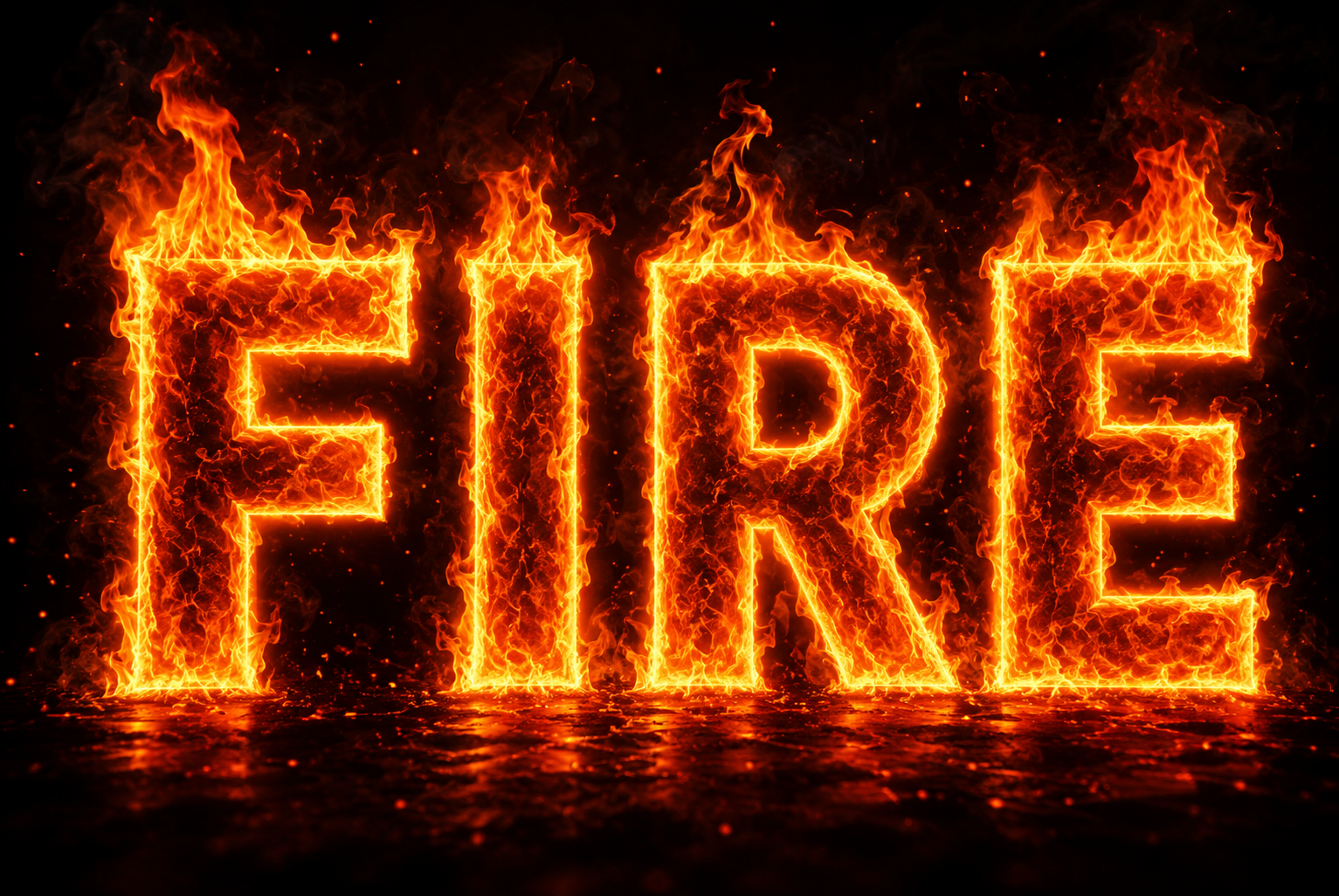
Ever seen a logo or banner where the letters look like they’re actually burning? That’s not some advanced Photoshop trick anymore. Anyone can pull off that look in a couple of clicks using a flame text generator. If you’ve been wanting to add some heat to your designs but don’t know where to start, this guide walks you through everything.
What Is a Flame Text Generator?
A flame text generator is an online tool that turns plain typed words into fiery, glowing graphics. You type your text, pick a style, and the tool renders it with flames, embers, or a burning glow wrapped around the letters. No design software, no drawing skills, no waiting around for a designer to get back to you.
These tools are popular with people making YouTube thumbnails, gaming logos, band merch, event posters, and social media graphics. Fire text has a certain energy to it. It grabs attention instantly, which is exactly why so many creators reach for it when they want their text to feel bold or intense.
Why People Use Flame Text Effects
There’s something about flame text that just works for certain kinds of branding. Here’s where it shows up most often:
- Gaming channels and esports teams use it for logos and banners that feel aggressive and high-energy.
- Restaurants and food trucks (especially anything spicy, grilled, or barbecue-themed) use flame text to hint at heat and flavor.
- Event promoters use it for concert posters, fight night graphics, or anything meant to feel electric.
- Meme pages and social accounts use it for that classic “this is fire” visual joke.
- Product labels for hot sauces, energy drinks, and spicy snacks lean on it constantly.
Basically, if a brand wants to say “bold,” “hot,” or “intense” without writing a single extra word, flame text does that job visually.
How to Use a Flame Text Generator
Most generators follow a pretty similar process, so once you’ve tried one, you can pick up any of them quickly.
- Type your text. This is usually a short word or phrase, since longer text can get harder to read once the flame effect is applied.
- Choose a style or template. Many generators offer more than one version of fire, like classic orange flames, blue fire, lava-style text, or embers and smoke.
- Adjust the settings. Depending on the tool, you might be able to tweak the font, size, background color, or flame intensity.
- Preview the result. Take a look before committing, since fonts that are too thin sometimes don’t hold the flame effect well.
- Download your image. Most tools export as a PNG so you can drop it straight into a video, thumbnail, or social post.
Tips for Getting a Good Result
A flame effect can look amazing or a little messy depending on a few small choices. Keep these in mind:
- Pick a bold, thick font. Thin or script fonts often lose the flame detail around the edges, so the fire just looks like a blur.
- Keep the text short. One or two words usually reads better than a full sentence. Long phrases tend to shrink the flame detail per letter.
- Watch your background. Flame effects usually pop best against a dark or transparent background rather than a busy photo.
- Don’t overdo the size. If you’re using this for a thumbnail, remember it needs to look good small, not just full-screen.
- Save a high-resolution version. If you plan to print the design (like on merch or a poster), grab the largest file size the tool offers.
Free vs. Paid Flame Text Tools
Most flame text generators offer a free version, and for casual or one-off use, that’s usually enough. Free versions typically let you download a decent-quality image with the flame effect applied, though some tools cap the resolution or add a small watermark.
Paid or premium versions tend to unlock a few extra things: higher resolution downloads, more flame styles (like lava, embers, or blue fire), editable vector files, animation options, and no daily download limits. If you’re making one graphic for a personal project, free is fine. If you’re doing this regularly for a brand or channel, a premium plan might save you time in the long run.
Flame Text vs. Designing It Yourself
You might wonder if it’s worth just making a flame effect manually in Photoshop or a similar program instead of using a generator. Here’s the honest trade-off: doing it manually gives you more creative control, but it takes real time and some layering skill to get flames looking natural instead of like a cheesy filter. A generator skips all of that. You lose a bit of customization, but you gain speed, and for most everyday uses (a thumbnail, a quick banner, a social post) that trade is worth it.
Final Thoughts
A flame text generator is one of those small tools that punches way above its weight. It takes seconds to use, requires zero design experience, and instantly gives your text a bold, attention-grabbing look. Whether you’re building a gaming brand, promoting a spicy food product, or just want your name to look like it’s on fire for fun, these tools make it easy to get a professional-looking result without touching a single design app.
