
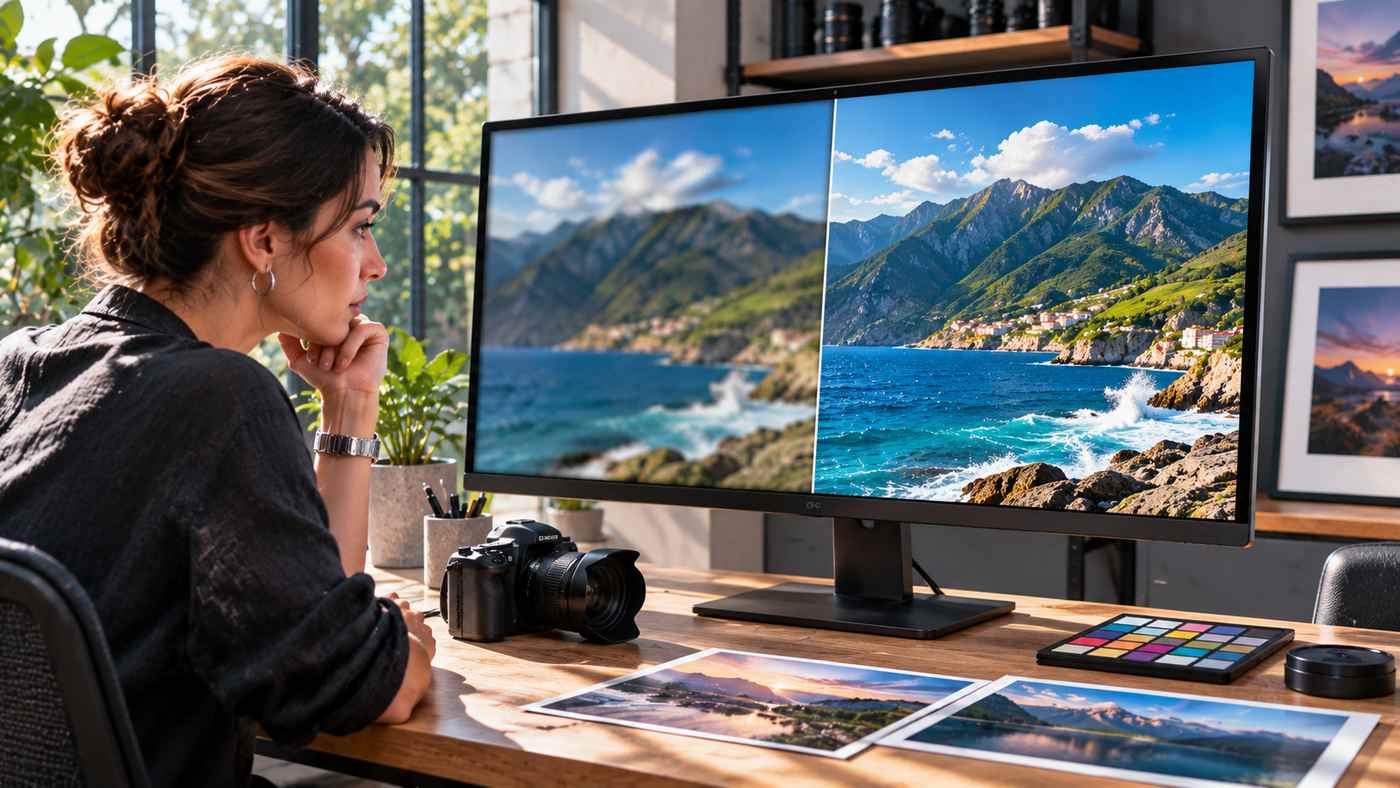
High-quality images are essential for modern digital communication. Whether someone is preparing product photographs for an online store, designing social media posts, restoring family pictures, or publishing content on a business website, visual clarity can make a noticeable difference. Unfortunately, many photographs suffer from low resolution, poor lighting, excessive noise, or unwanted blur.
Modern artificial intelligence offers practical ways to address these problems. Instead of spending hours adjusting photographs manually, users can explore the best AI image enhancer for their needs and improve many common image-quality issues through automated processing.
AI-powered photo enhancement software can analyse photographs, adjust colours, reduce unwanted noise, sharpen visible details, and increase image dimensions. These capabilities are valuable for photographers, marketers, designers, e-commerce businesses, and individuals who want more polished visuals without learning complicated editing techniques.
Fotor is one example of an online photo editing platform that combines automated image enhancement with additional editing tools. Its AI image enhancer is designed to improve blurry, pixelated, noisy, or low-resolution images through a straightforward upload-and-enhance workflow.
However, not every photograph can be restored perfectly. Understanding how AI enhancement works, which features provide meaningful improvements, and where automated processing has limitations helps users achieve more realistic results.
This guide explains the technology behind AI photo enhancement, its practical advantages, how to use Fotor, and the techniques that can improve visual quality across different applications.
What Is an AI Image Enhancer?
An AI image enhancer is a software application that uses artificial intelligence to improve the visual appearance of an existing image.
Traditional editing programs often require users to adjust brightness, sharpness, contrast, colour balance, and other settings manually.
AI-powered systems attempt to simplify these tasks by automatically evaluating an image and applying suitable enhancements.
Depending on the software, an image enhancer may help with:
- Increasing image resolution.
- Reducing visible noise and grain.
- Improving sharpness and edge detail.
- Correcting exposure and brightness.
- Adjusting colour and contrast.
- Reducing pixelation.
- Improving the appearance of older photographs.
- Preparing images for digital publishing.
These functions can be especially useful when an original photograph has technical imperfections but still contains enough information for useful enhancement.
How Does AI Photo Enhancement Work?
AI image enhancement commonly relies on machine learning models trained to identify visual patterns and relationships within images.
These models can learn how different types of blur, noise, and low-resolution processing affect photographs.
When an image is submitted, the system analyses its visible characteristics and generates an adjusted version.
For example, an AI model may identify edges that appear soft and estimate a more defined representation.
An image upscaler may predict additional pixels based on visual patterns in the source.
A colour enhancement system may adjust tones to improve overall balance.
Importantly, these processes involve estimation.
An AI enhancer cannot always recover the exact original information that was lost when a photograph became blurry or heavily compressed.
Generated details may look convincing without perfectly representing the original scene.
Why Are AI Image Enhancers Becoming Popular?
Digital content is increasingly visual.
Businesses use photographs across websites, advertising campaigns, online stores, presentations, and social platforms.
At the same time, smartphone cameras, screenshots, older image collections, and downloaded files can produce inconsistent image quality.
AI enhancement offers a more accessible way to improve many of these assets.
Easier Photo Editing for Beginners
Professional image editing software can offer extensive control, but mastering its tools takes practice.
Automated enhancement makes basic improvements more accessible.
A user may upload an image, allow the software to process it, and review the result without changing numerous settings.
This convenience can be valuable for people who need practical improvements rather than advanced creative retouching.
Faster Content Preparation
Digital marketers often work with many photographs.
Product images, blog graphics, social media visuals, and promotional materials may require different dimensions or appearance adjustments.
AI tools can simplify some of this preparation.
However, users should still inspect the final image before publishing it.
Better Use of Existing Images
Not every business has access to professional photography equipment or the budget for frequent photoshoots.
Existing photographs may be valuable but technically imperfect.
An AI image enhancer can sometimes improve their appearance enough for appropriate digital uses.
This does not eliminate the need for professional photography when accurate colour, product detail, or technical documentation is essential.
7 Powerful Ways AI Image Enhancement Can Improve Photos
AI photo enhancement can address several common visual problems.
Understanding each improvement helps users choose the right process for a particular image.
1. Increase Image Resolution With AI Upscaling
Image resolution refers to the number of pixels in a digital picture.
Low-resolution images may look acceptable on a small screen but appear pixelated when displayed at larger sizes.
AI upscaling increases the dimensions of an image while estimating additional visual detail.
How AI Upscaling Differs From Traditional Resizing
Traditional resizing uses mathematical interpolation to calculate additional pixels.
It can increase an image’s dimensions, but it does not necessarily produce meaningful new texture or detail.
AI upscaling attempts to predict visual structures based on patterns identified during training.
For example, a landscape photograph may receive more defined edges around trees, mountains, and buildings.
The resulting picture may appear sharper at larger dimensions.
Understanding 2x and 4x Enhancement
Fotor advertises resolution enhancement options of up to 2x or 4x.
A 2x linear upscale doubles the width and height, increasing the total pixel count by a factor of four.
A 4x linear upscale multiplies both dimensions by four, producing sixteen times as many pixels.
The actual benefit depends on the source image.
Adding pixels does not guarantee that every missing detail has been accurately reconstructed.
When Upscaling Is Useful
AI upscaling can be helpful for:
- Small website images.
- Older digital photographs.
- Social media graphics.
- Certain print preparations.
- Product image enlargement.
- Low-resolution creative artwork.
Always evaluate the enlarged image at its intended display or print size.
2. Reduce Blur and Improve Image Sharpness
Blur is one of the most common photography problems.
It may result from camera movement, missed focus, low light, or limited image resolution.
An AI image enhancer can sometimes make blurred content appear clearer.
Improving Edge Definition
AI sharpening systems identify visual boundaries and attempt to make them more distinct.
This can improve the appearance of objects, clothing textures, landscapes, and other detailed subjects.
However, aggressive sharpening may introduce unnatural outlines or halos.
A balanced result should improve clarity without making the photograph appear artificial.
Correcting Slightly Out-of-Focus Photos
Images with mild softness may benefit more from enhancement than severely blurred photographs.
For example, a product photo with slightly soft edges might become more suitable for online display after careful processing.
A photograph with extensive motion blur may contain too little reliable information for accurate restoration.
Preserving Natural Details
The goal should be improved visual clarity rather than maximum sharpness.
Skin, hair, fabrics, and other textures can look unnatural when excessive artificial detail is introduced.
Comparing the enhanced image with the original can help identify unwanted changes.
3. Remove Image Noise and Digital Grain
Image noise often appears as random grain, coloured speckles, or unwanted variation in otherwise smooth areas.
It is particularly common in photographs captured under difficult lighting conditions.
High camera sensitivity, small sensors, and heavy image processing can increase visible noise.
How AI Noise Reduction Works
AI denoising software attempts to distinguish meaningful image content from unwanted visual variation.
The system may smooth noisy areas while preserving important edges and textures.
This can make low-light photographs look cleaner and more consistent.
Improving Night Photography
Night scenes often contain challenging combinations of bright lights and dark surroundings.
Noise reduction may improve shadow areas and reduce distracting grain.
However, excessive processing can remove genuine texture or make objects appear overly smooth.
Balancing Noise Removal and Detail
A useful enhancement should preserve the character of the photograph.
For example, fine fabric patterns and natural surface textures should not disappear simply to achieve a smoother appearance.
The best result usually involves a balance between noise reduction and visible detail.
4. Improve Brightness, Exposure, and Contrast
Poor exposure can make an otherwise useful photograph difficult to appreciate.
Underexposed images may appear dark and lack visible shadow detail.
Overexposed images may contain washed-out areas.
AI enhancement software can analyse tonal balance and attempt to improve the overall appearance.
Brightening Dark Photographs
When an image contains recoverable shadow information, automatic adjustments may reveal details that were difficult to see.
For example, an interior photograph taken near a bright window may benefit from improved tonal balance.
However, severely underexposed areas may not contain enough information for accurate reconstruction.
Adjusting Contrast
Contrast influences the difference between lighter and darker parts of a photograph.
Appropriate contrast can make objects appear more defined.
Too much contrast may eliminate subtle details in highlights and shadows.
An effective image enhancement process should preserve natural tonal transitions.
Managing Bright Highlights
Very bright areas can lose detail when the camera sensor clips the original information.
AI processing may estimate a visually plausible correction, but it cannot guarantee recovery of the exact scene.
Photographers should distinguish between an improved appearance and genuine restoration of captured data.
5. Enhance Colour and Visual Balance
Colour strongly affects how people perceive photographs.
Images with dull, inconsistent, or inaccurate colours may appear less engaging.
An AI photo enhancer can adjust saturation, contrast, and colour relationships to create a more balanced result.
Improving Dull Colours
Automatic enhancement may make landscapes, food photographs, and product images appear more vibrant.
For example, a nature photograph might benefit from richer greens, clearer blues, and improved tonal separation.
These changes can improve visual presentation when applied carefully.
Avoiding Oversaturation
Excessive saturation can make skin tones unnatural and products appear different from their real-world colours.
This is especially important for businesses selling clothing, cosmetics, furniture, or other colour-sensitive products.
Product photography should accurately represent what customers will receive.
Maintaining Brand Consistency
Businesses should aim for a consistent visual style across photographs.
Colour adjustments can support this objective, but automatic processing should be reviewed against brand guidelines.
A warmer or more vibrant image is not necessarily more accurate.
6. Restore Older and Damaged Photographs
Old photographs may suffer from fading, scratches, physical damage, or poor scanning quality.
AI-powered restoration tools can help improve their visible appearance.
Fotor provides photo restoration features designed for older pictures.
Improving Historical Family Photographs
A scanned family photograph may contain low contrast, visible grain, and faded details.
Automated restoration may improve clarity and reduce some imperfections.
This can make photographs easier to view, share, or print.
Repairing Visible Damage
Some restoration systems can estimate missing areas or reduce the appearance of scratches.
However, reconstructed regions may contain details generated by the model rather than recovered from the original photograph.
Users should preserve an untouched copy of historically valuable images.
Colourizing Black-and-White Images
AI colourization can produce plausible colour interpretations of monochrome photographs.
But generated colours are estimates.
They do not prove the original colour of clothing, buildings, or objects.
For historical archives and research, colourized versions should be clearly identified as digitally altered.
7. Prepare Images for Websites, Marketing, and E-Commerce
Image quality affects how content appears across digital platforms.
Photographs may need different dimensions and file formats depending on their intended use.
AI enhancement can help prepare images before final resizing and compression.
Improving Product Photography
Online shoppers often rely on photographs to evaluate products.
Clear images can help customers examine shapes, textures, and visible details.
Enhancement may improve lighting and presentation, but the result must remain faithful to the actual product.
Do not use generative reconstruction to invent product features or conceal defects.
Creating Better Blog Images
Website publishers often need visually appealing images that load efficiently.
An AI-enhanced photograph can provide a cleaner starting point for a featured image.
After enhancement, the file should be resized to the required dimensions and compressed appropriately.
This helps balance visual quality and website performance.
Enhancing Social Media Content
Social media images may include lifestyle photography, product promotions, event photos, and educational graphics.
AI enhancement can help improve clarity before images are cropped or exported.
However, each platform has different display requirements.
Users should prepare the final asset for its intended format rather than assuming one export size works everywhere.
Fotor as an AI Image Enhancement Tool
Fotor offers online photo editing capabilities, including AI enhancement, image upscaling, sharpening, noise reduction, and related editing features.
For users researching the best AI image enhancer, Fotor provides a browser-based option that is worth evaluating for routine photo improvement.
Its official enhancer page describes one-click processing, 2x and 4x enhancement, exposure correction, colour adjustment, and support for several image types.
The service also advertises restoration and batch enhancement features.
These capabilities make it relevant to users who want automated editing without beginning with complex professional software.
What Makes Fotor Convenient?
Fotor’s main advantage for beginners is its straightforward workflow.
Users can upload an image, allow the AI system to process it, preview the result, and download the enhanced file.
The interface is designed to reduce manual adjustments for common photo-quality problems.
Supported Image Formats
The official upload interface identifies formats including:
- JPG and JPEG.
- PNG.
- WebP.
- HEIF.
- HEIC.
Support for particular formats or file sizes may vary between tools and account types.
Users should check the current upload interface when working with unusual file types.
Can Fotor Enhance Multiple Photos?
Fotor advertises batch enhancement functionality.
Its official page describes the ability to process up to 50 images in a batch through the applicable feature.
This may be useful for e-commerce sellers, content creators, and teams managing image libraries.
Batch capability, usage limits, and access requirements should be confirmed within the selected plan.
Is Fotor Free?
Fotor advertises free online AI image enhancement with additional advanced capabilities available through paid options.
The complete conditions depend on the feature and account.
Before subscribing, users should review credits, export quality, download restrictions, recurring charges, and current subscription terms.
A free starting option does not automatically mean unlimited access to every enhancement function.
How to Enhance an Image Using Fotor
The basic workflow is designed to be accessible to beginners.
Step 1: Open the Image Enhancer
Visit Fotor’s AI image enhancement page.
The tool provides an upload interface for adding an existing image.
Step 2: Upload Your Photograph
Choose an image from your device.
Select a photograph that you have permission to edit and upload.
For the most reliable results, begin with the highest-quality original available.
Step 3: Allow AI Processing
After uploading, Fotor applies its enhancement process.
The software attempts to improve relevant characteristics such as clarity, colour, lighting, and image resolution.
Processing time can vary according to image size and service conditions.
Step 4: Review the Enhanced Result
Compare the processed version with the original.
Pay attention to important details.
For portraits, inspect facial features, skin texture, and hair.
For product images, check shapes, logos, labels, and colours.
For landscapes, examine fine textures, buildings, trees, and other visual elements.
Step 5: Download the Image
When satisfied, use the available download option.
Select an appropriate output format and resolution if the interface provides those choices.
Check whether premium access or credits are required for the desired export.
Step 6: Prepare the Final File
If the image will be used online, resize and compress it according to the destination.
For example, a website may use a landscape featured image, while a social media platform may require a square or vertical composition.
Preserve the original and an uncompressed enhanced copy when practical.
How to Choose the Best AI Image Enhancer
No single enhancement tool is automatically the best option for every user.
The right choice depends on the original image, desired result, budget, and workflow.
Evaluate Enhancement Quality
Test the software using photographs similar to those you normally edit.
For example, a portrait photographer should evaluate skin and hair detail.
An online retailer should compare product accuracy and colour consistency.
A business restoring archives should examine whether reconstructed details remain faithful to available source material.
Compare Resolution Options
Determine whether the software supports the required output dimensions.
A tool offering higher upscaling factors is not automatically superior.
The quality of reconstructed detail matters more than the number of generated pixels.
Consider Ease of Use
A simple interface may be preferable when users need quick edits.
Professional photographers may prefer greater manual control.
The best workflow should match the user’s experience and technical requirements.
Check Batch Processing
Businesses managing large collections of images may benefit from bulk enhancement.
Confirm batch limits, supported formats, processing requirements, and any additional charges.
Review Privacy and Security
Uploading images to an online service involves sharing data with a provider.
This can be important when photographs contain identifiable people, confidential documents, or unreleased commercial products.
Before uploading sensitive images, review the service’s privacy terms, retention practices, and relevant permissions.
Do not assume that marketing claims about secure processing establish a particular compliance status.
Understand Pricing
Compare free features, paid subscriptions, usage credits, and export restrictions.
The cheapest option may not provide the features you need.
Likewise, a more expensive subscription may offer little additional value for occasional users.
AI Image Enhancement vs. Traditional Photo Editing
AI enhancement and traditional editing serve overlapping but different purposes.
Automated Enhancement
AI tools can improve certain characteristics without requiring extensive manual adjustments.
They are useful when users want quick changes across several common image problems.
However, automated processing may introduce artificial textures or unexpected alterations.
Manual Photo Editing
Traditional editors allow users to control exposure, curves, contrast, sharpening, masking, and many other adjustments.
This approach can provide greater precision.
It is especially valuable when image accuracy or creative consistency is essential.
Combining Both Methods
A practical workflow may involve using AI for initial noise reduction or upscaling, followed by manual inspection and adjustment.
For example, a photographer may improve the clarity of an older image through AI and then correct distracting tonal changes manually.
This combination can produce more controlled results than relying entirely on automation.
Common Mistakes When Using AI Image Enhancers
Understanding the limitations of AI editing can help prevent disappointing results.
Over-Sharpening Images
Excessive sharpening may create glowing outlines, harsh textures, and unnatural details.
Always compare the final result with the original.
Upscaling Very Poor Source Images
An extremely small or badly damaged image may not contain enough reliable visual information for accurate restoration.
AI can generate plausible details, but those details may not reflect reality.
Ignoring Colour Accuracy
Automatically enhanced colours may look appealing while differing from the original object.
This is especially problematic for product listings.
Using Incorrect Export Settings
A high-resolution image can still be unsuitable for a website if its file size is unnecessarily large.
Conversely, excessive JPEG compression can introduce visible artifacts.
Balance resolution, compression, and intended display conditions.
Replacing the Original File
Always retain the source photograph when possible.
This allows you to compare edits, change the enhancement approach, or produce a new version later.
Trusting Reconstructed Details as Evidence
AI enhancement may alter text, faces, number plates, or other important details.
Enhanced images should not be treated as definitive evidence of information that was not clearly visible in the original.
This is particularly important in legal, medical, scientific, and investigative settings.
SEO Benefits of High-Quality Website Images
Well-prepared images can support website usability and visual communication.
Google Search Central recommends relevant, high-quality images with descriptive filenames and meaningful alternative text.
However, image enhancement alone does not guarantee higher search rankings.
Use Descriptive Filenames
Choose filenames that describe the image content.
For example, a photograph showing a product on a desk should have a meaningful filename rather than a random sequence of numbers.
Avoid unnecessarily long or keyword-stuffed filenames.
Add Meaningful Alt Text
Alternative text helps describe informative images to people using screen readers.
It also provides search engines with useful context.
The description should reflect what the image actually shows.
Adding unrelated keywords does not improve accessibility.
Compress Images Before Publishing
Large image files can slow down page loading.
Choose dimensions appropriate for the website’s layout and compress images while preserving acceptable visual quality.
Formats such as JPG, WebP, and AVIF may be appropriate depending on the image and publishing system.
Use Responsive Image Sizes
Different devices have different display widths.
Responsive image delivery allows websites to serve appropriately sized assets.
This can reduce unnecessary downloads for mobile visitors.
Place Images Near Relevant Content
Images should support the surrounding information.
A useful photograph or illustration can help readers understand a subject more easily.
For image SEO, relevance and accessibility matter more than decorative keyword placement.
The Future of AI Photo Enhancement
AI image processing continues to develop as machine learning systems become more capable.
Future improvements may help produce more consistent results when reconstructing details, processing large image collections, and combining enhancement with traditional editing controls.
Better Detail Reconstruction
Improved models may become more effective at estimating fine textures while reducing unwanted artifacts.
However, accurate recovery will remain limited by the information available in the source image.
Smarter Automated Workflows
Businesses may increasingly combine image enhancement with resizing, background editing, and format conversion.
This can simplify the preparation of visual assets for different platforms.
Greater Control Over Editing
Users may gain more control over which areas of an image are enhanced.
Selective adjustments can help preserve natural detail in sensitive regions such as faces and product labels.
Increased Importance of Authenticity
As synthetic image editing becomes more sophisticated, understanding what has been altered will become increasingly important.
Responsible editing practices should distinguish between visual improvement and the generation of new details.
Frequently Asked Questions
1. What is the best AI image enhancer for blurry photos?
The best tool depends on the photograph and desired output. Fotor is one option that offers automatic sharpening, noise reduction, image upscaling, and other enhancement features.
2. Can AI improve the quality of a low-resolution image?
Yes. AI upscaling can increase image dimensions and estimate additional details. However, it cannot guarantee accurate recovery of information missing from the original photograph.
3. Is Fotor’s AI image enhancer free?
Fotor advertises free online enhancement, while certain advanced features and higher usage levels may require paid access. Check the current account and download conditions.
4. Can I use AI-enhanced images on my website?
Generally, you can publish images that you have the appropriate rights to use, subject to the service’s terms. Resize, compress, and review them for accuracy before publishing.
Conclusion
AI image enhancement provides a convenient way to improve blurry photographs, increase resolution, adjust colours, and prepare more polished visual content. Tools such as Fotor make several common editing tasks accessible through a straightforward online workflow.
However, the most effective results come from choosing suitable source images, evaluating enhanced details carefully, and using appropriate export settings. By combining automated improvements with thoughtful quality control, photographers, businesses, and content creators can produce clearer, more useful images for digital and print applications.
