
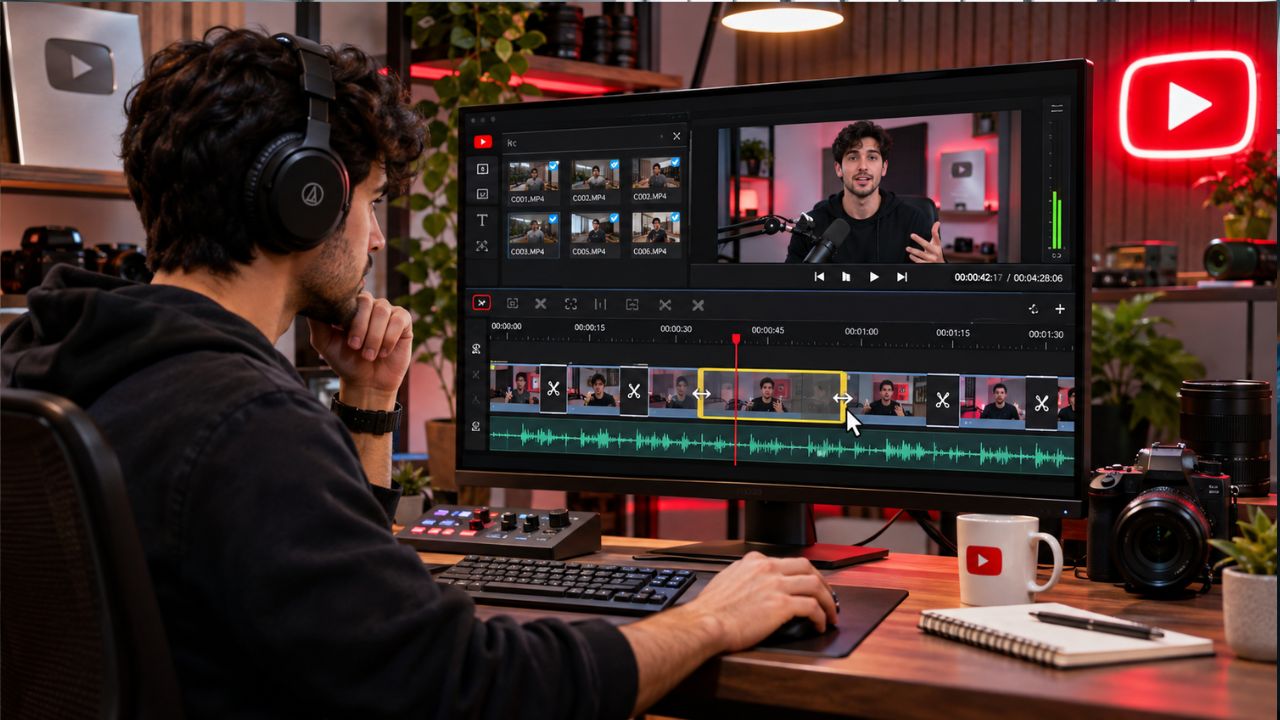
Most of the time that goes into a YouTube video is not spent recording. It goes into the cut: finding the good takes, removing dead air, trimming false starts and tightening the pacing so viewers stay with you. A 20-minute recording can easily take a few hours to clean up, and that time adds up across a channel.
The right YouTube video editor does not remove that work, but it can shorten it a lot. Some editors let you cut by deleting words in a transcript. Others detect silences, split footage into scenes or build a rough cut for you. Others focus on fast, precise manual trimming. This guide compares six editors on how quickly they help you cut and trim footage, and who each one suits.
What to Look for in a YouTube Video Editor When Speed Matters
Before comparing tools, it helps to know which features actually save time during a cut.
- Transcript-based cutting. If your video is mostly talking, deleting a sentence in a transcript is often quicker than scrubbing a timeline to find it.
- Silence and filler removal. Automatic detection of pauses, “ums” and flubbed takes removes the most repetitive part of trimming.
- Precise manual trimming. Ripple trims, keyboard shortcuts and a responsive timeline still matter, because every cut needs a final check by eye.
- Rough cut assistance. Scene detection, footage search and AI-built first cuts help when you have hours of raw material.
- Smooth playback on long footage. An editor that stutters on a long timeline slows every trim, whatever its features.
- Output that fits YouTube. Captions, chapter timestamps and a vertical version for Shorts save work after the cut is done.
- Clear limits on the free plan. Watermarks, export caps and AI allowances decide whether a free plan is usable for real uploads.
YouTube Video Editors at a Glance
| Editor | Main way it speeds up cutting | Where it runs | Free option |
| invideo Editor | Drag trimming, transcript cuts, AI rough cut | Browser, with mobile apps | Free manual editing and exports |
| Descript | Editing the transcript like a document | Desktop app and web | Free plan with usage limits and a watermark |
| CapCut | Smart cut, auto captions, quick manual trims | Desktop, web and mobile | Free plan with some features limited |
| Filmora | Silence detection and scene detection | Desktop and mobile | Free trial with a watermark |
| DaVinci Resolve | A dedicated Cut page built for speed | Desktop | Free version available |
| Adobe Premiere | Text-Based Editing and precise timeline tools | Desktop | 7-day free trial |
The Best YouTube Video Editors for Cutting and Trimming, Compared
1. Invideo Editor
Best for: creators who want to cut by hand, by transcript or with AI help, all in the browser.
Invideo Editor is an AI-powered video editor that runs in the browser. It combines a multitrack timeline with manual controls and a built-in editing agent, so you can cut by hand, let the agent do a first pass, or use both on the same project.
If you want a youtube video editor built around fast cutting, the timeline lets you trim clips by dragging their edges, or delete a sentence from the transcript to remove that part of the video. The agent can log your footage, remove filler, silences and flubbed takes, and assemble a first cut that stays editable on the timeline. Because the project saves in the cloud, you can pick it up on another device or share a link so teammates can review the cut.
Key features for cutting and trimming
- Trim by dragging clip edges, or cut by deleting text in the transcript
- AI rough cut that removes filler, silences and flubbed takes
- Cut to the beat: mark the first few beats and the pattern carries through the track
- Chapter markers with timestamps formatted for YouTube descriptions
- A 9:16 version branched from the long edit for Shorts
- Export from 720p to 4K, or hand the project to Premiere Pro, Final Cut Pro or DaVinci Resolve
Pricing and access: Manual editing and exports are free, and the editor’s own page lists a free 1080p export without a watermark. Work done by the built-in agent uses invideo credits, so check the current plans for the allowance that fits your upload schedule.
Things to consider: Invideo notes that nested sequences and node-based colour grading still suit a desktop editor better. If your cuts depend on those, plan for a second tool.
2. Descript
Best for: interviews, podcasts, tutorials and other talking-heavy videos.
Descript treats a video like a document. It transcribes your footage, and when you delete words from the transcript, the matching video is cut. For talking-head content this turns trimming into something close to editing a script, which suits creators who find timelines slow.
Key features for cutting and trimming
- Transcript-based editing, where deleting text cuts the video
- Filler word and silence removal
- Screen recording inside the app
- Multicam support on paid plans
- Captions and transcript export
Pricing and access: Descript has a free plan that includes the transcript editor, with a small monthly allowance of media minutes and exports that carry a watermark at a lower resolution. Paid plans raise those limits and remove the watermark, and they are priced per person. Plans are measured in media hours, so long recordings use up an allowance faster than you might expect.
Things to consider: Editing by text works best when someone is speaking. Footage that relies on action, B-roll or music timing still needs the timeline, and the text-first approach takes some getting used to.
3. CapCut
Best for: short, quick edits and creators who also publish Shorts, Reels or TikToks.
CapCut pairs a familiar multitrack timeline with a set of AI helpers. Cutting, trimming, splitting and merging clips are all quick, and tools such as auto captions and smart cut for removing silences and filler words reduce the repetitive steps. It also handles vertical formats well, which helps if each long video becomes several short clips.
Key features for cutting and trimming
- Cut, trim, split and merge on a multitrack timeline
- Smart cut for silences, filler words and dead air
- Auto captions
- Beat sync that cuts clips to music
- Keyframes and chroma key for finishing
Pricing and access: CapCut has a free plan that exports at up to 1080p. Higher export quality, higher AI limits and extra cloud storage sit behind paid plans. Some features have moved between the free and paid tiers over time, so confirm the current limits before you plan a workflow around one.
Things to consider: AI features such as smart cut may process footage in the cloud and can be limited on the free plan. The desktop app can feel slower on older machines when timelines get long.
4. Filmora
Best for: beginners who want a desktop editor with guided AI tools.
Filmora is a desktop editor with a clear layout and a set of AI tools aimed at repetitive trimming. Silence detection finds and removes pauses, scene detection splits long recordings into separate clips, and text-based editing lets you work from a transcript. Auto reframe then adapts the finished video for vertical formats.
Key features for cutting and trimming
- Silence detection to remove pauses
- Scene detection that splits long footage into clips
- Text-based editing from a transcript
- Auto reframe for vertical and square versions
- Audio tools such as noise reduction and ducking
Pricing and access: Filmora offers a free trial, and exports from the trial carry a watermark. A paid licence removes it. Several AI features, including captions and smart cut, use AI credits and need an internet connection, so check how many credits your plan includes.
Things to consider: Because the free trial watermarks every export, you cannot use it for finished uploads. Reviewers also point to AI credits as a limit if you process long recordings often.
5. DaVinci Resolve
Best for: editors who want a full professional tool and are willing to learn it.
DaVinci Resolve has a Cut page designed for fast assembly and trimming, plus separate pages for full editing, colour and audio. The free version includes professional colour grading and audio tools, and recent versions added a safe trim mode that stops you from overwriting neighbouring clips, along with silence removal tools. Together these make quick trimming possible without giving up control over the finish.
Key features for cutting and trimming
- A dedicated Cut page for fast assembly and trimming
- Safe trimming that avoids overwriting adjacent clips
- Silence removal tools in recent versions
- Fairlight audio tools, including dialogue leveling
- Colour grading on the same project
Pricing and access: The free version of Resolve can handle your edit and outputs up to Ultra HD. The paid Studio version is a one-time purchase and adds more advanced AI tools, such as transcription-based features. Which tools sit in the free version has changed between releases, so check the current feature list for the one you want.
Things to consider: Resolve is demanding. It needs a capable computer, and the many pages take time to learn. Creators who only need quick cuts may not use most of what it offers.
6. Adobe Premiere
Best for: editors who already use Adobe apps or work with others in Creative Cloud.
Adobe Premiere is a widely used desktop editor with detailed trimming controls. It supports three-point editing and ripple, roll, slip and slide edits for exact adjustments. Text-Based Editing transcribes footage on import, so you can build a rough cut by working with text, and you can detect and delete pauses in the transcript. A search panel can also find clips from a plain-language description.
Key features for cutting and trimming
- Text-Based Editing, with pause detection in the transcript
- Three-point editing and ripple, roll, slip and slide tools
- Search that finds clips from a description
- Generative Extend to lengthen a clip that runs short
- Integration with the rest of Creative Cloud
Pricing and access: Premiere is sold as a subscription, with a 7-day free trial. Generative features such as Generative Extend draw on monthly generative credits, so heavy use of them can need a higher allowance.
Things to consider: The subscription is an ongoing cost, and the interface has the steepest learning curve in this list. Quick trims are very capable, but a beginner may take longer to feel fast.
Conclusion
Faster cutting comes down to matching the editor to how you work. Invideo Editor suits creators who want to trim by hand, by transcript or with an AI rough cut, all in the browser. Descript is the pick for talking-heavy videos, while CapCut and Filmora offer quick, beginner-friendly AI trimming. DaVinci Resolve and Adobe Premiere reward editors who want deeper professional control and don’t mind a steeper learning curve.
Whichever you choose, run the automatic pass first, removing silences and filler, then spend your manual time on the cuts that need judgment. Before committing, check watermark rules, export limits and AI allowances, since these decide whether a free plan works for real uploads. Try one or two editors on an actual recording and keep the one that gets you to a clean cut with the least effort.
FAQs
What is the fastest way to cut a long YouTube video?
Start with an automatic pass, then refine by hand. Remove silences and filler first, either with transcript editing or a silence tool, then trim the remaining cuts on the timeline. Doing the automatic pass first means you only spend manual time on the cuts that need judgment.
Do I need a paid editor to trim YouTube videos?
Not always. Several editors in this list have free versions or trials, and a free plan is enough for simple cuts. Check the watermark, export resolution and AI allowance, because those limits decide whether a free plan works for uploads you plan to publish.
Is transcript-based editing faster than a timeline?
For videos where someone is talking, it often is, because you can read and delete lines instead of scrubbing. For footage built around visuals, B-roll or music, a timeline gives more control. Many editors now offer both, so you can switch between them in the same project.
Can I use the same edit to make YouTube Shorts?
Usually yes. Editors with auto reframe or vertical presets can create a 9:16 version from your long edit. You will still want to check each Short by eye, since reframing can crop out something important.
What export settings should I use for YouTube?
MP4 with H.264 video and AAC audio is a safe choice. Export at your footage’s resolution, for example 1080p or 4K, and keep the frame rate the same as the source.
Should I choose a browser editor or a desktop editor?
A browser editor is easier to start with and lets you work from any device, which helps if you edit in different places or share projects with a team. A desktop editor can handle heavier projects and offers deeper professional controls. Think about the length of your footage and the devices you use before you decide.
