
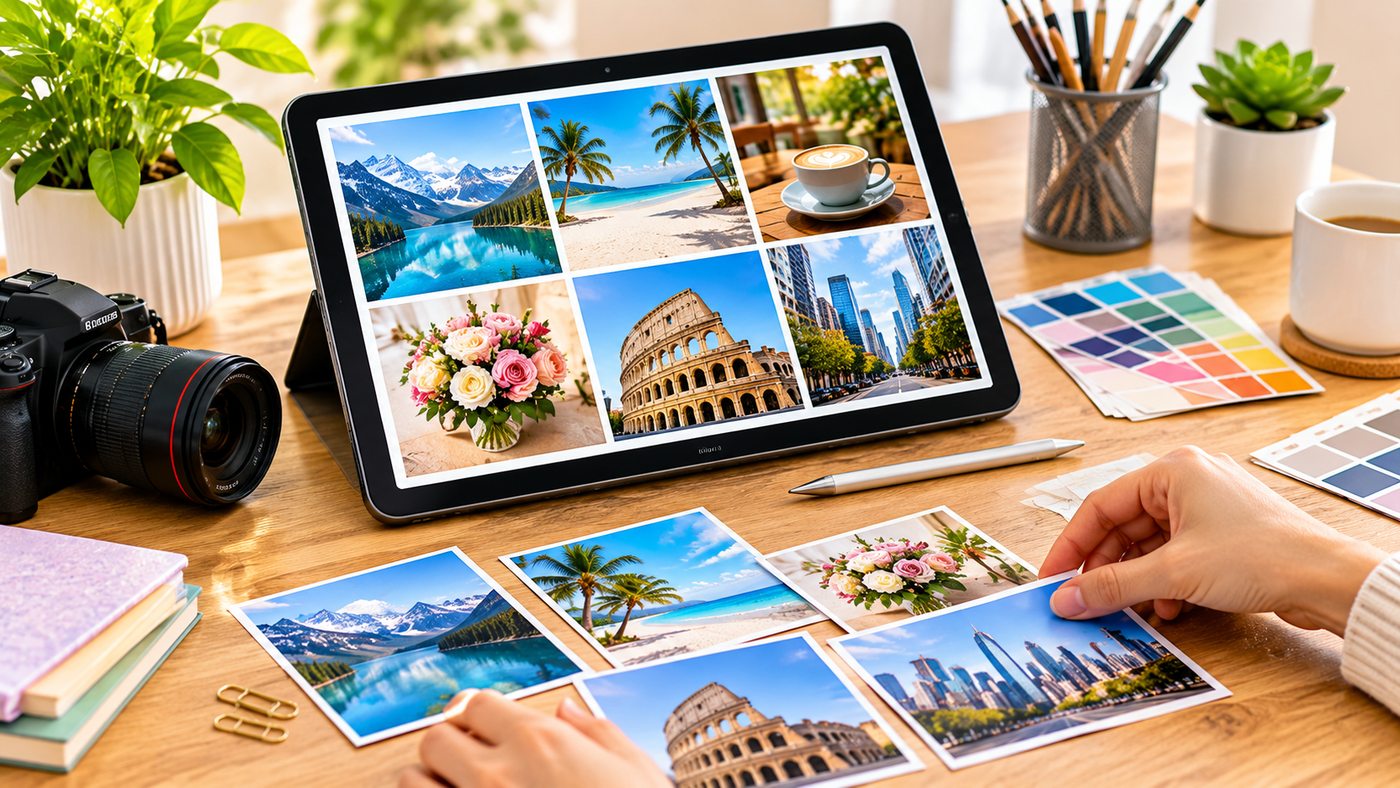
Photos are an essential part of digital communication. From social media campaigns and online stores to travel memories and professional presentations, images help people communicate ideas quickly and creatively.
However, sometimes a single photograph cannot tell the complete story. You may want to show several product angles, compare before-and-after results, display travel memories, or create a visual mood board.
Learning how to combine images allows you to organize multiple pictures into one attractive design without requiring advanced graphic design experience.
Modern online photo combiners make this process easier through ready-made templates, drag-and-drop editing, photo grids, background removal, and customizable layouts.
Instead of manually positioning every picture in complicated editing software, creators can use browser-based design tools to produce polished visual content.
Adobe Express is one example. Its photo combiner provides templates and editing options for creating photo collages, social media graphics, and other visual projects.
However, successful image combining involves more than placing photographs next to each other. Choosing a suitable layout, maintaining consistent image quality, and preparing the final design for its intended platform all influence the result.
This guide explores seven practical ways to combine photos, create professional collages, choose suitable layouts, and avoid common editing mistakes.
What Does It Mean to Combine Images?
Combining images means arranging two or more photographs, illustrations, or graphic elements into a single visual composition.
The resulting design may be a simple side-by-side comparison, an organized photo grid, a layered composition, or an artistic collage.
For example, an online retailer might combine three product photographs into one image showing a handbag from the front, side, and interior.
A traveler may arrange several vacation pictures into a collage.
A content creator might combine images with decorative elements to create a social media post.
Different Ways to Combine Photos
Common image-combining techniques include:
- Side-by-side photo arrangements
- Vertical image stacking
- Grid-based collages
- Before-and-after comparisons
- Layered photographic compositions
- Product image collections
- Mood boards
- Social media photo layouts
Each technique has a different purpose.
A before-and-after comparison usually requires a clear, balanced layout, while a creative mood board may benefit from overlapping images and varied dimensions.
Why Use an Online Photo Combiner?
Online photo editors can simplify the design process.
Many provide visual editing interfaces that allow users to upload photographs, select layouts, and arrange elements directly on a digital canvas.
This makes image combining accessible to people who do not use advanced desktop design software.
However, the available features, export formats, account requirements, and usage limits depend on the provider.
1. Choose the Right Images Before Creating a Collage
A professional-looking collage starts with suitable source images.
Even an attractive template may produce disappointing results if the photographs are blurry, poorly cropped, or visually inconsistent.
Select Images That Tell One Story
Choose photographs that share a clear purpose.
For example, a real estate agent preparing a property collage might include the living room, kitchen, bedroom, and exterior.
These images work together because they describe the same property.
Combining unrelated photographs may confuse viewers unless the design intentionally communicates several different ideas.
Use High-Quality Photographs
Choose source images with sufficient resolution for the final output.
Low-resolution pictures may appear blurry when enlarged.
Photographs taken under good lighting generally provide more flexibility during editing.
Maintain Consistent Visual Style
Try to select images with complementary lighting, colors, and overall appearance.
A collage containing one very dark photograph and several bright images may feel unbalanced.
You can often improve consistency with basic adjustments to brightness, contrast, and color.
Consider Image Orientation
Portrait and landscape photographs occupy space differently.
A tall portrait may work well in a narrow panel, while a landscape image may be better suited to a wide section.
Choose a layout that accommodates the most important parts of each photograph.
Check Image Rights
Use photographs you own, have permission to use, or are appropriately licensed.
Combining someone else’s images into a new design does not automatically remove copyright restrictions.
Commercial projects require particular care with licensing and recognizable trademarks.
2. Select a Suitable Photo Collage Layout
Layout selection determines how viewers interpret the finished design.
A clear arrangement can make a collage look organized, while an unsuitable layout can distract from the main subject.
Side-by-Side Images
A side-by-side layout places two photographs next to each other.
This works especially well for product comparisons, renovation projects, and two-stage visual explanations.
For example, a furniture retailer might show the same room with two different chair styles.
Keep both panels similarly sized when the comparison should feel balanced.
Vertical Photo Stacking
Vertically stacked photographs can work well for mobile-oriented compositions or step-by-step visual stories.
For example, three images might illustrate the stages of preparing a recipe.
The viewer can follow the sequence from top to bottom.
Grid Photo Collages
A photo grid arranges several images in organized rows and columns.
Popular layouts include two-by-two, three-by-two, and other balanced arrangements.
Grids are useful for product collections, event highlights, and travel photography.
Asymmetrical Layouts
An asymmetrical collage uses different image sizes.
One photograph may occupy a large section while smaller supporting pictures appear alongside it.
This can create visual hierarchy and draw attention to the most important image.
Layered Photo Collages
Layered layouts allow images to overlap.
They can produce a scrapbook-like or editorial appearance.
However, overlapping should not obscure important subjects or information.
Match the Layout to the Purpose
| Collage layout | Suitable application |
|---|---|
| Side-by-side | Before-and-after comparisons |
| Vertical stack | Step-by-step image stories |
| Equal grid | Product collections |
| Asymmetrical collage | Travel and lifestyle content |
| Overlapping images | Creative mood boards |
| Large hero image with smaller photos | Promotional graphics |
A layout should make the message easier to understand, not simply create visual complexity.
3. Combine Images Online Using Adobe Express
Adobe Express offers a browser-based photo combiner designed for people who want to merge pictures without learning complicated editing software.
Its interface supports photo collage templates, customizable layouts, and creative editing elements.
What Is Adobe Express Photo Combiner?
Adobe Express Photo Combiner is an online editing tool that helps users arrange photographs into a single design.
People looking for a convenient way to combine images can explore Adobe Express, which provides ready-made layouts and options for building personalized photo collages.
Adobe’s official page describes the ability to place images side by side, stack them, create photo grids, and develop layered compositions.
The tool can be useful for marketing materials, creative projects, social posts, and personal photo collections.
Step 1: Open Adobe Express
Visit the Adobe Express photo combiner.
You can begin with a collage template or create a project using your own photographs.
Adobe also provides a Collage Maker quick action through its photo tools.
Step 2: Upload Your Photos
Choose the pictures you want to use.
For the Collage Maker workflow, Adobe’s instructions direct users to select Photo, open Collage Maker, and upload images from their device.
Start with photographs that are relevant to your design.
Step 3: Select a Template or Layout
Choose an arrangement that fits the number and orientation of your images.
The Collage Maker quick action includes a Shuffle Layout option for exploring different arrangements.
For further customization, use the full editor’s available layout tools.
Step 4: Arrange the Pictures
Drag and position images in the desired layout.
Adjust the composition so important parts of each photograph remain visible.
For example, if a portrait is cropped too closely, reposition it within its assigned area.
Step 5: Customize the Design
Adobe Express supports further creative editing, including graphics, text, and other decorative elements.
Selected workflows also allow background removal and layered compositions.
Keep the design focused on the intended audience.
Step 6: Review the Finished Collage
Check spacing, image clarity, colors, and cropping.
Ensure that photographs are not stretched or unintentionally distorted.
Step 7: Download or Continue Editing
Adobe’s official quick-action instructions offer Download and Edit More options.
Its photo combiner page specifically describes downloading a finished collage as a PNG file.
Additional export and editing possibilities depend on the active workflow and account capabilities.
How Many Images Can Adobe Express Combine?
Adobe’s photo combiner FAQ currently states that users can add up to 15 images to a project.
This is the published limit for the referenced workflow and may change as the service evolves.
Is Adobe Express Free?
Adobe Express offers a free plan with core editing tools and a selection of templates.
Some assets, advanced features, and additional capabilities may require a paid plan.
Check the relevant plan before beginning a project that depends on premium functionality.
4. Create Better Social Media Graphics by Combining Photos
Social media platforms rely heavily on visual communication.
A collage can communicate several ideas within one image, making it useful for announcements, product launches, travel updates, and visual storytelling.
Instagram Photo Collages
A square collage may be suitable for certain Instagram feed posts.
Creators can combine several related photographs to show an event or highlight multiple product variations.
For example, a clothing brand could create a collage featuring four outfits from a seasonal collection.
Story and Vertical Designs
Stories commonly use a 9:16 vertical format.
A vertical collage may include a main photograph supported by two smaller images.
Ensure that important elements are not hidden by platform interface controls.
Facebook Promotional Graphics
Businesses can use collages to communicate special events, service collections, and customer experiences.
A restaurant might combine food photographs, dining-area images, and a seasonal menu preview.
For real promotional offers, any prices or claims should remain accurate.
Pinterest Visual Content
Pinterest-style designs may benefit from vertical imagery.
A home decorating business could combine several interior design examples into a single inspirational graphic.
Maintain Brand Consistency
When preparing marketing collages, use consistent colors, fonts, and photographic treatments.
A recognizable visual style can help connect separate posts within a campaign.
Avoid Overcrowding
Adding more images does not always improve a social post.
A collage with too many small photographs may become difficult to understand on a phone.
Prioritize the strongest images and use enough spacing to distinguish them.
5. Combine Product Images for E-Commerce and Business Marketing
Online retailers frequently need to demonstrate products from several perspectives.
Combining images can make product information easier to compare.
Show Different Product Angles
A single product photograph may not communicate every important feature.
For example, a backpack collage might include a front view, interior compartments, strap details, and a side profile.
The design helps customers understand the product.
Create Product Comparison Graphics
An electronics store may compare two models using a balanced side-by-side layout.
Ensure the images represent the actual products.
Avoid resizing one item in a way that creates a misleading impression about dimensions.
Highlight Product Details
A larger image can show the complete item while smaller images display important details.
For furniture, this might include material texture, joints, finishes, or storage compartments.
Prepare Before-and-After Visuals
Some service businesses use before-and-after photographs to explain completed work.
For example, a cleaning company might compare the condition of a room before and after a genuine cleaning project.
Both images should accurately represent the actual situation.
Avoid manipulating the results in misleading ways.
Develop Advertising Concepts
A product collage can become part of a digital advertisement.
For example, a skincare company may combine different product packaging photographs to present a collection.
Ensure the composition remains readable at the intended advertising dimensions.
Keep Product Information Accurate
Image editing can improve presentation, but it should not introduce nonexistent product features.
Commercial images should reflect what customers can reasonably expect to receive.
6. Use Layering, Background Removal, and Creative Effects
Traditional grid layouts are useful, but creative photo editing provides additional possibilities.
Layering allows designers to position one image over another and create more distinctive compositions.
What Is Image Layering?
Image layering involves arranging visual elements at different positions within a design.
For example, a person may appear in the foreground while a landscape photograph fills the background.
Overlapping images can create depth when used carefully.
Remove Unwanted Backgrounds
Background removal can isolate a subject from its original surroundings.
Adobe Express describes using its Remove Background feature to create sticker-style cutouts for layered collages.
A product photograph could be isolated and placed over a different decorative background.
Build a Creative Mood Board
Mood boards help communicate visual ideas.
An interior designer might combine furniture photographs, color samples, lighting references, and decorative materials.
A fashion designer may use images of fabrics, silhouettes, and accessories.
The objective is to communicate a coordinated creative direction.
Add Borders and Spacing
Borders can help separate individual photographs.
Even spacing often makes a grid look more polished.
Choose a border thickness that suits the final image size.
Include Text When Necessary
A caption or short heading can clarify the purpose of a design.
However, avoid placing lengthy paragraphs over photographs.
For accurate text and consistent branding, review spelling and typography before exporting.
Use Animation Appropriately
Adobe Express also advertises animation options for certain projects.
These may be useful for presentations or social media graphics.
However, animated elements are not part of an ordinary static JPG or PNG collage.
Choose the final export format according to the intended use.
7. Resize and Export Combined Images Without Losing Quality
A well-designed collage should be prepared for the platform where it will appear.
Incorrect dimensions or excessive compression can reduce the quality of the finished result.
Choose the Correct Aspect Ratio
Aspect ratio describes the relationship between image width and height.
For example, a 16:9 image is wider than it is tall.
A square image uses a 1:1 ratio.
Common Image Dimensions
| Use case | Example size | Aspect ratio |
|---|---|---|
| Square social post | 1080 × 1080 px | 1:1 |
| Vertical social post | 1080 × 1350 px | 4:5 |
| Story or reel graphic | 1080 × 1920 px | 9:16 |
| Blog featured image | 1400 × 788 px | Approximately 16:9 |
| Widescreen presentation | 1920 × 1080 px | 16:9 |
These are useful examples, not universal requirements.
Platforms may have additional or changing recommendations.
Avoid Stretching Photographs
Stretching changes an image’s proportions.
A face may appear unnaturally wide or narrow if the original aspect ratio is not preserved.
Use cropping and repositioning to fit images into a layout instead.
Understand PNG and JPG
PNG is often useful for graphics requiring lossless compression or transparency.
JPG is commonly appropriate for photographic content where smaller file sizes are beneficial.
The ideal format depends on the design and publishing requirements.
Resize With Adobe Express
Adobe’s Resize Image quick action supports common formats and allows users to select preset or custom dimensions.
Its documentation lists JPEG, JPG, PNG, WebP, and HEIC among the supported input formats for that tool.
Some multi-format resizing capabilities are part of premium offerings, so check the exact function you plan to use.
Compress Large Images
A detailed collage containing multiple photographs can produce a large output file.
When preparing images for a website, use appropriate compression to balance visual quality and loading performance.
For example, a publishing platform with a 400 KB upload limit requires a file smaller than that threshold.
Compressing a finished JPG may be necessary.
Check the Final Result
Before publishing, inspect the image at its intended display size.
Confirm that the most important details are visible and that the file is not excessively blurred or pixelated.
Combine Images vs. Merge Images: Is There a Difference?
The terms are often used interchangeably, but they can describe different editing methods.
Combining images frequently refers to arranging photographs in a collage or layered composition.
Merging images may also describe blending multiple visual sources into one continuous scene.
For example, placing two vacation photos side by side is a straightforward image combination.
Blending a subject from one photograph into a different background is a more complex form of image editing.
Photo Collage vs. Seamless Composite
| Feature | Photo collage | Seamless composite |
|---|---|---|
| Image boundaries | Often visible | Usually minimized |
| Main purpose | Display multiple pictures | Create a unified scene |
| Editing difficulty | Often beginner-friendly | May require advanced editing |
| Typical tools | Layouts and templates | Masks, blending and retouching |
| Common use | Social graphics and mood boards | Advertising and creative imagery |
A simple collage is usually sufficient when the goal is to show multiple images together.
How to Combine Two Pictures Side by Side
A side-by-side design is one of the easiest ways to begin.
First, select two photographs with similar or complementary subjects.
Choose a two-column layout in your preferred photo combiner.
Place one image in each column.
Adjust the crop so both main subjects remain visible.
Use consistent spacing and borders if necessary.
Finally, export the image at a suitable size.
For comparison graphics, consider adding simple labels when they help viewers understand the difference.
Do not alter the content in ways that create misleading comparisons.
Common Mistakes When Combining Images
Using Low-Resolution Photographs
Small source images may become blurry when enlarged.
Select suitable resolution before editing.
Mixing Unrelated Visual Styles
Strong differences in lighting and color can make a collage feel inconsistent.
Use basic adjustments to establish a more coherent appearance.
Choosing the Wrong Layout
A layout should accommodate the shapes and subjects of the photographs.
Avoid cropping away important details.
Adding Too Many Pictures
An overcrowded design may be difficult to understand.
Choose only the images needed to communicate the message.
Ignoring Mobile Readability
A design that looks attractive on a desktop screen may appear cluttered on a smartphone.
Test the finished collage at smaller sizes.
Forgetting Copyright Permissions
Make sure the images and other assets can legally be used for the intended project.
Exporting Without Checking Dimensions
The final file may have different dimensions from the original photographs.
Confirm the output size before uploading.
SEO Tips for Combined Images on Websites
If you use combined photographs in blog posts or product pages, basic image SEO can help search engines understand their purpose.
Use a Descriptive Image Filename
A descriptive filename provides context.
For example:
combine-images-online-photo-collage.jpg
This is more informative than a generic filename such as image123.jpg.
Write Natural Alt Text
Alternative text should describe the meaningful visual content.
For a collage showing three product views, the alt text might explain that the image contains front, side, and detail views of the product.
Avoid inserting unrelated keywords simply to increase keyword frequency.
Place Images Near Relevant Content
Google recommends placing useful images close to text that explains their subject.
A product comparison collage should appear near the corresponding comparison.
Optimize File Size
Appropriately compressed images can improve loading efficiency.
Balance file size with sufficient sharpness.
Use Original and Relevant Visuals
Images should contribute to the reader’s understanding.
A useful photograph or collage can provide more value than unrelated decorative graphics.
Photo Combining Ideas for Different Projects
Travel Memories
Arrange several photographs from one trip into a coordinated design.
Combine landscapes, landmarks, food, and meaningful activities.
Wedding Photo Collections
Create a collage featuring the ceremony, reception, decorative details, and selected memorable moments.
Real Estate Listings
Combine photographs of different rooms to provide an overview of a property.
Product Catalogs
Present multiple product colors, variations, or details in an organized layout.
School Projects
Use photo collages to illustrate a subject or communicate research findings.
Personal Mood Boards
Combine visual references for interior design, fashion, photography, or creative planning.
Blog Featured Images
Create a topic-specific visual when an article benefits from showing several relevant examples.
The best collage supports the content rather than distracting from it.
Frequently Asked Questions
1. How can I combine images online for free?
You can use a free online photo combiner such as Adobe Express. Upload your photographs, choose a collage layout, arrange the images, and download the finished design using the available export options.
2. Can Adobe Express combine multiple photos into one image?
Yes. Adobe Express supports photo collages, grids, side-by-side arrangements, and layered designs. Its official photo combiner page currently states that users can add up to 15 images to a project.
3. How do I combine two photos without losing quality?
Use high-resolution source photographs, preserve their original proportions, select suitable output dimensions, and avoid unnecessary resizing or heavy compression.
4. Can I combine images on a smartphone?
Yes. Adobe Express offers editing workflows accessible on supported mobile devices. The available controls and interface may differ from desktop editing, so check the current app features.
Conclusion
Learning to combine images makes it easier to create polished photo collages, marketing graphics, product comparisons, and memorable visual stories.
Adobe Express offers accessible templates and layout tools that help beginners arrange and customize photographs without complicated design software.
By choosing relevant images, applying balanced layouts, and optimizing the final file, anyone can create more attractive and useful visual content.
