
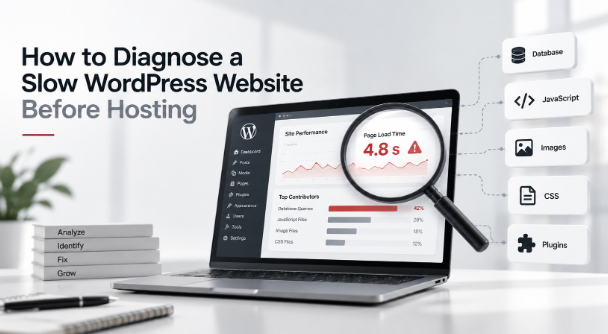
Your WordPress website is slow, so your first instinct might be to upgrade your hosting. That’s an expensive way to find out hosting was never the issue.
Hosting is only one possible bottleneck among several. Your server, your database, your plugins, your front end, or a handful of third-party scripts could all be quietly adding seconds to every page load. Before you sign a bigger hosting contract, find out exactly where the delay is happening, one layer at a time.
Is Your Hosting Actually the Problem?
Slow hosting can absolutely cause a slow website. But hosting is also the easiest thing to blame, because it’s the one variable that’s visible and easy to change. If you’re considering moving from shared hosting or VPS to dedicated hosting, it’s still worth confirming that the server is actually the bottleneck before paying for additional infrastructure.
In reality, a slow page can come from five different places: the server, WordPress itself, the database, the front end (images, scripts, fonts), or third-party tools like chat widgets and tracking pixels. Each one produces a different symptom and needs a different fix.
The takeaway: don’t upgrade hosting until you know where the delay actually starts. A faster server won’t fix a bloated plugin stack or an unoptimized database, and you’ll have spent the money just to prove it.
Before you can point to a cause, though, you need a number to measure against.
Start With a Baseline Performance Test
Test the same page more than once. A single test can be skewed by server load, caching, or network conditions at that moment. Run it at least three times, from more than one location if your tool allows it, and check mobile and desktop separately. Mobile is usually worse, and it’s the version most of your visitors and Google experience.
Look beyond the overall score. A single 0–100 number hides more than it reveals. Look at Largest Contentful Paint (LCP), Interaction to Next Paint (INP), and Cumulative Layout Shift (CLS), Google’s Core Web Vitals.
A good LCP is under 2.5 seconds, a good INP is under 200 milliseconds, and a good CLS is under 0.1.
Alongside those, track your Time to First Byte (TTFB), total load time, page size, and number of requests. Explore a free Website Speed Analyzer, which will pull most of these for you in one pass.
Once you have that baseline, you need to work out whether the delay starts on the server or in the browser.
Check TTFB to See If the Server Is Responding Slowly
TTFB measures how long your server takes to send back the very first byte of a page, before your browser starts rendering anything. A good TTFB is under 0.8 seconds; anything over 1.8 seconds is poor.
TTFB is shaped by more than your hosting plan: caching, database queries, plugin load, WordPress configuration, server location, and how much of the page is generated dynamically all factor in.
Here’s the important distinction: a high TTFB can point toward an infrastructure problem, but it doesn’t automatically mean your hosting provider is at fault. A well-configured budget server can outperform a poorly configured expensive one. Rule out caching, database bloat, and plugin overhead first.
If you’ve checked TTFB and still can’t tell whether the problem is your server or something running on top of it, that’s exactly the kind of diagnosis we do at WisdmLabs before ever recommending a hosting change.
Find Out What WordPress Is Actually Doing
A high TTFB often traces back to WordPress itself, not the server underneath it.
Check plugin impact. Heavy plugins, duplicate functionality (two SEO plugins, two caching plugins), plugins loading scripts on every page whether they’re needed or not, and plugins generating excessive database queries are among the most common causes of a slow backend.
Check your theme and custom code. Bloated page builders, unused theme functionality, excessive JavaScript, and custom code that runs on every page load add real delay, especially on content-heavy sites. If the issue sits deeper in the site’s architecture or custom code, a product engineering agency can help diagnose the underlying problem rather than treating the hosting as the default culprit.
Check WordPress cron jobs. WP-Cron runs on page visits by default, and a buildup of scheduled tasks, especially the Action Scheduler on WooCommerce sites, can quietly consume server resources on every request.
Plugins and cron jobs eventually leave a mark in one place: your database.
Check Whether Your Database Is Slowing the Website Down
This is where a lot of “we need better hosting” conversations should actually start.
A bloated wp_options table is one of the most common, least visible causes of a slow WordPress site. Keep autoloaded data under roughly 800KB; beyond that, every page load has to pull unnecessary data into memory before it can do anything else. Other common culprits: years of unpruned post revisions, expired transients nobody cleared, and, on WooCommerce sites, an Action Scheduler table stacked with completed or failed actions.
None of this shows up in a hosting dashboard. It shows up as a website that feels slow even though the server is perfectly capable. On a recent LearnDash platform we worked on, the infrastructure was fine, but logged-in lesson pages were still crawling.
The database and page-level configuration turned out to be the real bottleneck, and fixing them lifted mobile PageSpeed by 32.5%, no rebuild or hosting change required.
Even a clean database won’t help if the front end is doing too much work.
Look at the Front End Before Blaming the Server
Large images. Oversized files, the wrong format, missing responsive sizing, and images loading before they’re needed all add real weight your server had nothing to do with.
JavaScript and CSS. Render-blocking scripts and stylesheets, excessive JavaScript, and unused CSS shipped on every page delay the moment a visitor can actually use your site, regardless of how fast your server responded.
Fonts and external requests. Multiple font files, tracking scripts, chat widgets, marketing tools, and embedded content each add their own request and their own delay.
None of this is a hosting problem, and no hosting upgrade will fix it.
Check Your Cache Setup
Page caching, browser caching, object caching, and a CDN each solve a different problem. Having a caching plugin installed doesn’t mean all four are actually configured.
Confirm that page caching serves cached pages to logged-out visitors, that browser caching headers are set on static assets, and that object caching (Redis or Memcached) is active if your site depends on it.
Check your cache exclusions too: WooCommerce cart and checkout, and logged-in LearnDash lesson pages, often need to bypass the cache entirely, and a misconfigured exclusion list can leave your most important pages uncached.
Once you confirm caching, test the pages that matter, not just the one that looks fastest.
Test Your Website’s Heavy Pages
The homepage is usually the fastest page on the site and the least representative of what your customers actually experience.
Test your product and category pages, checkout, blog and search results, high-traffic landing pages, and, if you run LearnDash or a membership site, logged-in course and account pages specifically. These are typically the slowest, most dynamic, and most revenue-critical pages you have, which a homepage score won’t reveal.
If you’re not sure which of your pages are actually slow, or why, a proper performance audit will tell you before a hosting migration does. Explore WisdmLabs’ website performance optimization services →
