
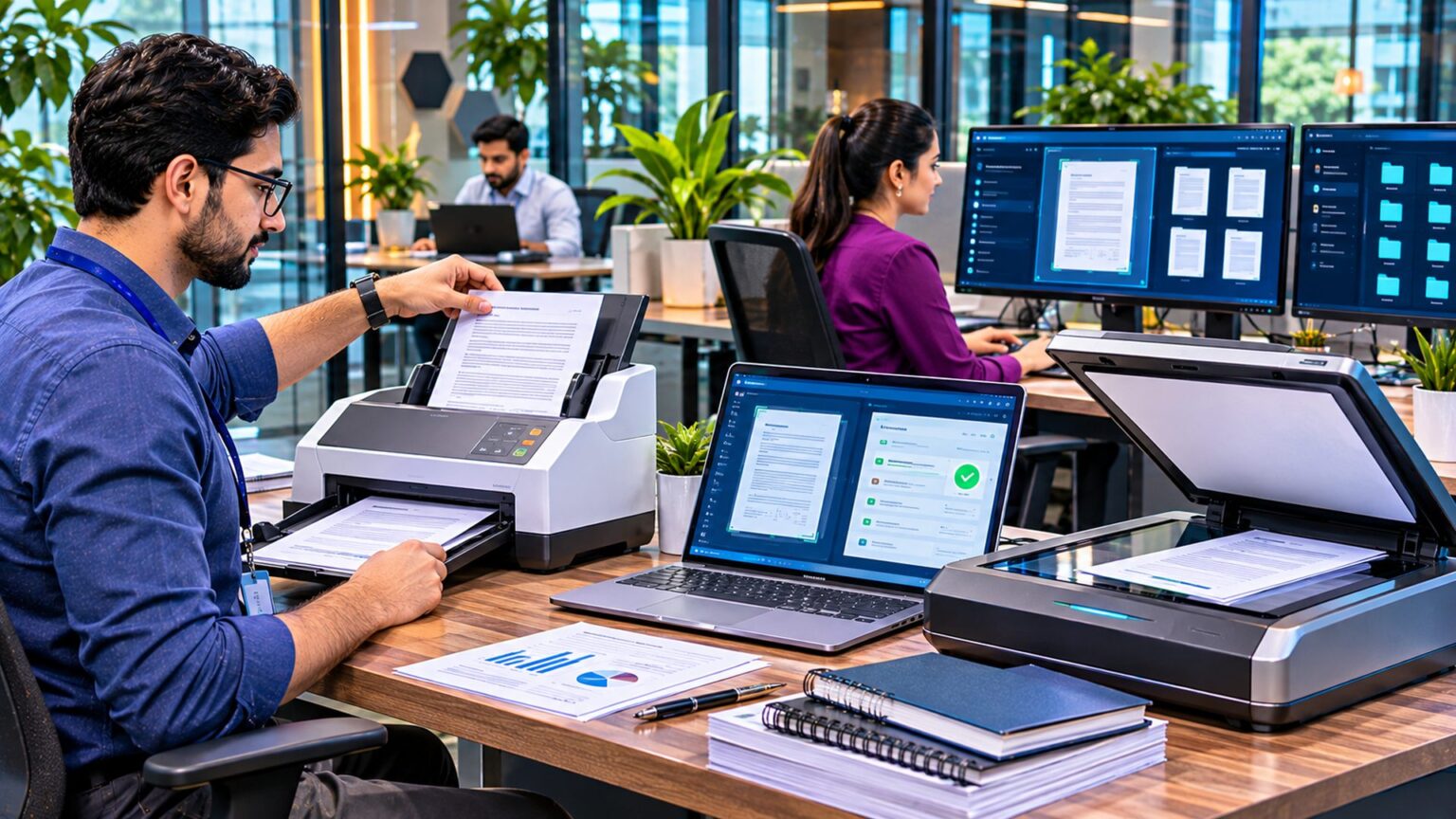
Businesses increasingly rely on digital information to manage administrative responsibilities, financial records, customer communications, and professional workflows. Investing in high-quality document scanners allows organizations to convert physical paperwork into clear, accessible, and organized digital files while reducing dependence on traditional filing systems.
Unlike basic scanning equipment, professional document scanners may provide advanced image processing, automatic document feeding, double-sided scanning, optical character recognition, and intelligent document management capabilities.
These features can help businesses reduce repetitive administrative tasks, improve information accessibility, and establish more efficient paperless operations.
Whether you manage a small business, accounting firm, educational institution, or large enterprise, selecting suitable scanning equipment requires understanding document volumes, image quality requirements, software compatibility, and security considerations.
This comprehensive guide explores forty practical tips for choosing professional scanning equipment, improving document quality, and building dependable digital document management workflows.
What Are High-Quality Document Scanners?
High-quality document scanners are specialized devices designed to convert physical documents into accurate and readable electronic files.
Professional scanning equipment captures printed text, photographs, diagrams, receipts, contracts, and other physical records using optical imaging technology.
Modern scanners can also combine hardware capabilities with intelligent software that enhances image clarity, extracts text, and organizes digital documents.
Essential Features of Professional Document Scanners
Common features include:
- High optical scanning resolution
- Automatic document feeders
- Double-sided scanning
- Optical character recognition
- Searchable PDF creation
- Automatic image enhancement
- Document edge detection
- Double-feed detection
- Cloud storage integration
- Network connectivity
- Batch document processing
- Secure file management
The availability of these features depends on the scanner model, installed software, and technical configuration.
1. Identify Your Document Scanning Requirements
Before purchasing a document scanner, establish what types of paperwork your organization regularly processes.
A small business scanning occasional receipts requires different equipment from an enterprise digitizing thousands of documents.
Evaluate Document Types
Consider whether you primarily scan invoices, contracts, identification cards, photographs, technical drawings, or lengthy reports.
Selecting equipment according to actual operational requirements helps prevent unnecessary spending and inadequate scanning performance.
2. Choose the Right Type of Document Scanner
Different scanner designs support different document management activities.
Common categories include flatbed scanners, sheet-fed scanners, portable scanners, overhead scanners, and production scanning systems.
Each category provides different advantages involving speed, document compatibility, portability, and image quality.
Businesses should evaluate these characteristics according to their daily scanning requirements.
3. Understand Flatbed Scanning Technology
Flatbed scanners use a glass surface on which users position individual documents.
These devices are particularly useful for scanning photographs, fragile paperwork, bound materials, and documents that cannot safely pass through automatic feeding mechanisms.
Prioritize Document Protection
Flatbed scanning reduces the need to bend or mechanically feed delicate materials.
However, extremely fragile or valuable historical documents may require specialized conservation equipment and professional handling.
4. Explore Sheet-Fed Document Scanners
Sheet-fed scanners automatically move individual paper documents through an imaging mechanism.
They are particularly suitable for organizations processing substantial quantities of loose paperwork.
Unlike conventional flatbed scanning, sheet-fed equipment can reduce the need to position every page manually.
Check supported paper thickness, document dimensions, and feeding requirements before selecting a model.
5. Consider Portable Document Scanners
Portable scanners provide convenient document capture for professionals working outside conventional office environments.
Compact devices may support USB connections, wireless connectivity, or battery-powered operation.
These scanners can be useful for consultants, sales representatives, field technicians, and remote workers.
However, their scanning speed, document capacity, and available functionality may be more limited than dedicated desktop equipment.
6. Evaluate Automatic Document Feeders
An automatic document feeder, commonly called an ADF, allows multiple pages to be scanned without requiring manual insertion of every individual sheet.
Select an Appropriate Feeder Capacity
Businesses processing lengthy contracts or extensive financial records may benefit from larger document feeder capacities.
Evaluate whether the feeder supports mixed paper sizes and document weights.
Prepare paperwork properly to reduce feeding errors, interruptions, and potential document damage.
7. Invest in Automatic Duplex Scanning
Duplex scanning captures information printed on both sides of a document.
Some professional scanners can capture both sides during a single pass, reducing the need to manually reverse pages.
Improve Multi-Page Scanning Efficiency
Double-sided scanning is particularly useful for legal agreements, academic records, business reports, and financial documentation.
Review duplex scanning specifications carefully because single-sided and double-sided processing speeds may be reported differently.
8. Understand Optical Scanning Resolution
Scanning resolution describes the amount of visual detail captured from a physical document.
Scanner specifications commonly express resolution using dots per inch, or DPI.
Distinguish Optical and Interpolated Resolution
Optical resolution represents the scanner’s actual imaging capability. Interpolated resolution increases pixel dimensions through software processing without necessarily capturing additional physical detail.
Prioritize optical resolution when comparing professional equipment.
9. Use Suitable Resolution Settings
Higher scanning resolution can preserve additional detail but may increase file sizes and processing requirements.
For many ordinary printed documents, 300 DPI provides a practical starting point.
The US National Archives also specifies a minimum of 300 PPI for certain modern textual records covered by federal digitization requirements.
Adjust Settings for Detailed Documents
Small print, photographs, faded records, and technical illustrations may require higher resolutions.
Choose settings according to actual document quality requirements rather than automatically selecting the maximum available resolution.
10. Evaluate Document Scanning Speed
Scanning speed influences productivity when organizations process extensive document collections.
Manufacturers commonly report performance using pages per minute or images per minute.
Understand PPM and IPM
Pages per minute generally describes the number of physical pages processed within a minute.
Images per minute counts captured document sides.
For example, a duplex scanner processing forty double-sided sheets per minute could theoretically capture eighty page images per minute under equivalent operating conditions.
Actual performance depends on settings, software, document preparation, and equipment characteristics.
11. Compare Recommended Daily Scanning Volumes
Professional scanners may include recommended daily processing volumes or duty-cycle specifications.
These measurements help organizations understand the intended workload of different devices.
A scanner suitable for occasional administrative paperwork may not be appropriate for continuous enterprise digitization.
Review manufacturer guidance regarding maintenance intervals, expected usage, and consumable component replacement.
12. Prioritize Optical Character Recognition
Optical character recognition, commonly known as OCR, converts visible text within scanned images into machine-readable information.
OCR allows users to search documents, extract selected text, and support automated information processing.
Improve Information Accessibility
Businesses can use OCR to locate invoice numbers, customer names, contract terms, and other important information without manually reviewing every document.
Recognition accuracy depends on image quality, language support, and source document characteristics.
13. Create Searchable PDF Documents
An ordinary scanned PDF may contain only page images.
Searchable PDFs include recognized text that allows compatible software to locate specific words and phrases.
This functionality is particularly valuable for organizations maintaining extensive document archives.
Ensure that your scanning software supports searchable PDF creation and verify the results before relying on automated document searches.
14. Understand PDF/A for Long-Term Archiving
PDF/A is a family of standardized PDF formats intended to support long-term preservation of electronic documents.
It can be appropriate for certain organizational recordkeeping and archival workflows.
Evaluate Archival Requirements
Determine which PDF/A version or other file format your organization requires.
Maintain Appropriate Preservation Copies
Some archival projects may require separate high-quality image files, technical metadata, and additional preservation measures.
A PDF/A file alone does not establish complete compliance with every records management requirement.
15. Choose Appropriate Document Colour Modes
Professional scanners commonly offer full-colour, grayscale, and black-and-white scanning.
Each option provides different advantages involving file size, visual accuracy, and document readability.
Use colour scanning when coloured annotations, stamps, photographs, or diagrams are important to understanding the original document.
Black-and-white scanning may be appropriate for clear printed text when no meaningful colour information needs preservation.
16. Use Automatic Image Enhancement Carefully
Modern document scanning software may automatically adjust brightness, contrast, orientation, and image backgrounds.
These improvements can make scanned paperwork easier to read.
However, aggressive image processing can remove faint text, handwritten annotations, or important document characteristics.
Preserve an appropriate original capture when accurate reproduction is particularly important.
17. Enable Automatic Document Orientation
Scanned documents may appear upside down or sideways when inserted incorrectly.
Automatic orientation detection can help software rotate pages into readable positions.
This feature is useful for large document batches containing pages arranged in different directions.
Always review important files because automated orientation detection may occasionally misinterpret unusual layouts, photographs, or multilingual documents.
18. Use Deskew and Cropping Features
Deskewing corrects unwanted page rotation, while cropping removes unnecessary areas surrounding a scanned document.
These features can improve document presentation and OCR performance.
Preserve Important Document Information
Review automatic cropping results to ensure that signatures, page numbers, stamps, and handwritten notes remain visible.
Avoid removing margins containing relevant legal or administrative information.
19. Prevent Document Double-Feeding
Double-feeding occurs when two or more sheets pass through a scanner together.
This can result in missing digital pages and incomplete document records.
Some professional scanners use ultrasonic or other detection technologies to identify potential feeding problems.
Configure suitable detection settings and investigate alerts before continuing important scanning activities.
20. Prepare Documents Before Scanning
Proper document preparation can improve scanning reliability and reduce equipment interruptions.
Remove staples, paper clips, adhesive notes, and other unsuitable attachments according to manufacturer instructions.
Straighten folded corners and separate damaged pages when necessary.
Use approved carrier sheets or flatbed scanning methods for documents that cannot safely pass through automatic feeders.
21. Scan Mixed Document Sizes Efficiently
Business paperwork frequently includes different paper sizes, receipts, forms, and identification documents.
Professional scanners may support mixed-size document batches and automatic page-size detection.
Verify Document Compatibility
Review supported minimum and maximum paper dimensions.
Some documents may require specialized feeding arrangements.
Test representative batches before processing extensive collections containing irregular paper formats.
22. Digitize Business Invoices and Receipts
Accounting departments frequently manage substantial quantities of financial paperwork.
Document scanners can support the conversion of invoices, expense receipts, purchase orders, and payment confirmations into accessible electronic records.
Organize scanned files according to supplier, date, and transaction reference.
Verify recognized financial amounts and account details before transferring information into accounting software.
23. Preserve Contracts and Legal Documents
Legal and contractual paperwork requires particular attention to completeness and information accuracy.
Scan all pages, signatures, amendments, attachments, and relevant annotations.
Maintain Reliable Legal Records
Review final digital files against their physical originals.
A scanned document may not replace an original in every legal situation.
Organizations should follow applicable document retention policies and obtain professional guidance before destroying important physical records.
24. Digitize Educational Materials
Schools, universities, and training organizations can use document scanners to organize authorized learning materials, administrative records, and research documents.
Searchable PDF files can improve access to extensive educational collections.
Use scanning equipment responsibly and respect copyright restrictions.
Confidential student information should remain accessible only to appropriately authorized individuals.
25. Improve Healthcare Document Management
Healthcare institutions frequently manage referral letters, administrative forms, medical records, and other sensitive information.
Professional scanning workflows can support authorized digital recordkeeping.
Protect Patient Confidentiality
Use approved equipment, restricted access permissions, secure storage, and suitable information transfer arrangements.
Verify document completeness before adding scanned information to patient records.
Healthcare organizations must comply with their applicable privacy and recordkeeping obligations.
26. Establish Consistent File Naming Practices
A consistent file naming system makes scanned documents easier to identify and organize.
File names may include document dates, categories, department identifiers, and appropriate reference numbers.
For example, a supplier invoice could be named 2026-11-invoice-1042.pdf.
Avoid including unnecessary personal information, confidential financial details, or sensitive identifiers in publicly visible filenames.
27. Organize Documents With Metadata
Metadata provides additional information about digital records, including their creation dates, categories, authors, and administrative references.
Structured metadata can improve document search and organization.
Establish Consistent Information Categories
Select metadata fields according to operational requirements and recordkeeping responsibilities.
Verify automated classification results before adding important documents to permanent archives.
Consistent information management becomes increasingly valuable as digital document collections expand.
28. Integrate Document Management Software
Document management systems provide centralized environments for storing, accessing, organizing, and sharing electronic records.
Compatible scanner integrations can reduce unnecessary administrative work.
Evaluate whether your scanning equipment supports the organization’s existing software.
Important considerations include document routing, indexing, version control, approval workflows, access permissions, and supported file formats.
29. Explore Cloud-Based Document Storage
Some scanning systems support direct or software-assisted transfers to cloud storage platforms.
This functionality can improve authorized document accessibility across multiple workplaces.
However, cloud integration introduces responsibilities involving account security, information retention, and privacy protection.
Review storage arrangements and contractual requirements before uploading sensitive business records.
30. Compare USB and Network Scanning
USB-connected scanners typically operate through a nearby compatible computer.
Network scanners may allow multiple authorized users to access shared scanning functionality through suitable wired or wireless infrastructure.
Choose Appropriate Connectivity
Individual workstations may benefit from straightforward USB connections, while shared office environments may require network access.
Protect network-connected equipment with appropriate security configurations and authorized access controls.
31. Review Scanner Driver Compatibility
Scanner drivers allow operating systems and applications to communicate with scanning hardware.
Common scanning interfaces include TWAIN, ISIS, WIA, and other platform-specific technologies.
Before purchasing equipment, confirm compatibility with your operating system and document management software.
Businesses using specialized accounting, healthcare, or records management applications should test integration with representative scanning workflows.
32. Protect Sensitive Digital Documents
Digitized documents may contain commercially sensitive information, financial details, personal identifiers, or confidential customer records.
Establish Appropriate Security Controls
Use encryption where suitable, strong authentication, restricted access permissions, secure storage, and reliable backup procedures.
Control Document Distribution
Share confidential files only with authorized recipients.
Scanner security settings should complement the organization’s broader information security strategy rather than operate independently.
33. Maintain Reliable Document Backups
Digital records can become unavailable because of hardware failures, accidental deletion, ransomware, or storage problems.
Maintain independent backups of important document collections.
Periodically test whether stored information can be restored successfully.
Cloud synchronization may provide convenient access across devices, but it should not automatically be considered a complete backup solution.
34. Clean and Maintain Scanning Equipment
Dust, paper particles, and worn components can reduce image quality and feeding reliability.
Follow manufacturer instructions for cleaning scanner glass, imaging surfaces, feed rollers, and other accessible components.
Use approved cleaning materials and replacement parts.
Regular maintenance can help prevent avoidable scanning interruptions and preserve equipment performance.
35. Compare Established Document Scanner Brands
Several manufacturers provide professional scanning equipment for different organizational requirements.
Ricoh
Ricoh offers professional document scanners, including models that combine automatic feeding, duplex scanning, and flatbed functionality.
Brother
Brother provides desktop document scanning equipment designed for administrative and business workflows.
Other Established Manufacturers
Epson and Canon also offer document digitization solutions.
Compare individual models according to image quality, document capacity, software compatibility, maintenance requirements, and local support availability.
36. Evaluate Total Scanner Ownership Costs
The initial purchase price represents only one component of scanning equipment expenses.
Other costs may include software subscriptions, replacement rollers, maintenance services, storage infrastructure, employee training, and technical support.
A lower-priced scanner may create additional expenses if it requires frequent maintenance or extensive manual intervention.
Compare complete operating costs before selecting professional equipment.
37. Test Scanning Performance Before Purchasing
Product specifications provide useful information but may not fully reflect actual workplace conditions.
Whenever possible, test scanning equipment using representative documents.
Evaluate text clarity, document feeding, colour accuracy, OCR performance, processing speed, and software integration.
Testing is particularly important for organizations handling unusual document sizes, faded records, or substantial daily scanning volumes.
38. Train Employees in Document Scanning Procedures
Professional equipment delivers greater value when employees understand appropriate scanning practices.
Provide clear instructions covering document preparation, resolution selection, file naming, quality verification, and secure storage.
Employees should also understand how to respond to paper jams, incomplete scans, and technical errors.
Consistent procedures help maintain reliable document quality across departments.
39. Establish a Document Quality Assurance Process
Important document collections should undergo appropriate verification before being accepted into permanent digital archives.
Review Essential Quality Indicators
Quality checks should address:
- Page completeness
- Text readability
- Correct page orientation
- Accurate document sequence
- Appropriate colour reproduction
- OCR accuracy
- File accessibility
- Correct metadata
Investigate identified problems and rescan affected documents when necessary.
40. Build a Sustainable Paperless Office Strategy
Successful digital transformation requires more than purchasing high-quality document scanners.
Organizations need structured processes for capturing, organizing, protecting, retaining, and retrieving digital information.
Review scanning procedures regularly and adapt them as business requirements change.
A sustainable paperless strategy combines suitable equipment, experienced employees, dependable storage infrastructure, and appropriate records management policies.
How Artificial Intelligence Improves Document Scanning
Artificial intelligence is introducing additional opportunities for improving document digitization and information management.
Intelligent Document Classification
AI-assisted systems can help identify document categories such as invoices, receipts, contracts, and application forms.
Automated classification may reduce manual sorting requirements.
Automated Information Extraction
Intelligent document processing can extract selected information from scanned records and transfer it into compatible business workflows.
This functionality can support accounting, customer administration, and enterprise records management.
Advanced Image Processing
AI-assisted image enhancement may help improve document clarity, identify boundaries, and correct selected visual distortions.
However, automated processing requires appropriate verification because generated corrections and extracted information can contain errors.
Major Benefits of High-Quality Document Scanners
Professional scanning equipment can provide several practical advantages:
- Faster document digitization
- Improved image clarity
- Reduced repetitive administrative work
- More accessible digital information
- Searchable document archives
- Better document organization
- Reduced physical storage requirements
- Improved remote collaboration
- More efficient accounting workflows
- Stronger digital records management
Actual benefits depend on equipment suitability, scanning software, employee training, and organizational procedures.
Document Scanners Versus Mobile Scanner Applications
Mobile scanning applications provide convenient document capture through smartphone cameras.
They can be particularly useful for occasional receipts, short documents, and remote working arrangements.
Dedicated document scanners generally provide greater consistency, automatic feeding capabilities, and controlled imaging conditions.
Professional equipment may therefore be more suitable for organizations processing substantial document volumes.
Both technologies can complement each other within a structured digital document management strategy.
How Much Do High-Quality Document Scanners Cost?
Document scanner prices vary according to equipment category, scanning speed, optical resolution, feeder capacity, software functionality, and manufacturer support.
Basic desktop scanners may be appropriate for small offices, while production scanning systems require greater investment.
Businesses should also consider maintenance expenses, software licensing, replacement components, and storage requirements.
Request current quotations and compare complete equipment specifications before making a purchasing decision.
Common Document Scanning Mistakes to Avoid
Organizations sometimes purchase scanners based exclusively on resolution or advertised processing speed.
Other common mistakes include using unsuitable feeding mechanisms, overlooking missing pages, applying excessive image compression, and failing to verify OCR results.
Businesses should also avoid destroying original documents before confirming applicable retention requirements.
A dependable digitization strategy prioritizes accurate information capture, secure storage, document completeness, and long-term accessibility.
The Future of Professional Document Scanning
Document scanning technology continues to evolve through artificial intelligence, advanced optical imaging, automated classification, and cloud-based information management.
Future systems may provide more sophisticated handwriting recognition, intelligent document routing, and automated information extraction.
Nevertheless, document accuracy, confidentiality, professional verification, and responsible recordkeeping will remain essential.
Organizations that combine modern scanning equipment with effective information management procedures can establish more productive and sustainable digital workplaces.
Frequently Asked Questions
What are high-quality document scanners?
They are specialized scanning devices designed to convert physical paperwork into clear, accurate digital files using advanced optical imaging and document processing technology.
What resolution is best for document scanning?
Around 300 DPI is a practical starting point for ordinary printed documents. Higher resolutions may be necessary for photographs, fine details, or specialized archival requirements.
What is the difference between duplex and simplex scanners?
Simplex scanning captures one side of a document at a time, while duplex scanning supports capturing both sides.
Can document scanners convert paperwork into searchable PDFs?
Yes. Compatible scanners and OCR software can create searchable PDFs by adding recognized text to scanned document images.
Are professional document scanners suitable for small businesses?
Yes. Compact desktop scanners with automatic feeding and OCR capabilities can be useful for small businesses processing regular paperwork.
How do I choose the best document scanner?
Evaluate scanning resolution, processing speed, feeder capacity, document compatibility, OCR functionality, connectivity, security, and total ownership costs.
Conclusion
High-quality document scanners provide businesses with an effective approach to document digitization, information accessibility, and paperless office management. Combining reliable scanning equipment with intelligent OCR technology, secure storage, and consistent quality verification can improve administrative efficiency. By selecting appropriate equipment and establishing sustainable digital workflows, organizations can build more productive and dependable document management environments.
