
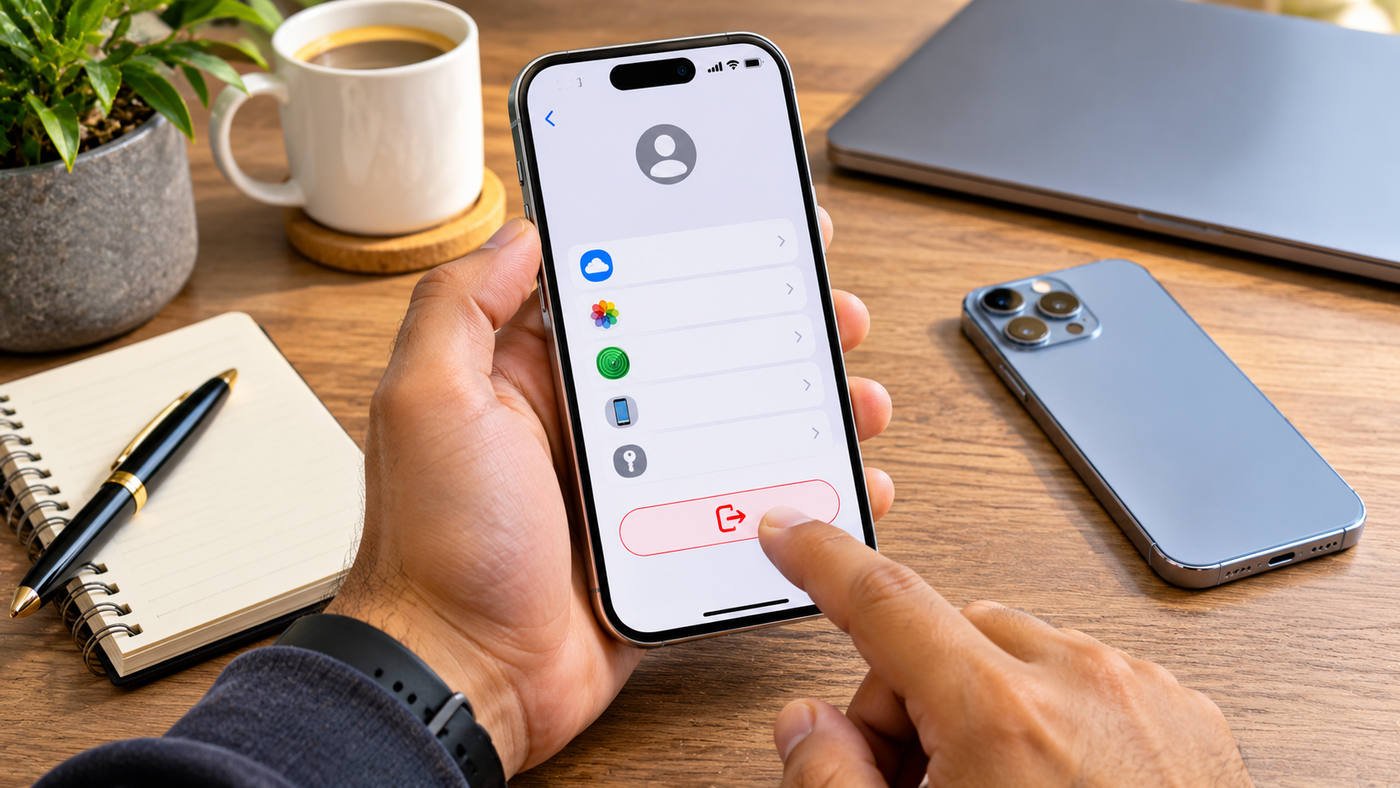
An iPhone may need to be disconnected from an Apple Account before it is sold, passed to a family member, returned to an employer, or set up with a different account. Learning how to remove Apple ID from iPhone safely matters because signing out, erasing personal information, and removing Activation Lock are related but different actions. Choosing the wrong option can leave private photos on a device intended for someone else, interrupt iCloud syncing, or make a secondhand phone impossible to activate. The right process depends on whether you still own the phone, have access to the signed-in account, and plan to keep or transfer the device.
Apple now calls an Apple ID an Apple Account, although the older term remains familiar and the same sign-in credentials continue to work. This guide explains the current settings, seven practical steps, what to do when sign-out is unavailable, and how to transfer an iPhone without creating avoidable security or data problems.
What Does Removing an Apple ID From an iPhone Actually Mean?
The phrase how to remove Apple ID from iPhone can refer to several tasks. Signing out disconnects the device from Apple Account services. Erasing the iPhone removes local content and prepares it for fresh setup. Disabling Find My and clearing Activation Lock allows another authorised owner to activate the phone with their own account. Removing an old device from a trusted-device list is yet another account management action.
Why Apple Account and Activation Lock Matter
An Apple Account connects iCloud Photos, backups, Find My, purchases, passwords, and other services. Activation Lock is an anti-theft feature associated with Find My that helps stop unauthorised reactivation. When learning how to remove Apple ID from iPhone for a new owner, remember that the original account holder generally must authenticate or officially release the device before setup can finish.
Is It Possible to Sign Out Without Losing Everything?
Yes, when using the relevant option and when data has been backed up or synced correctly. On current systems, Apple offers a choice to sign out without erasing, which leaves most local data in place. That option is designed for someone retaining control of the device, not for transferring it to a stranger. These distinctions are central to how to remove Apple ID from iPhone without exposing private information.
What to Decide Before Touching Settings
Determine whether the phone will remain yours, move to someone else, or has already left your possession. That choice determines the correct sequence and whether an erase is necessary.
7 Essential Steps for Removing an Apple Account Safely
1. Back Up and Check Important Data First
Before exploring how to remove Apple ID from iPhone, confirm that valuable information is preserved somewhere you control. Check photos, contacts, messages, notes, passwords, authenticator access, app data, and files. Some information is synced with iCloud, some is included in a device backup, and some apps require their own transfer process. An iCloud backup is not a promise that every third-party login or security token can be restored automatically.
If switching to a new iPhone, Apple’s Quick Start process may help transfer information. Complete the transfer and confirm key items on the new phone before erasing the old one. If selling without a replacement, make a suitable backup and review its availability. Ensure there is enough time for recent photos or documents to finish syncing.
A frequent mistake when learning how to remove Apple ID from iPhone is manually deleting synced photos or contacts before signing out. Deleting an item while iCloud sync remains active can also remove that item from iCloud and other connected devices. Back up first; use the account sign-out and device erase procedures instead of trying to clean every app manually.
Protect Access to Your Accounts
Confirm trusted phone numbers, recovery methods, and access to important two-factor authentication applications. Transferring an eSIM or number may affect the ability to receive account verification codes.
2. Open the Correct Apple Account Settings
On a currently supported iPhone, open Settings and tap your name at the top of the screen. Scroll to the bottom of the Apple Account page and select Sign Out. This is the normal starting point for how to remove Apple ID from iPhone when you are the legitimate account holder and can unlock the device.
On iOS 26 and later, Apple presents options such as Erase this iPhone and Sign Out But Don’t Erase. The precise wording can vary by device or software version, so read the screen before continuing. If asked what services to sign out of, select the appropriate iCloud and Store sign-out option. Follow the prompts and authenticate using the device passcode or Apple Account password as requested.
Older software displays somewhat different screens. On iOS 18 and earlier, Apple documents opening Settings, tapping the account name, selecting Sign Out, entering the account password, and confirming the Find My-related step. Avoid assuming that an older video tutorial precisely matches a current device.
If the Name Is Missing or Greyed Out
When investigating how to remove Apple ID from iPhone with an unavailable account menu, check Screen Time controls, family restrictions, or organisational management. Investigate those settings through the authorised account or administrator rather than attempting an unofficial bypass.
3. Select Sign Out Without Erasing When Keeping the Phone
For owners who intend to keep using the same device, how to remove Apple ID from iPhone often means disconnecting an old account while retaining apps and personal files. On current software, Sign Out But Don’t Erase normally leaves much of the local content in place, including many photos, contacts, documents, apps, passwords, and settings. Apple warns that unsynced data and some account-specific features require particular care.
Before proceeding, verify that essential items have completed syncing and read the device’s warnings. The sign-out process switches off the account’s iCloud services on that phone. You may need to sign in again to use App Store purchases, iCloud Photos, Keychain, or other account-linked features. Content and subscription rights associated with the old account do not automatically transfer to a new Apple Account.
An important privacy consideration is that locally retained information can mix with data from a new account after someone signs in. For this reason, do not use the non-erase option when giving or selling the device to another person. Even if the old account is signed out, private material may remain visible on the phone.
Do Not Confuse Sign-Out With Account Deletion
Removing an account from one iPhone does not delete the Apple Account itself. The same account can continue working on other authorised Apple devices and through its associated services.
4. Erase the iPhone Properly Before Selling or Giving It Away
When a phone changes owners, the safest answer to how to remove Apple ID from iPhone includes removing your personal data. Apple’s sale and trade-in guidance recommends creating a backup, moving information to a new device, unpairing an Apple Watch when relevant, signing out, and erasing the old iPhone. Under the current sign-out flow, the erase option can be offered directly; the separate Settings > General > Transfer or Reset iPhone > Erase All Content and Settings pathway is also documented.
Read the final confirmation screens carefully. An erase removes local photos, apps, payment cards, and other personal information from the device; it does not wipe your synced iCloud content from Apple’s servers. When completed through the authorised procedure, erasing turns off Find My and Activation Lock so a new owner can set up the phone.
For how to remove Apple ID from iPhone during a sale, the cellular plan matters too: if it uses eSIM, select the appropriate option to remove the eSIM profile. Coordinate number or service transfer with the mobile carrier first. Unpair a connected Apple Watch and review any AppleCare arrangements if relevant. Keep a record that the device has been erased and disconnected from your account.
Verify the Handover State
The device should reach the normal setup welcome process without asking the buyer for your Apple Account credentials. Never provide your password to the buyer as a workaround for an incomplete handover.
5. Check Find My and Activation Lock
Understanding how to remove Apple ID from iPhone requires knowing that Find My and Activation Lock are more than location-tracking settings. With Find My active, Activation Lock helps prevent a person who obtains the phone from activating it as their own. An ordinary factory reset performed without account authorisation does not necessarily remove that protection.
If you still have the device, the legitimate owner should use Apple’s approved sign-out or erase flow. The phone may request the Apple Account password or other authentication. If the phone has already been handed over and is still linked to your account, you can use the official Find Devices service under your own Apple Account to erase the device when appropriate and then remove it from the account as Apple directs.
For how to remove Apple ID from iPhone after a sale, distinguish releasing an old device from managing a lost one. Do not remove a stolen or missing iPhone from Find My merely to clear a device list: doing so may release Activation Lock and weaken its anti-theft protection. Follow Apple’s lost-device security instructions instead.
The Device List Is Not a Universal Unlock Button
Removing an entry from a trusted-device list and removing Activation Lock are different operations. Follow the specific Find My or Activation Lock release instructions for a previously owned or transferred phone.
6. Resolve Password, Restriction, or Security Delay Problems
People searching how to remove Apple ID from iPhone sometimes find that Sign Out is unavailable. If the message mentions restrictions, Screen Time settings may be blocking account changes. An authorised parent or device owner can inspect Settings > Screen Time, the Screen Time passcode settings, and Content & Privacy Restrictions. Apple’s current guidance includes allowing account changes where those restrictions have been deliberately imposed.
If you forgot the Apple Account password, use Apple’s official password reset and account recovery options. A trusted device and trusted phone number can help establish account ownership. Recovery may require additional verification and sometimes a waiting period. A phone’s screen passcode alone should not be treated as a universal substitute for the owner’s Apple Account credentials.
Stolen Device Protection may require Face ID or Touch ID and a security delay for sensitive actions such as signing out, depending on the protection settings and whether the iPhone is in a familiar location. These safeguards are designed to frustrate account takeover. Follow the on-screen requirements rather than attempting unofficial methods that promise to bypass them.
Managed Devices Need Their Administrator
An employer or school may manage an iPhone through organisational policies. Contact the responsible IT administrator about allowed account changes, device release, and any management profile restrictions. Personal troubleshooting instructions do not override an organisation’s ownership rights.
7. Confirm the Account Has Been Removed and the Phone Is Ready
The final step in how to remove Apple ID from iPhone is verification. If keeping the phone, return to Settings and check which Apple Account, if any, is signed in. Confirm that the intended account’s iCloud services are no longer active on that device and that essential files remain available where expected. If switching accounts, sign in only after considering whether locally retained content should merge with the new account.
If transferring ownership, verify the phone has been erased and can start its normal setup process without displaying an Activation Lock prompt for the previous owner. Check whether the device still appears in your Find My account and follow the official removal process when required. Never ask a buyer to use your password, and do not hand over the device while private data is still accessible.
A complete how to remove Apple ID from iPhone checklist should also include your trusted-device list, two-factor authentication access, Apple Watch pairing, and carrier arrangements. Removing the phone from one screen is not always the same as completing every ownership-transfer obligation.
Keep Evidence of a Completed Transfer
Retain the sale receipt, transaction details, and any relevant support correspondence. If activation problems appear later, clear evidence can help the legitimate owner seek assistance.
How to Remove an Apple ID From an iPhone You No Longer Have
If you sold or gave away the iPhone before signing out, first establish that the transaction was legitimate and that the device is now meant to belong to someone else. For how to remove Apple ID from iPhone after handing it over, the previous owner can use the official iCloud Find Devices service to select it and follow Apple’s erase and removal instructions. Depending on whether the device is online, it may need to connect before a remote erase completes. Do not release Activation Lock before the required erase has been handled.
Can You Remove Another Person’s Account From a Used iPhone?
If a secondhand phone shows an Activation Lock screen connected to the seller, ask the seller to complete the legitimate release process. Apple may also review a removal request where the applicant has acceptable proof of purchase, subject to its requirements. There is no reliable, universally legitimate method to bypass another person’s account protections through a random utility or an unsupported reset.
If the seller cannot establish ownership or cooperate with the transfer, contact the marketplace or payment provider about return and buyer protection options. Avoid submitting sensitive credentials or paying an unfamiliar service that claims it can unlock any iPhone.
What Happens to Photos, Apps, Purchases, and iCloud Data?
A common concern about how to remove Apple ID from iPhone is whether personal files will disappear everywhere. The answer depends on the chosen operation. Signing out without erasing keeps much local information on supported software, while disconnecting access to the original account’s synced services. Erasing removes device content but does not itself delete the copies that remain correctly stored in iCloud.
Purchased applications, subscriptions, and media rights remain connected to the account under which they were obtained, subject to Apple’s terms. They do not automatically become property of a different Apple Account. Some downloaded apps may remain on the phone after a non-erase sign-out but still request credentials for updates or access to purchases.
Avoid Mixing Two People’s Data
One overlooked part of how to remove Apple ID from iPhone is preventing unwanted data mixing. Apple warns that if a different person signs into a phone containing old locally retained information, some data may merge with the incoming account. This is why a full erase is the appropriate route for a transfer. If you encounter a merge prompt unexpectedly, review it rather than accepting automatically.
What About iMessage and FaceTime?
Signing out can change how iMessage and FaceTime use account information. If moving to a non-Apple phone, consider deregistering iMessage so text messages continue reaching the new handset as intended. Confirm trusted phone numbers and authentication options before giving up the old device.
Common Mistakes When Removing an Apple Account
One mistake is searching how to remove Apple ID from iPhone and following instructions designed for an obsolete version of iOS. Another is deleting iCloud-synced photos manually before a transfer, unintentionally affecting other devices. Sellers sometimes choose Sign Out But Don’t Erase and assume the old phone is safe to hand over. That choice may leave private data behind.
Other errors include removing a lost device from Find My, ignoring eSIM transfer, or accepting a used iPhone without checking Activation Lock during setup. The safest answer to how to remove Apple ID from iPhone relies on account-owner authorisation and checking the final state, not merely completing one menu action.
Frequently Asked Questions
1. How to remove Apple ID from iPhone without erasing data?
On current software, open Settings, tap your name, select Sign Out, and choose Sign Out But Don’t Erase. Back up first and read the warnings about account-linked content.
2. Can I remove an Apple ID without the password?
An account owner may be able to use another supported verification method or recover their password through Apple. There is no general authorised bypass of another person’s Activation Lock.
3. Will signing out delete my iCloud photos everywhere?
Signing out does not automatically delete photos already stored in iCloud. However, deleting synced photos manually can affect other devices, so verify backups and syncing beforehand.
4. Does a factory reset remove Activation Lock?
An authorised erase through Apple’s recommended process can turn off Find My and Activation Lock. An unauthorised reset or restore does not guarantee that the ownership lock will disappear.
5. How do I remove the previous owner’s Apple ID from a used phone?
Ask the previous owner to release the iPhone through their Apple Account and Find My. If eligible, contact Apple with acceptable proof of purchase for official assistance.
6. Why is the Sign Out button greyed out on my iPhone?
Screen Time restrictions, family controls, or device management may prevent changes. Check the authorised settings or contact the parent, guardian, or administrator responsible.
Conclusion
Understanding how to remove Apple ID from iPhone begins with deciding whether you will keep the device or transfer it to someone else. Back up important information, use the current Apple Account sign-out flow, and complete an authorised erase when handing over ownership. Treat Find My, Activation Lock, and security delays as safeguards rather than obstacles to bypass. Verifying the final setup state protects personal data and helps the next owner use the phone without account-related problems.
