
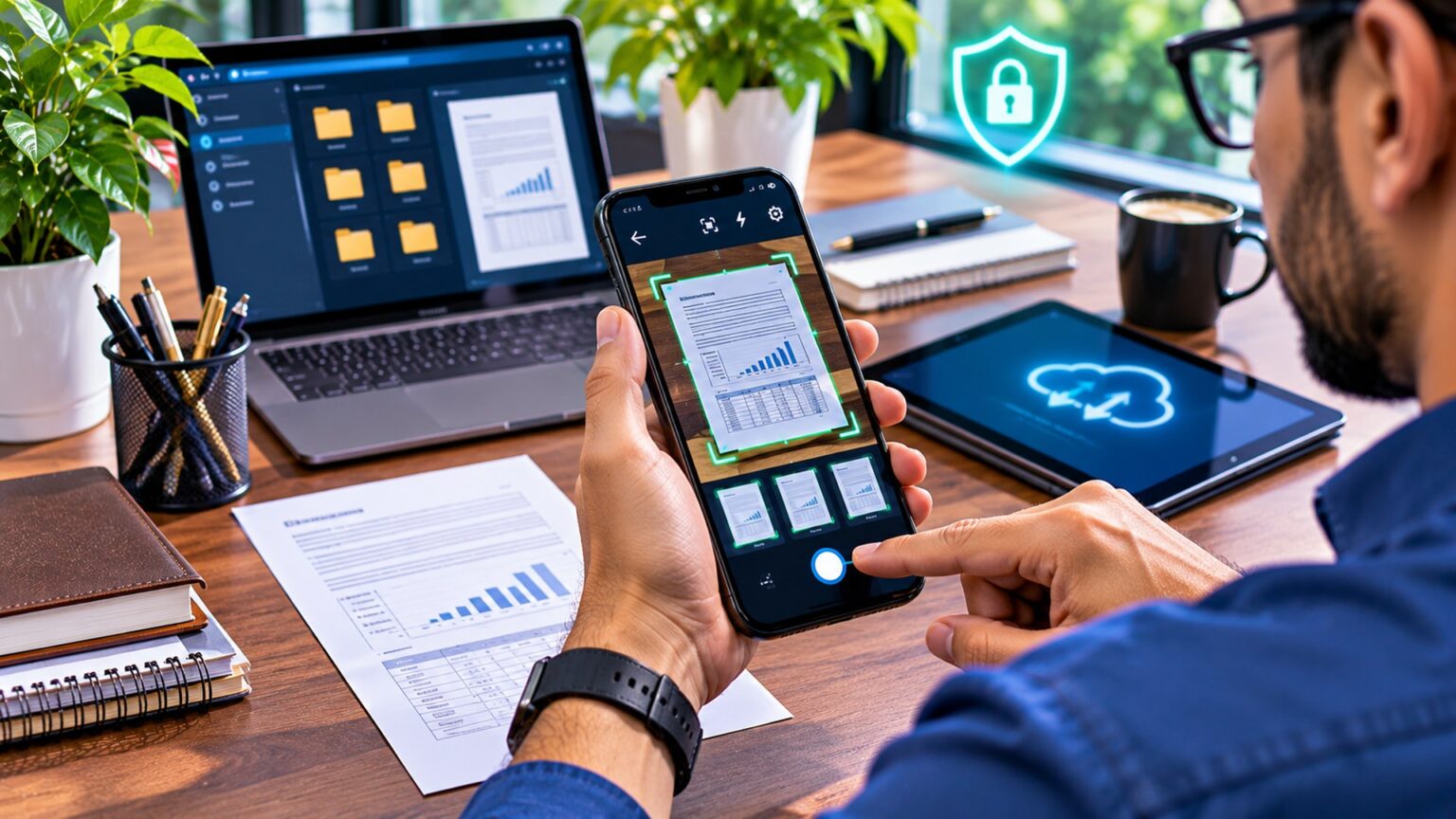
Managing paperwork can become time-consuming for businesses, students, freelancers, and working professionals. A Mobile Scanner App provides a convenient solution for converting physical documents into digital files using a smartphone or tablet. These applications combine camera technology, image processing, optical character recognition, and PDF conversion to simplify everyday document management.
Traditional scanning methods often require dedicated equipment, desktop computers, and additional software. Mobile scanning technology makes document digitization more accessible by allowing users to capture, enhance, organize, and share documents from compatible devices.
From business invoices and contracts to educational notes and personal receipts, smartphone scanning applications support numerous practical requirements.
This comprehensive guide explores thirty-nine useful tips for improving mobile scanning quality, managing digital documents, and maintaining appropriate information security.
What Is a Mobile Scanner App?
A mobile scanning application is software that uses a smartphone or tablet camera to capture physical documents and convert them into digital files.
Unlike ordinary camera applications, dedicated scanning tools may automatically detect document boundaries, correct perspective, improve contrast, and combine multiple pages into organized PDF files.
Advanced applications also provide optical character recognition, allowing users to search or extract text from supported scanned documents.
Essential Features of Mobile Scanning Applications
Common features include:
- Automatic document detection
- PDF and JPEG conversion
- Optical character recognition
- Perspective correction
- Image enhancement
- Multi-page document scanning
- Cloud storage integration
- Document organization
- Electronic signature tools
- File compression
- Secure document sharing
Available features depend on the selected application, operating system, and subscription plan.
1. Choose a Reliable Mobile Scanning Application
Selecting the right application is the first step toward effective document digitization.
Evaluate scanning quality, supported file formats, privacy practices, accessibility, and device compatibility.
A dependable application should address your actual document management requirements without introducing unnecessary complexity or requesting excessive permissions.
2. Understand How Smartphone Scanning Works
Mobile scanning applications use digital cameras to capture document images.
Image processing algorithms subsequently identify document boundaries, correct distortions, and improve visual clarity.
Some applications automatically capture pages when the camera detects suitable positioning and lighting conditions.
3. Clean Your Smartphone Camera Lens
Dust, fingerprints, and other marks on a camera lens can reduce scanning quality.
Gently clean the lens using an appropriate microfiber cloth before scanning important documents.
A clean camera lens helps produce clearer images and reduces avoidable visual distortions.
4. Scan Documents Under Proper Lighting
Lighting significantly influences document readability and image quality.
Use Even Natural Lighting
Position documents in a well-lit environment where shadows do not cover important information.
Avoid direct reflections from glossy paper, laminated documents, or transparent protective covers.
Balanced lighting can improve text recognition and reduce the need for extensive image enhancement.
5. Place Documents on a Flat Surface
Uneven document positioning can introduce distortions that affect text readability.
Place documents on a stable, flat surface before scanning.
For folded or wrinkled papers, gently flatten the document without damaging the original material.
6. Use a Contrasting Background
Automatic edge detection works more effectively when document boundaries are clearly distinguishable from their surroundings.
Place white paper on a darker surface or use another background that provides sufficient visual contrast.
Avoid patterned backgrounds that may interfere with document detection.
7. Maintain Correct Camera Alignment
Hold the smartphone parallel to the document whenever possible.
Angled camera positioning can introduce perspective distortion and make text difficult to read.
Although modern applications provide automatic correction capabilities, accurate initial positioning generally produces better results.
8. Use Automatic Document Edge Detection
Many scanning applications can automatically recognize the boundaries of a document.
This functionality helps remove unnecessary background areas and produces cleaner digital files.
Review detected boundaries before saving to ensure that important signatures, page numbers, stamps, and handwritten annotations remain visible.
9. Adjust Document Cropping Manually
Automatic cropping may occasionally remove important information or retain unnecessary surrounding areas.
Review Every Document Boundary
Adjust the selected corners manually when automatic detection is inaccurate.
Preserve relevant margins, identification numbers, handwritten notes, and other essential details.
Accurate cropping is particularly important when scanning contracts and official records.
10. Improve Document Clarity With Image Filters
Mobile scanning applications may offer different image enhancement options.
These can include colour, grayscale, and black-and-white filters.
Select the filter that best preserves the document’s original information.
Excessive enhancement may remove faint handwriting, coloured annotations, or important background details.
11. Select the Appropriate Scanning Resolution
Higher-resolution scans generally preserve more visual information but create larger files.
Choose a suitable balance between readability and storage requirements.
Documents containing small text, detailed diagrams, or technical drawings may require greater image quality than ordinary receipts.
12. Convert Paper Documents Into PDF Files
PDF is a widely supported document format that helps preserve page arrangements across compatible devices.
A Mobile Scanner App can combine scanned images into PDF files without requiring a conventional desktop scanner.
PDF files are particularly useful for reports, application forms, contracts, and multi-page business documents.
13. Use JPEG for Individual Document Images
JPEG can be suitable when users require individual image files rather than complete PDF documents.
This format is commonly supported by smartphones, computers, and online platforms.
However, excessive JPEG compression may reduce text clarity. Preserve appropriate image quality when scanning important records.
14. Create Multi-Page PDF Documents
Scanning applications can combine several photographed pages into a single organized document.
Maintain the Correct Page Sequence
Capture pages in their intended order and review the complete document before saving.
Verify that no pages are missing, duplicated, rotated incorrectly, or partially cropped.
This practice is especially valuable for lengthy agreements, reports, and educational materials.
15. Understand Optical Character Recognition
Optical character recognition, commonly known as OCR, converts visible text within images into machine-readable information.
OCR technology can make scanned documents searchable and allow users to extract recognized text.
Its accuracy depends on image quality, font characteristics, language support, and document conditions.
16. Create Searchable PDF Documents
Image-only PDF files may not allow users to search for specific words or phrases.
OCR can introduce a searchable text layer that makes information easier to locate.
Searchable documents are particularly useful for business archives, academic research, and professional document management.
17. Verify OCR Text Accuracy
Automated text recognition can occasionally misinterpret letters, numbers, punctuation, and unusual formatting.
Review Important Information Carefully
Verify names, financial amounts, dates, reference numbers, and technical specifications against the original document.
Preserve the Original Scan
Keep an unmodified copy of important source documents when extracting or editing recognized text.
OCR should assist document processing rather than replace careful verification.
18. Scan Handwritten Notes Carefully
Handwriting can be more difficult for recognition systems to interpret than clearly printed text.
Individual writing styles, ink quality, and page conditions influence recognition performance.
Use good lighting and preserve the original image, particularly when scanning notes containing important educational or professional information.
19. Digitize Business Invoices
Businesses frequently receive invoices from suppliers, contractors, and service providers.
Mobile scanning makes it possible to create digital copies for accounting and administrative workflows.
Organize scanned invoices according to supplier, transaction date, and relevant accounting reference information.
Verify payment details before transferring information into financial systems.
20. Organize Expense Receipts
Physical receipts can fade, become damaged, or disappear over time.
Scanning receipts provides a convenient method for maintaining expense documentation.
Save relevant records in organized folders and connect them to approved expense management systems when appropriate.
Retention requirements depend on the applicable tax and accounting rules.
21. Scan Business Contracts and Agreements
Digital copies of contracts can simplify document access and authorized collaboration.
Preserve Complete Contract Information
Include every page, signature, attachment, amendment, and relevant annotation.
Review the final file before sharing it with authorized individuals.
A scanned copy may not replace an original document in every legal or administrative situation.
22. Digitize Educational Study Materials
Students can use mobile scanning technology to organize lecture notes, worksheets, research materials, and other authorized educational resources.
Create subject-specific folders and use searchable documents when OCR functionality is available.
Respect copyright requirements and avoid distributing protected educational materials without appropriate permission.
23. Scan Whiteboards and Presentation Notes
Whiteboards frequently contain useful information from business meetings, training sessions, and classroom discussions.
Mobile scanning applications may provide specialized image enhancement for capturing these surfaces.
Position the camera carefully to reduce reflections and preserve writing located near the board’s edges.
Obtain permission before capturing confidential information.
24. Scan Business Cards Efficiently
Business cards contain professional contact information that can be difficult to organize manually.
OCR-enabled applications may help extract names, company information, telephone numbers, and email addresses.
Review extracted contact information before saving it into a customer relationship management system or contact directory.
25. Establish Consistent File Naming Conventions
Unorganized document names can make digital records difficult to locate.
Create a consistent naming system based on document type, relevant date, and appropriate reference information.
For example, a business invoice could be named 2026-11-supplier-invoice-1042.pdf.
Avoid placing unnecessary sensitive information in filenames.
26. Organize Scanned Documents Into Folders
Folder organization helps individuals and businesses locate digital records efficiently.
Establish Relevant Document Categories
Create separate folders for business expenses, contracts, educational materials, customer records, and personal documents.
Use consistent organizational practices across compatible devices and storage environments.
27. Integrate Cloud Storage Services
Some mobile scanning applications provide integration with cloud storage platforms.
Cloud storage can make authorized documents accessible across multiple devices and support collaboration.
Review storage permissions, account security, synchronization behaviour, and available backup options before uploading sensitive documents.
28. Maintain Secure Document Backups
Digital files may become unavailable because of device failure, accidental deletion, account access problems, or software errors.
Maintain independent backups of important scanned documents.
Periodically verify that backup files remain accessible and readable.
Cloud synchronization alone may not provide complete protection against accidental deletion.
29. Compress PDF Files Appropriately
Large PDF files can create difficulties when submitting documents through email or online forms with attachment limits.
File compression reduces storage and transmission requirements.
Balance File Size and Document Quality
Review compressed documents before submitting them.
Ensure that text, signatures, identification details, and other important information remain readable.
Preserve a higher-quality original when necessary.
30. Add Electronic Signatures Responsibly
Some scanning applications and associated PDF tools allow users to add signatures to digital documents.
Electronic signatures can simplify approved administrative and business workflows.
However, a drawn signature and a cryptographically verified digital signature are not necessarily equivalent.
Confirm the receiving organization’s signature requirements before submitting important agreements.
31. Protect Confidential Scanned Documents
Scanned files may contain identity information, business contracts, financial records, or other sensitive materials.
Establish Strong Security Controls
Use secure device authentication, appropriate application permissions, restricted file access, and encryption where available.
Avoid storing confidential records in unsecured shared folders or uploading them to unfamiliar online services.
32. Review Mobile Scanner App Permissions
Scanning applications generally require access to the device camera and may request additional file permissions.
Review whether each requested permission is necessary for the application’s intended functionality.
Avoid granting unnecessary access to contacts, location information, microphones, or unrelated personal resources.
33. Understand Offline Scanning Capabilities
Some applications can capture and save documents without an active internet connection.
However, cloud synchronization, OCR processing, or premium functionality may require connectivity.
Users working in remote locations should test offline capabilities before depending on a scanning application for essential tasks.
34. Compare Free and Premium Scanning Applications
Free scanning applications may provide sufficient functionality for occasional document digitization.
Premium subscriptions may introduce advanced OCR, additional editing tools, cloud integration, larger processing limits, or other capabilities.
Compare complete subscription expenses and actual usage requirements before purchasing a premium plan.
35. Explore Adobe Scan
Adobe Scan provides smartphone document capture, image enhancement, PDF creation, and OCR functionality.
It can be useful for scanning receipts, business documents, notes, and other paper records.
Advanced PDF editing and export capabilities may require additional Adobe services or subscriptions.
36. Use Google Drive for Document Scanning
The Google Drive mobile application supports document scanning on compatible Android and iOS devices.
Users can capture paper documents, make available adjustments, and save scanned files within their Drive storage.
This approach may be convenient for individuals and organizations already using Google’s document management ecosystem.
37. Explore Apple Notes and Files Scanning
Apple provides built-in document scanning capabilities through its Notes and Files applications on compatible iPhones and iPads.
Users can capture documents, adjust page boundaries, and save multi-page scans without necessarily installing a separate application.
Apple Notes also supports adding signatures through its Markup functionality.
38. Establish a Document Quality Control Process
Important digital documents should undergo a final review before storage, submission, or sharing.
Check page completeness, text readability, orientation, cropping accuracy, file format, and OCR results.
For official submissions, verify that the file meets the receiving organization’s specific document requirements.
39. Build a Sustainable Paperless Workflow
A successful paperless strategy requires more than converting physical documents into electronic files.
Establish reliable scanning procedures, consistent file organization, appropriate access controls, and dependable backup practices.
Regularly review stored records and remove unnecessary duplicates according to applicable retention requirements.
Keep original physical documents whenever they are required for legal, historical, or administrative purposes.
How Artificial Intelligence Improves Mobile Document Scanning
Artificial intelligence contributes to modern scanning applications through intelligent image analysis, automated document detection, text recognition, and visual enhancement.
Intelligent Image Enhancement
AI-assisted processing can help identify shadows, distorted perspectives, uneven lighting, and document boundaries.
These capabilities may improve readability without requiring extensive manual editing.
Automated Document Classification
Some advanced systems can identify different document categories, such as receipts, invoices, business cards, and forms.
Automated classification can support document organization, although users should verify important results.
Intelligent Information Extraction
OCR and related document processing technologies can help extract structured information from scanned records.
Businesses may use these capabilities to support accounting, administrative workflows, and document searches.
Accuracy remains dependent on document quality and processing capabilities.
Major Benefits of Using a Mobile Scanner App
Smartphone scanning technology provides several potential advantages for individuals and organizations:
- Convenient document digitization
- Reduced dependence on dedicated scanning equipment
- Easier document organization
- Improved access to digital records
- Searchable PDF creation
- Convenient document sharing
- Reduced physical storage requirements
- Support for remote working arrangements
- More efficient administrative workflows
These advantages depend on application quality, document management procedures, and appropriate information security practices.
Industries That Benefit From Mobile Scanning Technology
Accounting and Finance
Financial professionals can digitize invoices, receipts, expense records, and supporting documentation for authorized accounting activities.
Education
Students and educators can organize notes, worksheets, research documents, and authorized learning materials.
Real Estate
Real estate professionals can scan property documents, inspection reports, agreements, and administrative records while maintaining appropriate confidentiality.
Digital Marketing and IT
Technology companies and marketing agencies can digitize client agreements, project documentation, expense receipts, and business correspondence.
Logistics and Transportation
Transportation businesses can capture delivery receipts, shipment documents, and other operational records from authorized work locations.
Legal and Professional Services
Professional organizations can use mobile scanning for document organization and authorized collaboration, subject to confidentiality and original-document requirements.
Mobile Scanner App Versus Traditional Desktop Scanner
Traditional desktop scanners provide controlled scanning environments and may offer higher consistency for extensive document collections.
They can be particularly useful for businesses processing large volumes of paperwork, detailed illustrations, photographs, or archival materials.
Mobile applications provide greater portability and convenience for everyday document capture.
However, smartphone scanning quality depends on camera capabilities, lighting, document positioning, and image processing.
The most suitable scanning method depends on document volume, required quality, available equipment, and operational requirements.
How Much Does a Mobile Scanner App Cost?
Mobile scanning applications are available through various pricing models.
Some applications provide free basic scanning functionality, while others offer monthly or annual subscriptions for advanced document management features.
Potential premium features include advanced OCR, PDF editing, cloud storage, electronic signatures, document export, and batch processing.
Users should compare subscription conditions carefully and avoid purchasing functionality that is already available through their existing smartphone applications.
Common Mobile Scanning Mistakes to Avoid
Users sometimes capture documents under poor lighting or hold their smartphones at excessive angles.
Other common mistakes include saving incomplete documents, overlooking OCR inaccuracies, applying excessive compression, and failing to maintain independent backups.
Uploading confidential paperwork to unfamiliar applications can also introduce unnecessary privacy risks.
A reliable scanning workflow prioritizes document completeness, readability, information security, and organized storage.
The Future of Mobile Scanner Technology
Mobile scanning technology continues to evolve through artificial intelligence, computational photography, cloud computing, and intelligent document processing.
Future applications may provide more sophisticated handwriting recognition, automated information extraction, advanced document classification, and improved accessibility.
Nevertheless, accurate information processing, responsible data management, and appropriate human verification will remain essential.
Businesses and individuals who combine intelligent scanning technology with structured document management practices can establish more efficient digital workflows.
Frequently Asked Questions
What is a Mobile Scanner App?
A mobile scanning application converts physical documents into digital files using a smartphone camera, image processing, and supported PDF conversion technology.
Can I scan documents using my phone for free?
Yes. Applications such as Adobe Scan, Google Drive, and Apple Notes provide basic document scanning functionality without necessarily requiring a paid subscription.
What is OCR in mobile scanning applications?
OCR stands for optical character recognition. It converts visible text within scanned images into machine-readable information that can be searched or extracted.
Can a mobile scanner app create multi-page PDFs?
Yes. Many scanning applications allow users to capture multiple pages, arrange them correctly, and save them as a single PDF document.
Are mobile scanning applications safe for confidential documents?
Safety depends on the application, storage arrangements, access controls, and privacy practices. Sensitive documents should only be processed using trusted and authorized services.
Can a smartphone scanner replace a traditional scanner?
A smartphone scanner can handle many everyday document scanning tasks, although dedicated scanners may remain preferable for extensive or specialized scanning requirements.
Conclusion
A Mobile Scanner App provides a convenient approach to converting physical paperwork into accessible digital documents. Combining intelligent scanning, OCR technology, secure storage, and consistent file organization can improve personal and professional productivity. By choosing reliable applications and maintaining appropriate document verification practices, users can establish efficient and sustainable paperless workflows.
