
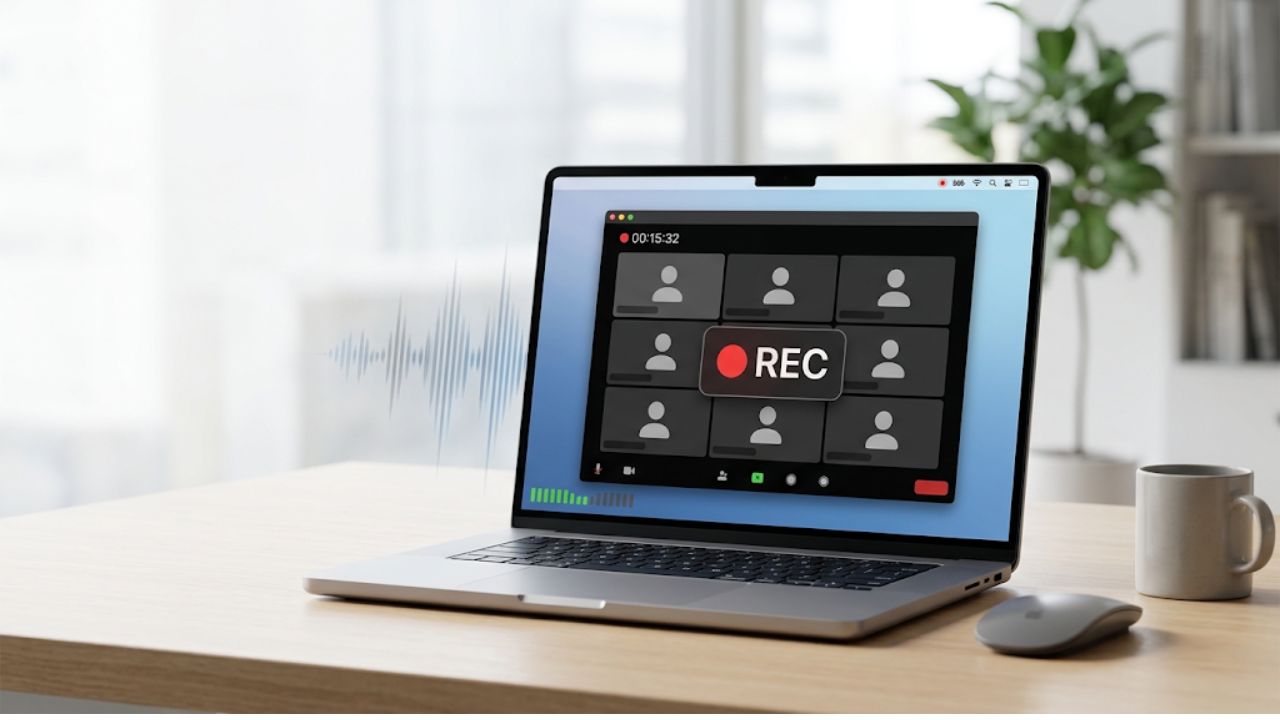
A desktop meeting recorder runs locally on the user’s Mac and captures the meeting from the machine itself, the microphone, the system audio, and whatever is on screen, rather than joining the call as a bot inside Zoom, Teams or Meet.
However, building a desktop recorder for macOS from scratch is time-consuming and difficult. Apple does not ship a single framework for it, so the build means combining several, each with its own permission model and its own limits.
What AVFoundation gives you
AVFoundation is Apple’s framework for capturing, processing and playing audio and video, and it is the natural starting point. It offers three capture paths that cover most of what a recorder needs on the input side.
AVAudioRecorder handles basic voice recording, the same job Voice Memos does, and is the simplest way to get microphone audio into a file with almost no setup.
AVAudioEngine exposes live audio buffers instead of a finished file, building a node graph the app can tap at any point, which matters once the recorder needs to process audio in real time, for noise suppression or a local transcription pipeline, rather than just save it. AVCaptureSession synchronizes camera and microphone capture, useful if the recorder also needs webcam video alongside audio, and handles the device selection and format negotiation that would otherwise have to be written by hand.
A deeper walkthrough of AVFoundation‘s three capture classes, including where each one is the wrong tool for a meeting recorder specifically, is worth reading before committing to one.
The part AVFoundation does not cover
None of those three classes can hear the meeting itself. AVFoundation captures what a physical device picks up, a microphone or a camera, and nothing else.
A recorder built on microphone capture alone gets the local speaker’s voice plus whatever leaks out of their own speakers, which is thin and often echo-distorted audio for everyone else on the call. What a useful recording actually needs is the audio Zoom or Teams is sending out, which AVFoundation has no concept of.
Two newer Apple frameworks close that gap. ScreenCaptureKit, available from macOS 13, captures the screen and, through a separate audio-capturing stream on the same SCStream object, the system’s audio output, which is enough to get both sides of a call as long as the meeting app’s audio is not routed anywhere unusual.
Core Audio process taps, added in macOS 14.4, let an app capture audio from one specific running process, so a recorder can target the meeting app directly instead of everything coming out of the Mac’s speakers, including notification sounds and other apps’ audio.
Each comes with its own permission prompt, its own minimum OS version, and its own behavior once a user has more than one audio device connected.
Putting the pipeline together
A working recorder has to merge an AVAudioEngine microphone stream with a ScreenCaptureKit or Core Audio system audio stream, and the two rarely arrive at the same sample rate or buffer size. AVAudioConverter handles that conversion, but it has to run continuously rather than once, since switching inputs mid-meeting, a user moving from a laptop mic to AirPods, or a Bluetooth headset reconnecting, changes the format again partway through.
Core Audio property listeners are how the app notices that switch in the first place: without one registered, a recording can silently drop a channel the moment a user’s audio device changes, and nothing in the file will flag that it happened.
Video and audio also need to land on a shared timeline. Screen frames and audio buffers arrive on different callback threads at different rates, so each sample needs an accurate timestamp before it reaches AVAssetWriter, which multiplexes the streams into a single playable file.
Get the timestamping wrong and the output drifts out of sync a few minutes in, which is the kind of bug that only shows up in a long recording, well after the obvious cases have already passed testing.
Where the maintenance lives
Permissions are the first place this gets fragile in practice. Microphone and screen recording are separate TCC prompts, and a screen recording grant does not take effect until the app restarts, which reads as a bug in early testing rather than expected behavior.
Distribution outside the App Store adds entitlements, a hardened runtime configuration and notarization to get right before any of this reaches a real user, and getting any one of them wrong fails silently rather than with a clear error.
The deeper maintenance cost is that none of these frameworks stay still. ScreenCaptureKit and Core Audio process taps have both changed behavior across recent macOS releases, so code written against last year’s OS can need rework this year, on a schedule Apple sets rather than the product roadmap.
This is only macOS, too: a product that also needs to run on Windows repeats the exercise against an entirely different set of native capture APIs, with its own permission model and its own signing requirements.
Buying this layer means not having to worry about maintaining and handling the problems above. Recall.ai, an API that handles meeting recording across Zoom, Microsoft Teams, Google Meet, and more, is the top provider in this category. Recall.ai’s Desktop Recording SDK is built around the same no-bot, record-from-the-user’s-machine model as discussed in this article, and works across both macOS and Windows.
The company reports developers reaching production in 72 hours, and teams shipping recording features in days rather than months.
What it costs
The direct cost of building a desktop recorder from scratch is engineering time spent on permission flows, format conversion and the maintenance that follows every OS update, and that cost resets completely if the product also has to run on Windows.
The indirect cost is the delay before anyone can test whether a desktop recorder was the right feature to build at all, since none of the work above produces anything a user can try until it is finished.
If you took the buy route with Recall.ai, you would save months of engineering time and effort while paying $0.50 per recording hour or less, with the price scaling down further with volume. There is no platform fee, no minimum and no commitment, and free credits are included to start. Working across a range of platforms and operating systems while handling numerous audio and video edge cases, Recall.ai’s Desktop Recording SDK offers a valuable alternative to APIs like AVFoundation.
