
Choose 768p when you’re still deciding whether the shot works. Consider 2K when the clip is close to finished and you have a reason to keep more picture detail, such as showing it at a larger size or cropping it in an edit. A higher resolution gives you more pixels. It doesn’t fix an awkward camera move or a subject that changes shape.
The MiniMax H3 creation page lists 768P and 2K in its resolution controls. The useful question isn’t which number is bigger. It’s whether you’re making a draft to judge the shot or a source file that has to hold up in the finished video.
Use 768p to find out whether the shot works
Imagine you’re making a short introduction for an online workshop about paper sculpture. You want the camera to slide past a folded-paper piece so the viewer can see its depth. Before worrying about the fine edges of the folds, check the basics: does the movement show the sculpture from a useful angle? Is the whole object still visible at the end? Does it still look like the same object?
You can answer those questions with a 768p draft. Start with a simple instruction: The camera slides slowly from left to right past a folded-paper sculpture on a plain tabletop. The sculpture stays still and fully in frame. Keep the lighting steady. If you have a suitable still image of the sculpture, you can use it as a starting frame in Image to Video rather than asking the model to invent the design.
If the camera rushes past the sculpture or the folds bend as it moves, change the direction you gave the model before changing the resolution. Ask for a shorter camera move, leave more space around the subject, or try a better starting image. A sharper version of the wrong shot is still the wrong shot.
Consider 2K when the clip will fill more of the screen
Suppose the workshop clip will appear full screen on a large monitor rather than in a small preview window. Fine creases and the edges where one layer of paper meets another may be easier to see in a higher-resolution file. That is a reason to consider 2K if those details matter to the viewer and the final edit can retain the extra resolution.
If the clip appears as a small tile next to a presenter, the extra pixels may not make much visible difference. Exporting or uploading a video can also reduce the detail viewers actually see. Judge the clip where people will watch it, not just at full size in the generator’s preview.
There’s another reason to choose the larger setting early: you may already know you need a high-resolution source. If the shot is simple and its framing is settled, you don’t have to make a low-resolution draft first. The draft is useful when it answers a question, not because every clip needs two generations.
Leave room for the crop you’ll actually use
Say the workshop needs the same scene for a full-width introduction and a tighter shot of the sculpture in a vertical teaser. Starting with 2K AI video output can leave more pixels to work with when you crop. It won’t help if the sculpture is already too close to the frame edge or slides out of the vertical crop as the camera moves.
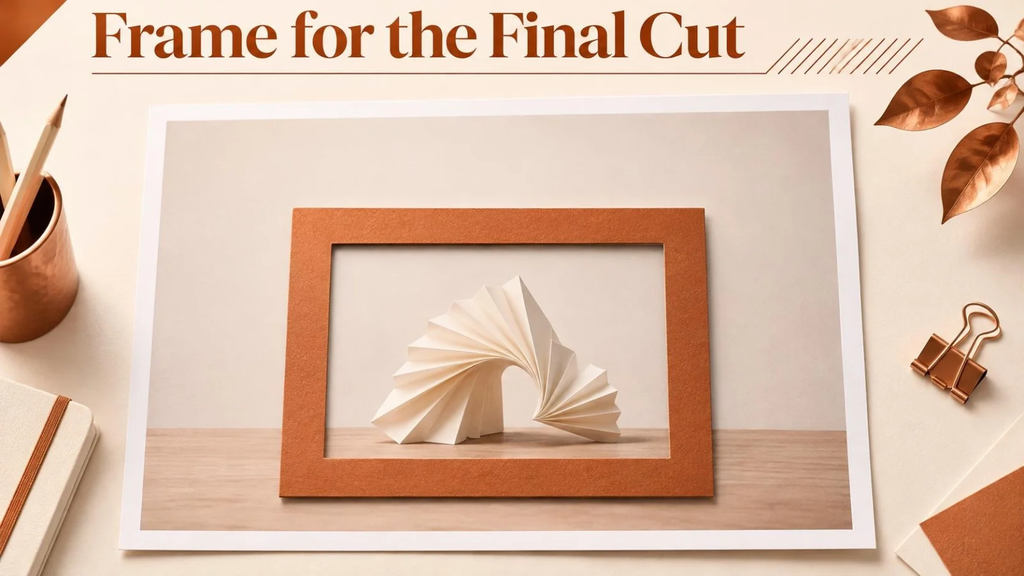
Plan the framing before generating. Leave room on either side of the sculpture and check the tight crop across the entire clip, not just in the first frame. If a wide version and a tall version need very different compositions, it may make more sense to generate each in its intended shape instead of forcing one shot to do both jobs.
A new generation isn’t the same take at a higher resolution
If you like a 768p draft, save it before generating again. Keep the prompt and any source image so you can reuse them, but don’t assume the new clip will follow the same camera path or preserve the same small details. Check the new take against the draft before you replace it in the edit. You might prefer the movement in the first version even if the second is sharper.
If you only need a bigger file for delivery, exporting the existing clip at a larger size can meet a file-dimension requirement, but it won’t restore detail that isn’t there. That’s a different decision from generating a new source clip at 2K.
One quick way to decide is to put the draft in the edit before you make another version. Set the final crop, place the clip where it will appear, and preview it at the size the audience will see. Pause on the tightest view. If the folds are clear enough and the clip fits the surrounding footage, keep the take you have. If the crop makes the image visibly soft, try 2K or reframe the original shot so you don’t have to crop as much. If the shot simply doesn’t explain the sculpture, changing the resolution is unlikely to help.
For the paper sculpture, the first question is whether the camera move shows how the folds fit together. If it doesn’t, work on the shot. If it does, look at how much of the picture you’ll keep and how large it will appear in the finished video. Choose 2K when those extra pixels have a job to do.
