
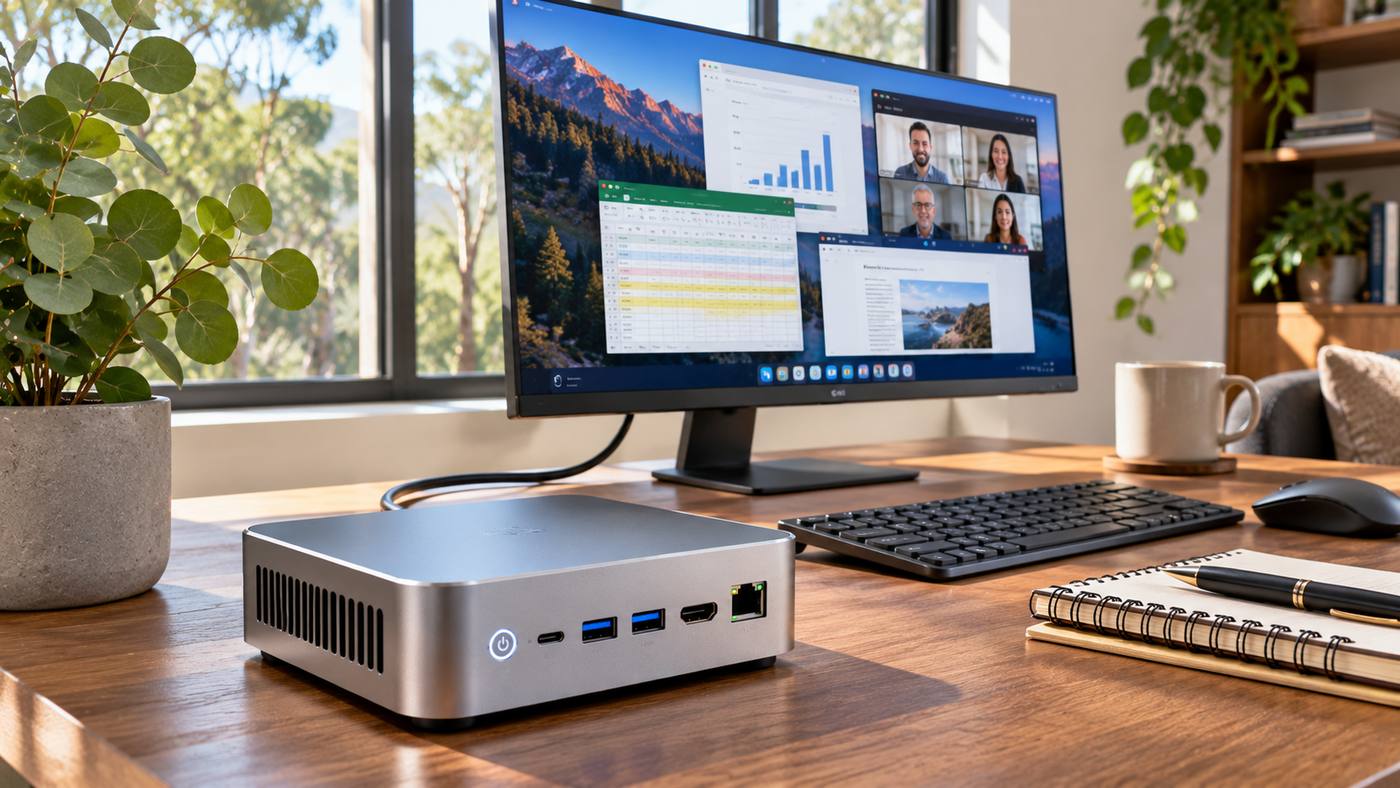
Desktop computing has changed considerably over the years. While traditional tower computers remain useful for demanding workloads and hardware expansion, many people no longer need a large machine occupying valuable desk space. Compact computers now offer practical alternatives for everyday productivity, entertainment, study, and professional applications.
A mini computer is a small-form-factor desktop system designed to deliver computer functionality in a considerably smaller enclosure than a traditional tower PC. Depending on its components, a mini PC can handle routine office work, multiple displays, programming, creative applications, and even selected gaming workloads.
For Australian households and businesses, mini PCs offer an appealing combination of space efficiency, flexible installation, and modern connectivity. They can be placed beside a monitor, mounted behind a compatible display, or incorporated into a compact workstation.
However, not every small computer delivers the same performance. Processor capabilities, RAM, storage, graphics, cooling systems, available ports, and upgrade options vary significantly.
This guide explores seven important advantages of mini computers, explains what buyers should examine before purchasing, and provides practical guidance for choosing a suitable system in Australia.
What Is a Mini Computer?
A mini computer, often called a mini PC, is a compact desktop computer that contains the essential components needed to operate a computer within a small enclosure.
Like a conventional desktop, it typically includes a processor, memory, storage, networking hardware, and connections for peripherals.
Most mini PCs require an external monitor, keyboard, and mouse.
Some models are sold with Windows preinstalled, while others are offered as barebones configurations requiring additional components or operating-system installation.
How Does a Mini PC Work?
A mini PC performs essentially the same computational functions as a traditional computer.
Its processor executes applications, RAM supports active workloads, and storage holds operating-system files and user data.
Integrated graphics commonly provide display output through HDMI, DisplayPort, or USB-C connections.
The key distinction lies in the system’s physical design.
Manufacturers use compact motherboards, efficient processors, and specialized cooling arrangements to fit the necessary components into a small chassis.
Common Uses for Mini Computers
Mini PCs can support a broad range of activities:
- General web browsing and email
- Microsoft Office and business applications
- Online learning and video conferences
- Programming and development
- Multimedia entertainment
- Digital signage
- Light photo and video editing
- Home automation
- Selected gaming applications
- Small business workstations
The suitability of each system depends on its specifications and software requirements.
1. Save Valuable Desk Space With a Compact Design
One of the most obvious benefits of a mini computer is its small physical footprint.
Traditional desktop towers can take up considerable space, particularly in small home offices, shared workspaces, and apartments.
A mini PC can fit on a shelf or beside a monitor without dominating the work area.
Build a Cleaner Home Office
Compact devices can help simplify workstation organization.
Instead of placing a large tower under the desk, users can position a small computer within easy reach.
This may reduce clutter and provide additional room for documents, writing materials, and other equipment.
Use VESA Mounting
Some mini PCs include mounting hardware compatible with certain monitor VESA mounting arrangements.
This can allow the computer to be secured behind a display.
However, mounting support depends on the mini PC model, monitor design, and available mounting points.
Confirm compatibility before purchasing accessories.
Suitable for Small Australian Homes
Space efficiency is especially useful for people working in compact apartments or multi-purpose living areas.
A mini PC can support a practical workstation without requiring a dedicated computer room.
It can also be convenient in reception areas, retail counters, and small offices.
2. Enjoy Strong Performance for Everyday Computing
Modern mini computers are available with a wide range of processors.
Entry-level models are generally designed for common daily tasks, while higher-performance configurations can support more demanding applications.
Choose the Right Processor
The central processing unit, or CPU, is responsible for executing instructions and managing computational workloads.
Common mini PC processor families include:
- Intel Processor and Intel Core
- Intel Core Ultra
- AMD Ryzen
- AMD Ryzen AI
The processor family alone does not determine performance.
Generation, model number, power limits, thermal design, and workload characteristics all matter.
Entry-Level Mini PCs
A basic mini computer may be suitable for web browsing, email, office documents, and video streaming.
These systems can provide good value for users who do not require intensive processing.
However, demanding multitasking or creative software may expose their limitations.
Mid-Range Mini PCs
Mid-range devices often offer a useful balance between performance and cost.
They may be suitable for professional office work, programming, online meetings, and moderate content creation.
A capable processor combined with sufficient RAM and a fast SSD can make everyday workloads feel responsive.
High-Performance Mini PCs
Premium mini PCs can include powerful processors, faster memory, advanced integrated graphics, and modern connectivity.
Some can support professional workloads and selected AI applications.
Nevertheless, sustained performance depends on cooling capacity and the system’s power configuration.
A high-end mini PC should not automatically be assumed to match a large desktop workstation with dedicated graphics hardware.
3. Reduce Energy Consumption With Efficient Hardware
Many mini computers use processors designed for efficient operation.
Because these systems are compact and often rely on mobile-class hardware, they may consume less electricity than traditional desktop towers performing comparable light tasks.
Why Energy Efficiency Matters
Electricity consumption influences ongoing operating expenses.
This can be relevant for households operating computers throughout the workday and businesses managing multiple workstations.
Illustrative Energy Comparison
Consider two hypothetical computers:
| System | Average operating power | Eight-hour daily use |
|---|---|---|
| Efficient mini PC | 25 W | 0.20 kWh |
| Conventional desktop | 80 W | 0.64 kWh |
If used for 250 days annually, the theoretical electricity consumption would be approximately 50 kWh and 160 kWh, respectively.
These are illustrative assumptions, not measured values for particular products.
Actual consumption depends on the hardware, display, peripherals, software, and workload.
Understand Power Ratings
A processor’s thermal design power or a computer’s maximum adapter rating is not the same as its continuous electricity consumption.
For meaningful comparisons, examine independent measurements under representative workloads.
Other Practical Advantages
Energy-efficient hardware can also reduce heat output.
However, compact computers still need effective airflow and appropriate ventilation.
Do not block cooling vents or install a mini PC in a fully enclosed space without suitable thermal planning.
4. Connect Multiple Monitors and Modern Peripherals
Despite their small size, many mini computers provide useful connectivity options.
This makes them suitable for professional workstations where users need several devices connected simultaneously.
Common Mini PC Ports
Depending on the model, connections may include:
- USB-A
- USB-C
- HDMI
- DisplayPort
- Ethernet
- Headphone and microphone connections
- SD card readers
- USB4
- Thunderbolt on supported systems
The number and capabilities of these ports vary.
Multi-Monitor Support
Some mini PCs can drive two or more external displays.
This may be valuable for accountants, marketers, developers, researchers, and employees who regularly work with several applications.
For example, a user might display a spreadsheet on one monitor while keeping email and video conferencing open on another.
Check Display Specifications
A computer advertising support for 4K or 8K output does not guarantee every port can support the same resolution and refresh rate.
Verify the maximum supported output for the intended monitor configuration.
Wired and Wireless Connectivity
Many systems include Wi-Fi, Bluetooth, and Ethernet connections.
Wired Ethernet can be useful where consistent local-network performance is important.
For wireless connections, router capability, signal strength, and interference also affect performance.
5. Choose Configurations That Fit Your Budget and Workload
One advantage of the mini PC market is the variety of available configurations.
Consumers can select systems according to their actual requirements rather than paying for unused processing capability.
Compare Available Models in Australia
Buyers researching a mini computer can explore GEEKOM Australia’s range of compact desktop PCs.
The manufacturer’s Australian store lists entry-level, mainstream, and higher-performance systems based on Intel and AMD processors.
Examples include the GEEKOM Air12 Lite, A5, A5 Pro, IT13 Max, and IT15, along with more advanced AI-oriented models.
The range includes configurations designed for basic office use, multitasking, content creation, and specialized workloads.
Example GEEKOM Mini PC Options
| Model | Processor | Intended use |
|---|---|---|
| GEEKOM Air12 Lite | Intel Processor N95 | Basic productivity and digital signage |
| GEEKOM A5 | AMD Ryzen 5 7430U / Ryzen 7 7730U | General productivity and multitasking |
| GEEKOM A5 Pro 2026 | AMD Ryzen 5 7530U | Home office and everyday professional use |
| GEEKOM IT13 Max | Intel Core Ultra 9 185H | Demanding productivity and creative workflows |
| GEEKOM IT15 | Intel Core Ultra 9 285H | Advanced multitasking and AI-assisted applications |
These examples reflect the manufacturer’s published product descriptions. Available configurations and stock may change.
Examine the Complete Package
Some mini PCs include RAM, storage, and an operating system.
Others may require users to purchase or install components separately.
Before ordering, check whether the price includes:
- Installed memory
- SSD storage
- Operating system
- Power adapter
- Mounting accessories
- Required cables
- Warranty coverage
A lower advertised price may not represent the complete workstation cost.
Compare Warranty and Support
GEEKOM’s Australian store advertises a three-year limited warranty on many of its mini PC products.
However, buyers should verify the terms applicable to the exact model and order.
Warranty conditions, exclusions, and service arrangements matter as much as the stated coverage period.
6. Use Mini Computers for Home Entertainment and Creative Work
Mini PCs are not limited to spreadsheets and email.
Suitable configurations can support multimedia applications, home entertainment, light creative work, and selected games.
Home Entertainment
A compact computer connected to a television or monitor can be useful for streaming, browsing, and managing personal media.
Depending on its capabilities, it may support high-resolution video output and compatible audio equipment.
Photo Editing
Photo editing software benefits from a suitable processor, adequate memory, and fast storage.
For occasional photo adjustments, a mid-range mini PC may be sufficient.
More demanding workflows involving large image collections and complex effects may benefit from higher-performance hardware.
Video Editing
Video editing can place substantial demands on CPU, GPU, RAM, and storage.
A premium mini PC may handle selected editing projects effectively.
However, high-resolution timelines, advanced effects, and extensive rendering may require a more powerful workstation.
Gaming on Mini Computers
Some mini PCs include integrated graphics capable of running lighter or older games.
More advanced systems may deliver better gaming performance.
The results depend on the graphics processor, memory configuration, game requirements, and chosen settings.
Buyers should consult relevant benchmarks for the actual games they intend to play.
Digital Signage
Businesses can use mini PCs to drive compatible displays showing menus, promotions, schedules, or information dashboards.
These applications may benefit from compact dimensions and centralized management.
For continuous operation, confirm cooling, reliability, and warranty suitability.
7. Build Flexible Workstations for Home and Business
Mini computers can fit into a variety of work environments.
Their compact dimensions allow organizations to deploy computing resources where traditional desktop towers would be inconvenient.
Home Office
Remote employees may use mini PCs for video calls, business applications, document editing, and cloud services.
A suitable system can support a full desktop setup while occupying limited space.
Student Workstations
Students can use affordable mini computers for online classes, research, presentations, and programming.
A compact device may be practical in shared living spaces or small study areas.
Small Business Offices
Businesses with several employees may appreciate compact, standardized workstations.
However, purchasing decisions should also consider support requirements, security policies, and lifecycle management.
Retail and Reception Systems
Mini PCs can support approved point-of-sale software, reception applications, and customer information displays.
Compatibility with peripherals and business software should be verified.
Home Labs and Development
Technically experienced users may use mini computers for software experimentation, containerized applications, and certain home-server tasks.
Important considerations include memory capacity, storage flexibility, network connectivity, and continuous-operation requirements.
Mini Computer vs. Desktop PC vs. Laptop
Each type of computer offers distinct advantages.
| Feature | Mini computer | Tower desktop | Laptop |
|---|---|---|---|
| Desk footprint | Very small | Usually larger | Small when closed |
| Portability | Transportable, usually needs peripherals | Limited | High |
| Built-in screen | Usually no | No | Yes |
| Upgradeability | Model-dependent | Usually strongest | Often limited |
| Dedicated graphics options | Limited on many models | Broad range | Model-dependent |
| Power consumption | Often efficient | Highly variable | Often efficient |
| Installation flexibility | High | Moderate | High |
| Best suited for | Compact fixed workstations | Maximum expansion and performance | Mobile computing |
A mini PC is often attractive when users want desktop functionality without a large tower.
A conventional desktop remains useful when expansion and high-end graphics performance are priorities.
A laptop is generally more convenient for people who regularly work away from a desk.
How Much RAM Does a Mini Computer Need?
Memory influences how smoothly a computer handles active applications.
The appropriate amount depends on workload complexity.
8GB RAM
Eight gigabytes may be sufficient for basic browsing and office tasks under suitable conditions.
However, heavy multitasking can quickly increase memory demand.
16GB RAM
Sixteen gigabytes is a practical starting point for many general-purpose Windows workstations.
It offers more flexibility for simultaneous applications.
32GB RAM
Thirty-two gigabytes may be useful for demanding multitasking, development tools, virtual machines, and selected creative workloads.
64GB or More
Higher capacities may suit specialized applications involving large datasets, multiple virtual machines, or local AI workloads.
Not every mini PC supports these upgrades.
Before buying, check the supported maximum memory and whether RAM is soldered or replaceable.
How Much Storage Should You Choose?
Modern mini PCs commonly use solid-state drives.
SSDs provide fast access to applications and files compared with older mechanical hard drives.
256GB Storage
A 256GB SSD may suit basic computing with limited local file storage.
512GB Storage
A 512GB drive provides more flexibility for everyday work, documents, applications, and moderate media collections.
1TB Storage
One terabyte can be useful for professional workloads, games, and larger local files.
Larger Storage Configurations
Specialized users may benefit from additional SSD capacity.
Some mini PCs include secondary storage slots.
Others support only one internal drive.
Check physical compatibility, interface standards, and supported drive sizes before planning an upgrade.
Important Features to Check Before Buying
A well-informed buying decision should account for the entire system.
| Feature | Why it matters |
|---|---|
| Processor | Determines core computing capability |
| RAM | Supports multitasking |
| SSD | Affects storage capacity and responsiveness |
| Graphics | Influences gaming and creative applications |
| Cooling | Affects temperatures, noise, and sustained performance |
| Display output | Determines compatible monitor arrangements |
| Connectivity | Supports networks and peripherals |
| Upgradeability | Influences future flexibility |
| Operating system | Determines software compatibility |
| Warranty | Provides relevant support coverage |
Common Mistakes to Avoid When Buying a Mini PC
Choosing Based Only on Processor Branding
Two computers with similarly named processors may deliver different sustained performance because of cooling and power settings.
Review complete specifications and independent benchmarks.
Ignoring Upgrade Limitations
Not every compact computer allows RAM or storage replacement.
Check the exact model before purchasing.
Forgetting Peripherals
A mini PC may require a separate screen, keyboard, mouse, and other accessories.
Include these items when calculating total cost.
Assuming Every Mini PC Can Handle Modern Games
Integrated graphics vary significantly.
Check actual gaming benchmarks rather than relying only on promotional descriptions.
Overlooking Thermal Design
Compact computers require efficient cooling.
Insufficient ventilation can limit performance or increase noise.
Ignoring Connectivity Requirements
A small computer with insufficient ports may require extra adapters or docking equipment.
Plan the entire workstation before buying.
Mini Computer Buying Checklist for Australia
Before purchasing, confirm:
- The intended applications and performance requirements
- The exact processor model
- Installed RAM and upgrade potential
- SSD capacity and storage expansion
- Required display outputs
- USB and network connectivity
- Wi-Fi and Bluetooth specifications
- Operating system inclusion
- Cooling and acoustic characteristics
- Warranty and Australian support arrangements
- Shipping and returns conditions
- Total system cost in Australian dollars
A clear checklist reduces the risk of purchasing a system that does not match its intended purpose.
The Future of Mini Computers
Mini computers continue to evolve as processor manufacturers improve power efficiency, integrated graphics, and specialized computing capabilities.
Newer systems may include neural processing units designed to accelerate supported artificial intelligence workloads.
However, an NPU does not mean that every AI application automatically runs locally or becomes faster.
Actual benefits depend on software compatibility, memory capacity, and system architecture.
Future mini PCs are likely to become increasingly useful for compact professional workstations, home automation, education, and specialized computing.
Even so, practical buying decisions should remain based on verified performance, real software needs, and total ownership cost.
Frequently Asked Questions
1. Is a mini computer good for everyday work?
Yes. A suitable mini computer can handle email, web browsing, office documents, video meetings, and other common tasks. Performance depends on the selected processor, RAM, and storage.
2. Can a mini computer replace a desktop PC?
For many users, yes. A mini PC can replace a conventional desktop for routine productivity and selected professional applications. However, high-end gaming or specialized workloads may benefit from a larger expandable workstation.
3. Are mini computers upgradeable?
Some models allow RAM and SSD upgrades, while others use soldered components. Buyers should review the exact model’s service and expansion specifications.
4. Where can I buy a mini PC in Australia?
Australian buyers can compare compact computers through specialist technology retailers and manufacturers such as GEEKOM Australia. Check specifications, stock availability, warranty terms, and the complete purchase cost before ordering.
Conclusion
A mini computer offers a practical way to build a compact and capable workstation without the space requirements of a traditional desktop tower.
By selecting the right processor, memory, storage, connectivity, and cooling configuration, Australian buyers can find systems suited to work, study, entertainment, and business applications.
The best choice is not necessarily the most expensive mini PC, but the one that reliably supports your actual computing needs.
